by Stayconnect Websites | Jan 13, 2026 | Internet & Wi-Fi

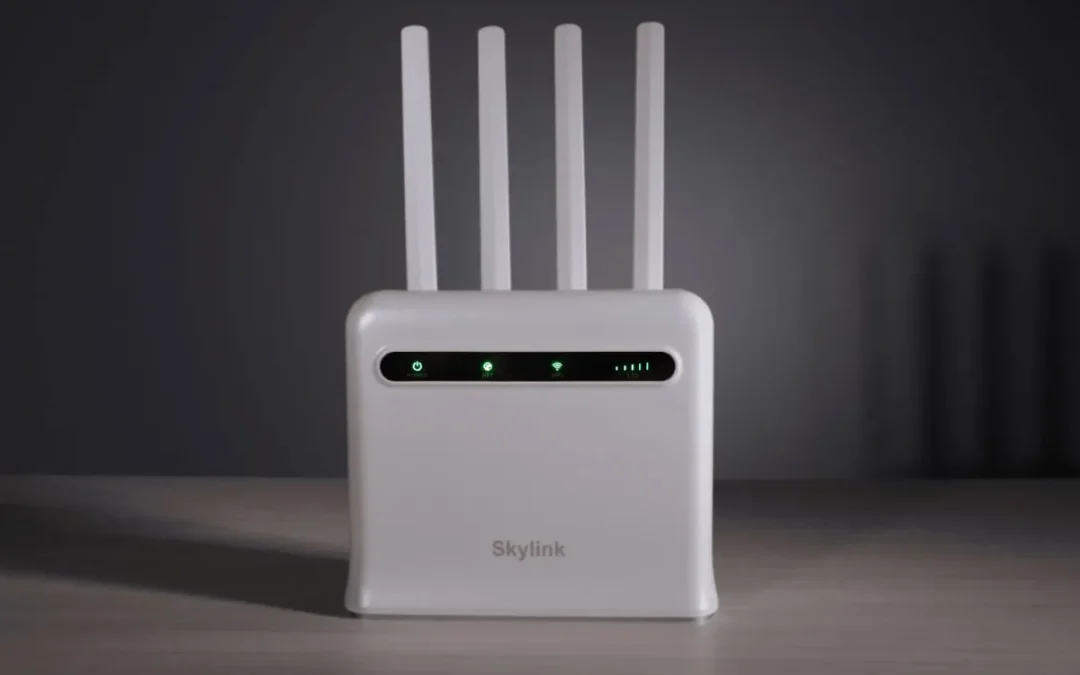
If your internet feels slow, unstable, or unreliable, your router may be the real problem. Many people ask, How do I know if my router needs replacing? The truth is, your internet connection can only be as good as the router running your home network.
At Stay Connect, we help homes and businesses stay connected with reliable router technology designed for modern needs. Whether you are working from home, streaming, gaming, or using smart home devices, your router plays a huge role in your daily life. Knowing when to replace your router can save you time, stress, and money.
This guide breaks down the telltale signs, explains what to look for, and helps you decide when it may be time for an upgrade.
Why Your Router Matters More Than You Think
Think of your router as the traffic controller for your entire home network. It takes the internet connection from your modem and sends it to every device in your home. If the router is outdated, aging, or struggling, everything connected to the internet will feel slow.
An older router may not deliver the internet speeds you are paying for, even if your internet service provider is doing their job. New devices, smart home systems, and newer Wi-Fi standards demand more from your router than ever before.
7 Signs Your Router Needs Replacing
1. Your Internet Is Slow No Matter What You Do
Slow internet speeds are one of the most common signs you need a new router. If you upgraded your internet plan but didn’t see improved performance, your router could be the bottleneck.
A router that does not support the latest Wi-Fi standards may struggle to keep up. This is especially true if multiple home devices are online simultaneously.
Sign to look for
- Slow downloads
- Lag during video calls
- Buffering while streaming
If your router cannot deliver the internet speeds you are paying for, it may be time to upgrade.
2. Your Router Keeps Rebooting or Dropping the Signal
If your router reboots on its own, disconnects often, or stops working until you unplug it, that is a major warning sign.
An aging router may overheat, lose stability, or fail under daily use. Frequent router troubleshooting with no lasting fix usually means it is time to replace your router.
3. WiFi Coverage Is Weak Around Your Home
Does your Wi-Fi work fine near the router but fail as you move farther away? Distance from the router should not cause dead zones in an average-sized home.
An outdated router may not deliver a strong signal throughout your home. Newer wireless router models are designed to give better coverage and more stable performance.
If moving your router does not help, the router itself may be the problem.
4. Your Router Is Old and Outdated
Router technology changes fast. If you are using an older router that is 5 years or older, it may not support new Wi-Fi standards.
Most experts recommend replacing a router every 2 to 3 years for peak performance, or at least every 5 years. If your router does not support WiFi 6, WiFi 6E, or WiFi 7, it may already be behind.
An outdated router can slow down your entire home network.
5. New Devices Struggle to Connect
New phones, laptops, TVs, and smart home devices expect modern router technology. If your router does not support the latest Wi-Fi standards, new devices may disconnect, lag, or fail to connect at all.
This is a clear sign that your router does not meet your home’s needs today.
6. You Are Working From Home and Need Reliability
Working from home puts more pressure on your internet connection. Video meetings, cloud apps, and file uploads require a reliable router.
If your router struggles during work hours, drops calls, or slows down when others are online, it is time to replace it with a reliable router that can handle daily demand.
7. Your Router Is No Longer Supported or Secure
Router security matters more than ever. An unsupported router may stop receiving updates, which puts your home network at risk.
If your router model no longer gets firmware updates, it becomes an easy target for security threats. A new router helps protect your data and ensures safer internet use for every device in your home.
Router vs Modem: Know the Difference
Many people confuse a modem and a router. The modem connects directly to your internet service provider. The router takes that connection and shares it with your home.
Even if your modem works fine, your router may be causing slow speeds or dropped connections. Replacing the router alone can make a big difference.
Should You Repair or Replace Your Router?
Before you replace your router, you can try basic router troubleshooting:
- Restart the router
- Update firmware
- Use an Ethernet cable to test direct speeds
- Move the router to a central location
If these steps do not help, your router is likely the issue. When problems keep coming back, it is time to upgrade your router rather than waste time fixing an old one.
Renting a Router vs Buying Your Own
A router is frequently rented from the ISP (Internet Service Provider). These routers often lack advanced features and may not be the best option for your needs.
Buying a new router gives you:
- Better performance
- More control
- Support for new Wi-Fi standards
- Long-term savings
A router or mesh system designed for your home will consistently outperform basic rental equipment.
How to Choose the Right Router
When it is time to replace your router, look for:
- Support for the latest Wi-Fi standards
- Strong coverage for your entire home
- Ability to handle many devices at once
- Advanced security features
- Reliable performance for work and streaming
Stay Connect offers modern router solutions designed to support today’s connected homes and businesses.
Summary: Know When It’s Time
Knowing when it is time to replace your router helps you avoid frustration and slow internet. If your current router struggles, drops connections, or cannot support new devices, it is time for an upgrade.
At Stay Connect, we believe a strong home network starts with the right router. A modern router means faster speeds, better coverage, and a smoother online experience.
Frequently Asked Questions
How often should routers be replaced?
Most routers should be replaced every two to three years for best performance, or at least every five years.
What is the lifespan of a WiFi router?
The average Wi-Fi router lasts about three to five years before performance drops.
How can you tell when your router is going bad?
Frequent disconnects, slow speeds, and weak coverage are common signs that indicate you need a new router.
Does unplugging a router reset it?
Unplugging restarts the router, but it does not fix deeper hardware or technology limits.
Can an old router slow down my internet?
Yes, an old router can limit internet speeds even if your internet plan is fast.
We Can Help
If you are experiencing slow internet, weak Wi-Fi, or frequent router issues, it may be time to upgrade. Stay Connect provides reliable router solutions and connectivity products designed for homes and businesses.
Visit our shop or contact us today to get expert help choosing the right router for your needs. Call us at (888) 997-6877 and take the first step toward a faster, more reliable internet connection.
Also Read:
How Do I Set Up Wireless Internet? (Easy Home Wi-Fi Network Set Up)
Can Routers Affect Internet Speed? (The Complete Guide for Faster, Stronger Home Wi-Fi)
Where Is the Best Place for Your Router for Faster Internet?
Do I Need Router If I Have WiFi? (A Simple Guide for Your Home Internet)
Will a Better Router Improve WiFi Strength? (How Upgrading Your WiFi Router Can Boost Your Internet Speed)

by Stayconnect Websites | Dec 30, 2025 | Internet & Wi-Fi

Setting up wireless internet at home may sound hard, but it is easier than most people think. With the right steps and a little guidance, you can enjoy fast and reliable internet access in your home or office. At Stay Connect, we help people get connected using trusted 4G and 5G wireless solutions, so they can work, stream, and stay online without stress.
If you are asking, how do I set up wireless internet?, this guide walks you through everything you need to know, from basic equipment to connecting your devices and improving your Wi-Fi signal.
What Is Wireless Internet and How It Works
Wireless internet lets you access the internet without plugging every device into a cable. A wireless router sends a Wi-Fi signal that devices can use to connect to your home network.
Here is how it works:
- Your internet service provider sends internet access to your home
- A modem brings that internet connection inside
- A wireless router shares it as a Wi-Fi network
- Your phone, laptop, or other wireless device connects using a Wi-Fi password
Once set up, the network allows you to connect multiple devices to the internet simultaneously.
What You Need to Set Up Wireless Internet at Home
Before setting up your home Wi-Fi network, make sure you have these basic items ready:
- An active internet connection from an internet provider
- A modem (or modem with an Ethernet cable)
- A wireless router
- An Ethernet cable
- A web browser-equipped laptop or smartphone
Some homes use fiber internet or an optical network, while others rely on 4G or 5G wireless internet. The setup process is similar, but the modem type may vary.
Step-by-Step Guide to Set Up a Home Wi-Fi Network
Step 1: Connect the Modem
Connect the modem to your internet source first. This could be a phone jack, fiber line, or wireless gateway. Once powered on, connect the modem to the router using an Ethernet cable. Plug the cable into the port on the router marked WAN or Internet.
This step helps connect the modem to the router so the network and the internet can work together.
Step 2: Power On and Position Your Router
Turn on the wireless router and place it in a central location. A router in a central location helps broadcast the Wi-Fi signal evenly and improves signal throughout your home.
Don’t place it near metal objects or thick walls. Proper router use and placement can make a big difference in internet speed and wireless signal strength.
Step 3: Access Router Settings Using a Web Browser
On your laptop or mobile device, open a web browser. Enter the default IP address found on the router label. You will then be sent to the router settings page.
To log in, enter your username and default password. This information is also listed on the router.
Step 4: Create a Unique Network Name and Password
Now it is time to set up your Wi-Fi network details:
- Change the default network name to a unique network name
- Create a strong Wi-Fi password
- Save your changes
This step helps protect your network security and keeps others from using your home internet without permission.
Step 5: Connect Your Devices to the Internet
Go to Wi-Fi settings on your phone, laptop, or tablet. Find your new network name, select it, and enter the password.
Once connected, your devices can use the internet wirelessly within your home network.
How to Set Up Wireless Internet Without a Cable Line
Many people now use wireless internet without a cable or phone jack. With 4G and 5G home internet, you can get internet access using a wireless gateway instead of a traditional modem.
This option works well for:
- Home offices
- Rural areas
- Temporary homes
- Businesses that need a fast setup
These networks vary by location, but they offer high-speed internet with easy setup.
Tips to Improve Your Wi-Fi Signal at Home
To get the best Wi-Fi connection, follow these tips:
- Use a router that supports Wi-Fi 6 for better performance
- Keep your router firmware updated
- Position your router in an open space
- Create a guest network for visitors
- Limit interference from nearby devices
A strong Wi-Fi signal helps devices connect faster and stay connected longer.
Setting Up Wireless Internet for Windows 11 Devices
If you are using Windows 11, connecting is simple:
- Click Network Settings
- Select wi-fi
- Choose your network name
- Enter the password
- Start using Wi-Fi
Once connected, your device stays linked unless the network password changes.
Why 4G and 5G Wireless Internet Is a Smart Choice
Wireless internet using 4G and 5G networks offers flexibility and speed. It is ideal for homes that want internet without long installation times.
Benefits include:
- Fast setup
- Reliable internet speed
- Easy to move or relocate
- Works well for home or office use
This type of network at home supports streaming, video calls, and daily work needs.
Common Wireless Internet Setup Mistakes to Avoid
Avoid these common issues during Wi-Fi setup:
- Leaving the default network name
- Using a weak password
- Placing the router in a corner
- Skipping router updates
Taking time to set things up correctly ensures better network security and performance.
FAQs About Setting Up Wireless Internet
What do I need to set up wireless internet in my home?
You need an internet connection, a modem or wireless gateway, a wireless router, and a device to access router settings.
How do you connect to a wireless internet?
Select the Wi-Fi network on your device, enter the Wi-Fi password, and connect.
How to activate wireless Wi-Fi?
Once the router is powered on and connected to the modem, Wi-Fi is active after setting up the router settings.
Can I set up Wi-Fi without a modem?
Yes, with 4G or 5G wireless internet, you can use a wireless gateway instead of a traditional modem.
How long does it take to set up a home Wi-Fi network?
Most setups take 15 to 30 minutes if all equipment is ready.
Final Thoughts on Wireless Internet Setup
Knowing how do I set up wireless internet helps you take control of your home network. With the right steps, you can create a secure and reliable Wi-Fi connection that supports all your devices.
At Stay Connect, we help homes and businesses get connected using modern wireless internet solutions designed for speed, ease, and reliability.
Ready to upgrade your home internet or set up wireless internet the right way? Stay Connect offers trusted 4G and 5G wireless solutions, home internet options, and business connectivity services. We proudly serve multiple service areas and help customers get fast, dependable internet without hassle.
Call (888) 997-6877 today or contact us to explore our internet products and solutions and book your appointment now.
Also Read:
What Are 7 Ways Wireless Internet Connection Saves Money?
Can Routers Affect Internet Speed? (The Complete Guide for Faster, Stronger Home Wi-Fi)
Where Is the Best Place for Your Router for Faster Internet?
by Stayconnect Websites | Dec 26, 2025 | Internet & Wi-Fi
If you ever wonder, ‘Do I need a router if I have WiFi?’ you are not alone. Many homeowners and business owners ask this when setting up their home internet or wireless network for the first time. Stay Connect knows good internet matters. We help people understand their internet gear and choose the right products so they get strong, fast, and reliable internet in every room.
We will explain what a router and modem do, how WiFi works, and whether you really need a router even when you already have WiFi. You will learn the differences between these devices, how they enhance your internet connection, and why Stay Connect offers great options for improving your home network.
What are WiFi, Router, and Modem?
What Is WiFi?
WiFi is a wireless connection that lets your devices communicate with each other and the internet without wires. Your phone, laptop, smart TVs, and tablets use a WiFi signal to connect to your home internet.
What Is a Router?
A router is a device that:
- Takes the internet from your modem
- Creates a WiFi network in your home
- Allows many devices to connect to the internet at the same time
- Gives your home network a local area network (LAN) so devices can talk to each other
Without a router, only a single device can connect to your internet via a wired connection. A router lets many devices connect wirelessly or with an Ethernet cable.
What Is a Modem?
A modem is a device that connects your home to the internet service provider (ISP). It brings the internet to your house. Most ISPs give you a modem that plugs into the wall. The modem then sends the internet to a router.
Modem vs Router: What’s the Difference?
- Modem: connects your home to the internet
- Router: shares the internet with your devices (WiFi or wired)
A modem cannot give WiFi on its own, and a router can’t connect directly to the ISP without a modem. You need both to have a complete wireless internet setup in most cases.
Do I Need a Router If I Have WiFi?
Short answer: Yes, you still need a router even if you have WiFi.
Why?
- WiFi by itself is just a wireless signal your devices use to connect
- That signal must come from a router or a device acting like a router
- The router receives the internet from the modem and broadcasts WiFi
- Without a router, just one device can connect with a wired connection, and you will not have true WiFi
So if someone has told you you have “WiFi,” they usually mean you have a modem-router combo from your ISP or a separate wifi router in your home.
What Happens Without a Router?
If you try to use WiFi without a router:
- You might not get any WiFi signal at all
- Only one device could connect with an Ethernet cable
- Your devices would not be able to talk to each other on a home network
- You could lose access to the internet on phones, tablets, smart TVs, and laptops
For most homes and businesses, a router and modem setup is the best way to get strong, fast internet for all your tech.
Modem and Router Setups You Might See
There are a few different options for your internet equipment:
1. Separate Modem and a Router
You have two devices:
- A modem connected to your ISP
- A router connected to the modem
This is the most common setup for strong WiFi and fast internet speeds. You can choose your own router and upgrade when you need to.
2. Modem and Router Combo
Some ISPs give you a cable modem router combo. This single device:
- Connects to your ISP
- Creates WiFi
- Lets many devices connect
This is simpler but not always the best for big homes or very fast internet speeds.
3. Advanced Router (No Separate Modem)
There are some devices that use cellular or wireless internet without a separate modem. These work like both a modem and a router in one, but they are uncommon in most home internet plans.
Why a Router Matters for Your WiFi
Here is what a router gives you:
- Broadcasts WiFi to every room
- Lets many devices use the internet at the same time
- Provides fast wireless speeds for streaming, video calls, and gaming
- Helps manage internet traffic so nothing slows down
- Works with wired connections via Ethernet ports
Without a router, you often have weak or no WiFi in parts of your home or office.
Common Questions About the Router and WiFi
Can I use Wi-Fi without a router?
No. WiFi must come from a router or modem-router combo. Without a router, you will not have a wireless network for phones, laptops, or smart TVs.
Do I need a router if I have a smart TV?
Yes. To access the internet, a smart TV must be connected to a router by Wi-Fi or Ethernet. The router lets your TV stream shows and connect to apps without wires.
Do I need a modem if I have Wi-Fi?
Yes. A modem connects your home to your ISP and brings the internet to your router. Then the router shares the internet connection via Wi-Fi and wired connections.
What is the difference between a router and a modem?
A modem links your home to the internet. A router shares the internet with all your devices and gives you a home WiFi network.
Can multiple devices connect at once without a router?
Not really. You need a router to connect many devices at the same time, wirelessly or with a LAN Ethernet connector.
Do I need both a modem and a router for internet access?
In most homes, yes. You need both a modem and a wireless router. The internet modem delivers internet from your internet provider, and the router connects your home network so devices can use the internet wirelessly or through wired internet.
How does a router work with my home internet connection?
A router takes signals from your internet service and shares them with your devices. It assigns an IP address, the router creates a local area network, and lets multiple devices to connect at the same time.
Can I connect devices to the internet without a router?
A single device can connect to a wired internet, but a router is needed to share a single internet connection. Routers allow many devices to connect and send data across the network to the internet.
Does a fiber optic or DOCSIS 3.1 cable modem change what I need?
No. Whether you use a fiber optic or a DOCSIS 3.1 cable modem, you still need a router. The modem delivers internet, and the router provides internet access to devices in your home.
What should I look for when buying a router?
When buying a router, look for one that supports fast speeds, strong WiFi coverage, and many devices. Good routers broadcast stable signals, support the fastest wireless speeds, and help you find the right internet options for your home or office.
Final Thoughts
If you want fast wireless internet, smooth streaming, and strong WiFi for all your phones, tablets, laptops, and smart TVs, you do need a router if you have WiFi. A good router creates a wifi network that lets every device in your home access the internet without lag or trouble. Pairing it with the right modem from your internet service provider makes your whole network faster and more stable.
Stay Connect has quality routers and solutions to help you stay connected at home or work. Our products work with many ISPs and help you get the most out of your internet plan.
Ready to power up your home internet and connect every device with fast wireless speeds? Visit Stay Connect to find the perfect routers and modems for your home network and business needs. Our team can help you choose the right router, modem and router setup, or wireless solution for Dallas, Texas, and surrounding areas. Call us at (888) 997-6877 to book your tech support or visit our products page today.
Also Read:
Will a Better Router Improve WiFi Strength? (How Upgrading Your WiFi Router Can Boost Your Internet Speed)
What Are 7 Ways Wireless Internet Connection Saves Money?
How Do 5 Fixes Improve Your Reliable Internet Connection?
by Stayconnect Websites | Dec 12, 2025 | Internet & Wi-Fi
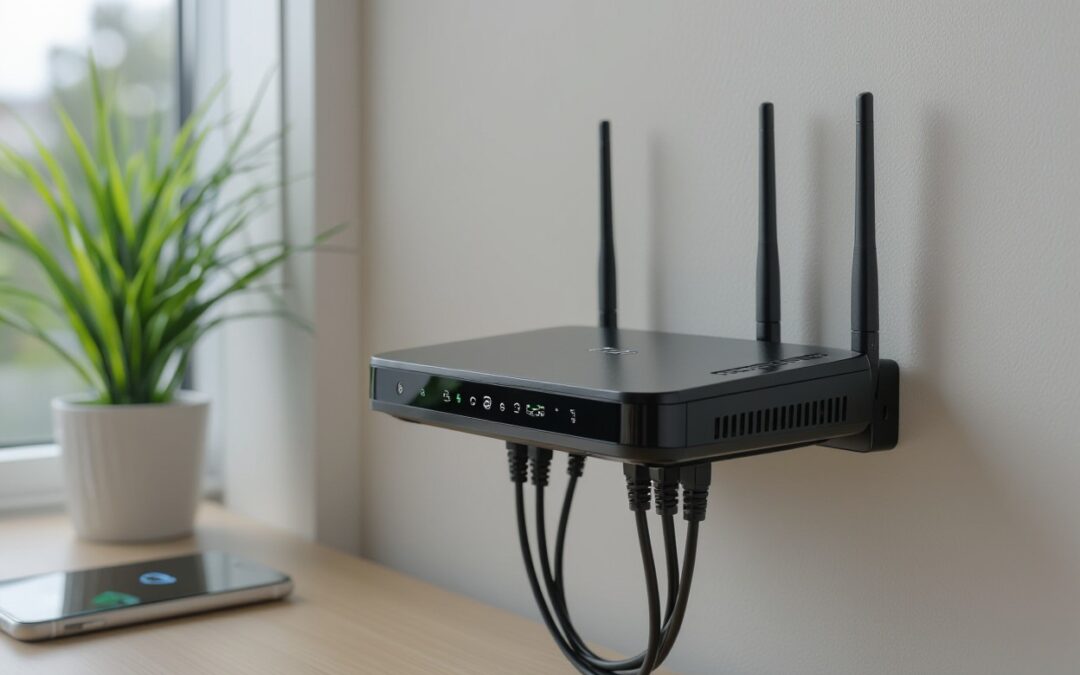
If your WiFi feels slow, shaky, or drops when several devices are connected, a new router might help. At Stay Connect, we know how much better things can get when you use a strong, modern wireless router. A better router can improve WiFi strength, give faster speeds, and make your internet more stable, whether you stream, work from home, game, or run smart home devices.
Let’s look at how a new router can improve performance and when it’s worth the upgrade.
Why Your Present Router Might Be Holding You Back
- Older routers lack the latest wireless tech. Older routers may only support basic WiFi standards. Newer routers, especially WiFi 6 routers, use updated protocols. This means faster internet speed, better handling of many devices, and stronger WiFi signals.
- Limited bandwidth slows down the connection when many devices are connected. If you have several smartphones, smart home devices, laptops, or gaming consoles, the old router can become a bottleneck. You might see slowdowns, buffering, or dropped connections.
- Weak antenna or poor placement reduces WiFi range. If your router has weak antennas or is tucked away in a corner, your WiFi signal might not reach every part of your home or office. This creates dead zones.
- Firmware is outdated or missing features like beamforming or better encryption (like WPA3). Without up-to-date firmware, the router may not manage wireless connections well or secure them properly.
- Old hardware struggles with modern internet plans. If you recently upgraded your internet plan or moved to a faster connection, your older router might not let you enjoy the full speed.
What a Better Router Actually Does
Upgrading to a good wireless router brings several real improvements for your home network:
Faster, More Stable Internet
Modern routers support higher data rates. With a WiFi 6 router or other latest-generation wireless models, you get faster speeds and better performance. That helps with streaming 4K video, video calls, online gaming, and heavy workloads.
Stronger WiFi Signal and Wider Coverage
A newer router often includes better antennas and improved signal management. It can push WiFi signals farther, reduce dead zones, and keep connections stable even when devices are far from the router.
Better Handling of Multiple Devices
If many devices are connected, laptops, phones, smart home gadgets, a newer router manages bandwidth more efficiently. That means less slowdown, less buffering, and fewer dropped connections.
Improved Reliability and Security
Better routers usually support newer encryption standards, like WPA3, and more features. That helps protect your network from hackers and ensures a stable wireless connection.
More Flexibility (mesh WiFi, extender support, Ethernet ports)
Modern routers often support mesh WiFi systems, range extenders, or use Ethernet ports for wired connections. You can extend your WiFi range, connect devices with cables for the fastest speeds, or use a hybrid wired-and-wireless connection.
When Upgrading Makes the Most Sense
You may want to upgrade your WiFi router when:
- Your current WiFi router is several years old and does not support WiFi 5 or WiFi 6.
- Many devices are connected (smartphones, laptops, gaming consoles, smart home devices).
- You experience frequent dead zones or weak signals in parts of your home or office.
- You upgraded your internet plan, but are not achieving the promised speeds due to your router’s limitations.
- You need a more stable internet for work from home, video conferencing, or online gaming.
- You want better security and network protection with modern encryption and firmware updates.
If any of these apply, a newer wireless router may significantly improve your internet connection.
Can a Better Router Increase WiFi Range?
Yes, a better wireless router often improves WiFi range. With stronger antennas, improved signal strength, and features like beamforming, a modern router can deliver WiFi across a larger area. This helps you connect reliably in different rooms, or even upstairs or downstairs.
For larger spaces or multi-floor homes, this improved range often makes a noticeable difference compared to older routing gear.
Is It Worth Upgrading Your WiFi Router?
In many cases, yes, upgrading can be well worth it. If you:
- Use many devices,
- Have slow or unreliable WiFi,
- See speed limits even when your internet plan is fast,
- Experience dropped connections or buffering,
then a new router can significantly improve your experience.
But if your needs are basic (light browsing, email on one or two devices), and you live in a small apartment, the improvement may be less dramatic.
How to Improve WiFi Strength: More Than Just a New Router
Upgrading the router helps, but here are extra steps to get the best signal and speed:
- Place your router in a central location. Keep it away from walls or metal objects, and avoid putting it in a cabinet. This helps WiFi signals spread evenly through your home or office.
- Use a wired connection (Ethernet) when possible. Devices connected via cable often get the fastest, most stable speeds.
- Update router firmware regularly. This can improve performance and security.
- Consider a mesh WiFi system or a WiFi extender if you have dead zones. A mesh system or range extender helps spread coverage across larger spaces.
- Use a WiFi 6 router or newer when possible. New wireless standards deliver better performance and work well with many devices.
- Use band steering or dual-band routers (2.4 GHz + 5 GHz). This lets devices pick the best band for stability vs speed.
- Secure your network with strong encryption (WPA3). This helps protect your home network from unauthorized access and keeps connections stable.
Why Stay Connect Is the Right Partner for You
At Stay Connect, we provide advanced wireless routers, including 4G and 5G models, to deliver a strong WiFi signal, faster speeds, and stable connectivity. Whether you are in a small home, a large house, or a rural area where regular broadband is weak or unavailable, our routers work well. Our team in Allen, Texas will help you find the right solution for your home or office needs, and make setup easy and stress-free.
Frequently Asked Questions (FAQs)
Can a better router increase WiFi range?
Yes. A newer router with stronger antennas, modern wireless standards, and better signal management can push WiFi further and reduce dead zones.
Is it worth upgrading your WiFi router?
If your internet feels slow, you have many connected devices, or you upgraded your internet plan, but your speed didn’t improve, upgrading can be worth it. For basic use in a small space, the gains may be less.
Does a router affect WiFi strength?
Yes. A router’s age, antenna, WiFi standard (e.g. WiFi 6 vs older), and position all affect how strong and stable your signal is.
How to make your WiFi router signal stronger?
You can place the router in a central, open spot, update the firmware, use a new router or a WiFi 6 model, add a mesh system or an extender, or use Ethernet for key devices.
Will a better router improve WiFi strength for gaming and multiple devices?
Yes. A modern router, with dual-band or WiFi 6, good antennas, and bandwidth handling, can support gaming, streaming, smart home devices, and many other connected devices simultaneously, delivering a stable, fast internet connection.
What else besides a router can improve my home network?
Using a mesh WiFi system, WiFi range extender, wired connections for stationary devices, and placing the router properly can all help. Also, secure your network with updated encryption and firmware.
Can a router help extend the range of wireless signals?
Yes, a newer router can help extend the range by boosting WiFi signals and improving coverage. You can also add an access point or a WiFi booster to reach more areas of your home.
How do I know if my connection speed is slow because of the router?
Run a speed test directly through your modem, then compare it with the speed on your WiFi connection. If the numbers drop a lot, the router may be limiting WiFi bandwidth.
What is the best way to troubleshoot weak WiFi signals?
Try moving your WiFi to a central spot, changing the channel, and checking for obstructions around the router. Updating to the latest wireless standards or using mesh WiFi often gives reliable, stable performance.
Final Thoughts
If you want a stronger WiFi signal, faster internet speed, wider coverage, and stable connections for all your devices, a new wireless router can make a big difference. At Stay Connect, we build and offer top-tier 4G/5G and WiFi 6 routers for homes and businesses in Allen, Texas, and beyond.
Reach out to us at (888) 997-6877 or visit our site to explore our router lineup and find the best solution for your home or office. Upgrade your home network today, and enjoy reliable, fast internet for streaming, gaming, working, or smart home devices.
Also Read:
Can Routers Affect Internet Speed? (The Complete Guide for Faster, Stronger Home Wi-Fi)
Where Is the Best Place for Your Router for Faster Internet?
How Do 5 Fixes Improve Your Reliable Internet Connection?

by Stayconnect Websites | Nov 25, 2025 | Internet & Wi-Fi
If you have ever wondered, “Can routers affect internet speed?”, the short answer is yes, they can, and often more than you think. At Stay Connect, we talk to many homeowners and small business owners who deal with slow internet, and most of the time, the router is a big part of the problem. Your router is responsible for connecting all your devices to the internet, so when it falls behind, your whole network slows down.
This guide breaks down how your router can affect your internet connection, the signs your router is slowing things down, and the simplest ways to get faster internet speeds at home.
How Your Router Affects the Speed of Your Internet Connection
Your router plays a big part in the speed of your internet because it handles all the internet traffic moving between your devices and your modem. Even if you have a high-speed internet plan, the wrong router may slow your internet speed without you noticing.
Here’s how it happens:
1. Older Routers Can’t Handle Modern Speeds
Many homes still use an older router that can’t support the maximum speed of today’s plans.
If you upgraded your internet plan but your router doesn’t support higher speeds, you’ll still get slower speeds.
2. Router Placement Can Affect Your Internet
Where you place your router plays a huge role in the speed and reliability of your Wi-Fi.
When your router is hidden behind furniture, in a corner, or inside a cabinet, your signal becomes weak.
For the best results:
- Keep the router in a central area
- Elevate the router
- Move away from the router if there’s heavy interference
- Keep your router in an open space
3. Outdated Technology Can Slow Down Your Internet
Modern routers offer better speed and performance thanks to new technology like:
- Dual-band or tri-band support
- MU-MIMO
- Beamforming
- Wi-Fi 6 routers
An outdated router might be slowing your internet because it can’t distribute the internet connection to many devices at once.
Router or Modem — Which One Affects Speed More?
Your router and modem work together, but they do different jobs.
- The modem links your home to your internet service provider.
- The router distributes that connection to your devices.
A bad modem can also affect internet speed, but in many homes, the router is causing slow internet more often. If your router is connected to your modem using an Ethernet cable, but the router is old or not working well, your speed can get stuck.
Can a Router Increase Internet Speed?
A router doesn’t increase the speed of your internet plan, but a new router or a better router can help you reach the speed of your internet plan more consistently.
If your plan offers fast internet but your router can’t handle it, upgrading to a new router can feel like an increase in speed because now you’re finally reaching what you’re paying for.
You may notice:
- Higher download speed
- Better speed and stability
- Faster internet across devices
- More consistent internet speeds
- Better results when you test your internet speed
Signs Your Router May Be Slowing Down Your Internet
Here are common clues:
- Speed test results aren’t close to your plan
- Wi-Fi becomes weaker in some rooms
- Your connection drops often
- You already upgraded your internet plan, but nothing has changed
- Devices connected to your router load slowly
- You only get fast internet when you use an Ethernet cable
If any of these happen, the router might be slowing your internet.
How to Check If Your Router Is Causing Slow Internet Speeds
1. Run the Speed Test
Use any trusted speed test tool and compare the results with your plan’s maximum speed.
2. Test With Ethernet
Connect your laptop to the modem through an Ethernet cable.
If the wired speed is fast, but the wireless speed is slow, the router is the issue.
3. Restart Your Router
Restarting your router can help it clear old data and restore faster performance.
4. Check If Your Router Is Old
If your router is more than 3–5 years old, it’s likely outdated.
5. Inspect Router Placement
Poor placement can significantly impact your internet.
Always place your router centrally and above the floor.
Tips to Improve Your Internet Speed With Better Router Setup
You do not always need a new router. Try these steps first:
- Keep the router in a central spot
- Make sure your router is elevated
- Keep your router away from thick walls
- Restart your router often
- Limit devices when streaming
- Use an Ethernet cable for gaming or heavy work
- Update your router firmware
- Consider using mesh systems for large homes
These steps can help optimize your internet and improve your internet speed at home.
Upgrading to a New Router: What You Should Look For
When choosing a router to increase the speed of your internet connection, look for:
- Wi-Fi 6 or newer
- Dual or tri-band
- Strong range
- High-speed capabilities
- Quality build
- Support for many devices
Stay Connect offers a range of modern routers designed to handle today’s high-speed internet. You can check out the full list of products on the website under the Products section.
FAQs About Routers and Internet Speed
1. Does upgrading your router improve your internet speed?
Yes, upgrading your router can help you reach your plan’s full speed, especially if your old router can’t handle faster internet speeds.
2. Can modems affect internet speed too?
Yes. If your modem is outdated, it can slow down your internet. But in many cases, the router has a greater impact on speed.
3. How do I know if my router is outdated?
If it is more than 3–5 years old, struggles with multiple devices, or frequently drops your connection, it may be outdated.
4. Why is my Wi-Fi slower than wired internet?
Wired connections use direct cables, while wireless connections lose speed due to distance, walls, and interference.
5. Where should I place my router for the best signal?
Place your router centrally, high up, and in an open area to get stronger coverage and better speeds.
6. Can too many devices connected to my router slow my internet?
Yes. When many devices share the same bandwidth, speeds slow down.
7. What router features help improve speed and performance?
Look for Wi-Fi 6, beamforming, multiple antennas, and multi-band support.
Final Thoughts: Can Routers Affect Internet Speed?
Yes , your router can significantly impact your internet, either by slowing things down or by helping you reach faster, more consistent internet speeds. A modern router can make a big difference in speed, stability, and day-to-day performance.
Stay Connect offers high-quality routers and networking tools that help homes and small businesses get the best experience possible. If you want fast internet without the usual problems, the right router setup is the first step.
Ready for faster, more stable internet? Visit Stay Connect today or call us at (888) 997-6877 to explore modern routers, mesh systems, and network solutions that can improve your internet speed. Our team proudly serves customers nationwide and offers products that help you enjoy better speed, stronger connections, and smoother online use.
Book an appointment or shop now at Stay Connect, your trusted provider for smart, reliable home internet solutions.
Also Read:
Why Is 5G Global Connectivity a Game-Changer Today?
What Is Airconnect and How Does It Work with AirPlay and Chromecast?
Where Is the Best Place for Your Router for Faster Internet?

by Stayconnect Websites | Nov 24, 2025 | Internet & Wi-Fi

If you’ve ever wanted to use AirPlay to stream to your favorite Chromecast devices, you’ve probably heard about AirConnect. It’s a smart, lightweight bridge that connects your Apple devices with non-AirPlay speakers, like Sonos or Chromecast. At Stay Connect, we aim to help users around the world set up their routers and streaming devices so AirConnect works perfectly on any network.
In this AirConnect installation guide, we’ll walk you through setting it up, configuring it with your router or Synology NAS, and fixing common connection issues so you can enjoy seamless streaming across all your devices.
What Is AirConnect and Why You Should Use It
AirConnect is an open-source tool designed to bridge AirPlay and UPnP/DLNA devices. It basically lets you stream your iTunes, Apple Music, or other media apps to devices that generally don’t support AirPlay like your Chromecast players, Sonos systems, or even Bose SoundTouch speakers.
You can think of it as a translator that converts AirPlay signals into a format your non-Apple devices understand. Once installed, your speakers or streamers will appear as an AirPlay player on your network.
Benefits of Using AirConnect
- Stream from iOS or macOS easily without buying new speakers
- Connect multiple rooms or players for synchronized playback
- Reduce latency and buffering with proper router setup
- Works with FLAC, MP3, and other high-quality audio formats
- Compatible with Synology NAS, Docker, and various Linux systems
How to Prepare for AirConnect Installation
Before starting the installation, make sure you have:
- A stable router with UPnP enabled
- A local network where your devices can detect each other
- Access to your Synology NAS or Docker setup if you’re installing through DSM
- Basic knowledge of your device’s IP address and port configuration
- Audio devices (Sonos, Chromecast, Bose, etc.) connected to the same Wi-Fi
If your router’s firewall is too strict, you may need to open specific ports for AirConnect to work properly. Always make sure your firmware and router settings are up to date before you begin.
Step-by-Step AirConnect Installation Guide
Follow these simple steps to get AirConnect running smoothly.
Step 1: Download AirConnect
Visit the official GitHub repository for AirConnect. Download the right binary version based on your system architecture:
- x86, x86_64 for most PCs or NAS devices
- ARM/aarch64 for Raspberry Pi or similar systems
- PowerPC for older setups
Once downloaded, unzip the file to a directory or location that you can readily access.
Step 2: Configure the AirConnect Settings
AirConnect uses a simple configuration file (config.xml). You can open and edit it using a text editor. Adjust the following parameters:
- HTTP latency – helps reduce audio delay
- Buffer – controls stream smoothness
- Metadata – syncs song info with your player
- RTP/Port – make sure your port doesn’t conflict with other streaming apps
Save the changes and close the file.
Step 3: Start the Service
Run the AirConnect binary using the command line or terminal. Example:
./airupnp -z
You may also use the –noflush or –f parameter for advanced setup.
Once started, AirConnect will scan your local network for compatible devices. Your Sonos, Chromecast, or Bose systems should now appear as AirPlay players.
Step 4: Configure Router and Firewall Settings
If your stream is lagging or not appearing, check your router settings:
- Make sure UPnP is turned on
- Allow multicast traffic for device discovery
- Disable strict firewall blocks on AirConnect ports
- Set static IP addresses for stability
These small tweaks can dramatically improve synchronization and reduce latency when using AirPlay.
Step 5: Troubleshooting Common Issues
If something goes wrong, here’s what to check:
IssuePossible CauseQuick Fix
Devices not appearing Multicast disabled Enable UPnP on router
Stream lag or delay Buffer too small Increase buffer value in config file
Playback stops randomly Router firewall too strict Add AirConnect to firewall exception list
AirPlay player missing Wrong binary version Download the right version from GitHub
Sonos group not syncing Volume config issue Use the Sonos application to change individual volumes
If you’re using Synology DSM, restart the package through the Synology Package Center. For Docker, run docker restart airconnect to relaunch.
Advanced AirConnect Setup on Synology NAS
For Synology users, AirConnect can run as a Synology package or through Docker.
- Open Docker on DSM
- Pull the latest AirConnect image from the repository
- Map the correct ports and volume directories
- Configure startup commands in the container settings
This setup is more stable and ideal for 24/7 streaming across multiple devices. It also supports automatic startup when your NAS reboots.
Why Router Configuration Matters
Your router is the heart of your AirConnect network. A good router ensures:
- Fast device detection for Sonos and Chromecast
- Low latency for smoother AirPlay playback
- Reliable multicast performance for synchronisation
- Secure streaming through controlled ports
At Stay Connect, our routers are designed for seamless connectivity—perfect for both home and professional streaming setups.
FAQs About AirConnect Installation and Streaming
1. Can I use AirConnect with any Chromecast device?
Yes, as long as your Chromecast and Apple devices are on the same Wi-Fi network, AirConnect will let you stream easily.
2. What if my AirPlay stream has a delay or lag?
You can lower latency by adjusting the buffer and HTTP latency parameters in the configuration file.
3. How do I install AirConnect on Synology NAS?
Use Docker or the Synology package from the GitHub repository. It’s simple and stable for continuous streaming.
4. Why can’t I see my Sonos speaker on AirPlay?
Make sure you use the Sonos application to change individual volumes and reset all volumes if needed. Also, confirm that multicast is enabled on your router.
5. Do I need to open ports on my firewall?
Yes, AirConnect needs open RTP ports for audio streaming. Always check your router’s firewall rules to avoid blocked traffic.
6. What file formats can AirConnect play?
It supports MP3, FLAC, and many others. You can also configure playback quality in the settings.
7. How do I restart AirConnect if it crashes?
Simply restart it using the command line (./airupnp -z) or reboot your Docker container or Synology package.
8. Do I need to install AirConnect manually for new AirPlay devices?
In most cases, you don’t need to reinstall it. Once AirConnect is running, new AirPlay devices will automatically appear under your network’s default settings and group list.
Final Thoughts
Setting up AirConnect might sound complex, but with the right router and configuration, it’s easier than you think. Whether you’re using Chromecast devices, Sonos speakers, or a Synology NAS, this guide should help you stream flawlessly across all platforms.
At Stay Connect, we offer high-quality routers and reliable connectivity solutions designed for smooth streaming and network stability. If you’re ready to upgrade your home or office setup, our team can help configure your AirConnect system for optimal performance.
Your Next Step
Stay Connect proudly serves customers worldwide, offering advanced routers, streaming setup assistance, and network optimization services for homes and businesses. For a faster internet connection, avail our routers today!
Also Read:
What Are 7 Ways Wireless Internet Connection Saves Money?
What Is Airconnect and How Does It Work with AirPlay and Chromecast?
Where Is the Best Place for Your Router for Faster Internet?

by Stayconnect Websites | Sep 16, 2025 | Uncategorized

When it comes to streaming audio from different platforms, Airconnect is a reliable solution that bridges the gap between devices that don’t normally talk to each other. It lets Chromecast devices, Sonos speakers, and UPnP clients appear as AirPlay receivers, making it simple to stream music from your iPhone, iPad, or other Apple devices. At Stay Connect, we believe setting up audio should be easy, whether you’re using it at home, at work, or on the go.
Understanding Airconnect: The Bridge for Seamless Streaming
At its heart, Airconnect delivers a way to enable smooth audio streaming across platforms. Think of it as a bridge—your Chromecast devices and Sonos speakers appear as AirPlay output devices, letting you start streaming instantly. This is especially helpful if you want to use AirPlay on platforms that don’t support it by default.
The app is lightweight, runs quietly in the background, and doesn’t require heavy maintenance. Once installed, your speakers or devices will appear as AirPlay audio receivers, and you can select them from your iPhone, iPad, or even a browser. Many users enjoy how flexible it is—you can stream to multiple speakers, adjust volume in real time, or fine-tune latency to avoid delays.
AirConnect Installation Guide: How to Get Started
If you’re ready to try it out, this AirConnect installation guide breaks things down step by step:
- Download the package – Head to GitHub, where developer philippe44 maintains the repository. Look under “release” to find the right binary for your platform (x86, arm64, aarch64, Raspberry Pi, Synology, or iOS).
- Unpack the container – Place the folders and files in a dedicated directory. This makes it easier to manage repository file navigation later.
- Config the setup – Create or edit a config file to set variables such as IP, output device, or volume. These adjustments help with HTTP latency, RTP, and custom configuration for real-time output.
- Install via Docker – Many users prefer a Docker container because it keeps the server always running. You’ll need to install Docker, run the startup script, and make sure the app restarts automatically.
- Verify the log – Once it’s up, check the log to ensure your devices have appeared as AirPlay receivers. This confirms that the server and client communication are working.
- Start streaming – Open your iPhone or iPad, select your Sonos or Chromecast devices that now appear as AirPlay, and start streaming audio in real time.
Pro tip: If you want smoother performance, keep your folders and files organized, restart occasionally, and check the latest commit on GitHub for updates.
Why Use Airconnect with AirPlay and Chromecast?
There are plenty of reasons people are switching to using Airconnect in their streaming setup:
- Cross-Platform Freedom – It enables Chromecast and UPnP clients to appear as AirPlay receivers, making it easy to stream across multiple devices.
- Custom Control – Adjust latency, manage volume, or configure output devices with variables in your config file. You can even change default settings to match your setup.
- Multiple Platforms – Works smoothly across iOS, Synology, Raspberry Pi, and Docker. Whether you use an iPhone, iPad, or server, it adapts easily.
- Always Running – A Docker container allows Airconnect to stay online without manual restarts. Perfect for users who want it running in the background at all times.
- Low Maintenance – With binary updates, realtime improvements, and ongoing maintenance, the project stays current without requiring constant input from you.
In short, Airconnect delivers a consistent way to start streaming from Apple devices to speakers that normally wouldn’t support AirPlay audio.
Advanced Features You’ll Appreciate
What makes this app even more interesting is its flexibility.
- Real-Time Adjustments: Fine-tune http latency, rtp transmission, or realtime output using simple commands like -z, -l, or -x.
- Docker Integration: By running in a Docker container, you can keep it always running, reduce downtime, and simplify maintenance.
- Custom Configuration: Modify your startup script, change output devices, or set directory paths for folders and files. Great for advanced users.
- Wide Device Support: From Sonos to Chromecast and UPnP clients, your devices appear as AirPlay without extra effort.
- Developer Support: With repository files navigation, ongoing updates, and the latest release from GitHub, it stays well-maintained.
Conclusion
At the end of the day, Airconnect is one of the easiest ways to link AirPlay audio with devices like Chromecast and UPnP speakers. It bridges the gap between Apple devices and other platforms, giving you flexibility, real-time streaming, and consistent performance. At Stay Connect, we’re here to help you set up, configure, and make the most of your devices, ensuring your audio streaming is as smooth as possible.
FAQs
1. What is AirConnect?
It’s a lightweight app that makes non-AirPlay devices, such as Chromecast or Sonos, appear as AirPlay receivers, allowing you to stream from Apple devices.
2. Is AirConnect free?
Yes, it’s open source and free to download from GitHub. You just need to install it on your platform.
3. Is AirConnect legit?
Yes, it’s a reliable project maintained by a trusted developer. Thousands of people use it worldwide.
4. Is AirConnect safe?
It’s safe to use when downloaded from the official GitHub repository. Avoid third-party sources.
5. How do I install AirConnect?
Follow the installation guide: download the package, unpack, config the files, and run it through Docker or directly on your server.
6. Can I run AirConnect on Raspberry Pi or Synology?
Yes, binaries exist for Raspberry Pi, Synology, and other platforms, making it very flexible.
7. Does AirConnect support multiple output devices?
Yes, you can stream to multiple speakers, manage latency, and control volume in real time.
8. How do I update AirConnect?
Check the latest commit and release on GitHub for updates. Replace the binary or update your Docker container for the latest version.
Get Smooth Streaming with StayConnect
If you’re ready to enjoy smooth audio streaming with AirConnect, you’ll get the best results when paired with a reliable router. At StayConnect, we design powerful 4G and 5G routers that keep you online no matter where you are—at home, in the office, or even in rural areas.
Our lineup includes:
- StayConnect™ BEC AirConnect® 8355P 5G CPE – A weatherproof, WiFi 6–equipped router built for both indoor and outdoor use with lightning-fast speeds.
- Skylink X1271 Velox Router – A portable solution perfect for remote work, gaming, and streaming in hard-to-reach areas.
- StayConnect™ MR X62 Router – A future-ready router with blazing 5G speeds, WiFi 6, and advanced features like mesh networking and VPN support.
Each router is designed for speed, stability, and simple setup—so you can focus on streaming, working, or relaxing without worrying about your connection.
Call us today at (888) 997-6877, visit us at 28 Prestige Cir, Ste 1120, Allen, TX 75002, or explore our products online at StayConnect. Let us help you find the perfect router to keep you connected anytime, anywhere.
Also Read:
Where Is the Best Place for Your Router for Faster Internet?
How Does Hassle-Free Internet Boost Your Productivity?
Why Is 5G Global Connectivity a Game-Changer Today?
by Stayconnect Websites | Aug 26, 2025 | Internet & Wi-Fi
In today’s interconnected world, a fast and reliable internet connection is no longer a luxury—it’s a necessity. Whether you’re streaming 4K video, participating in a crucial video conference, or battling it out in an online game, a strong and consistent Wi-Fi signal is essential. At Stay Connect, we know that even the best internet service can feel slow if your home network isn’t optimized. You see, the placement of your router is one of the most critical, yet often overlooked, factors that directly impact your signal reach and overall performance. A simple move can make a world of difference, improving latency, boosting throughput, and ensuring you get the most out of your connection. This guide will walk you through the key principles of router placement to help you achieve faster internet and a seamless online experience.
The Impact of Router Placement on Internet Speed
Placing your router in a central, elevated spot often fixes slow zones: moving from a corner basement to a first-floor hallway can boost usable throughput by 30–50% upstairs. Solid barriers matter—two interior walls typically cut wireless throughput significantly, while concrete or metal can completely wipe out most of the signal. Positioning also affects latency and packet loss, so minor adjustments or angling antennas toward main living areas can deliver noticeably faster internet for streaming and gaming.
How Distance Affects Signal Strength
Signal drops with distance and frequency: 5 GHz offers higher throughput but a reliable range of about 30–50 feet (9–15 m) indoors, while 2.4 GHz can reach 100–150 feet (30–45 m) with lower top speeds. Throughput can halve with each few obstacles—two walls may reduce speed by 30–50%. You can map changes by running an internet speed test in different rooms, then place devices or extenders where speeds stay within 20% of your router’s peak.
Interference: The Silent Speed Thief
Other electronics and neighboring networks can steal bandwidth: microwaves, Bluetooth speakers, cordless phones and baby monitors all operate near 2.4 GHz, causing retries and latency spikes that lower throughput. Overlapping Wi‑Fi channels from nearby apartments create contention; choosing less crowded bands and enabling 5 GHz for bandwidth‑hungry devices often yields faster internet in busy environments.
Mitigate interference by switching to a non-overlapping channel, such as 1, 6, or 11, using the 20/40/80 MHz channel widths wisely, and enabling beamforming or band steering if your router supports these features. Place the router away from kitchens, metal cabinets, and large aquariums; elevate it and orient antennas toward device clusters. For stubborn dead zones, add a mesh node with wired Backhaul or a wired Ethernet run to preserve speed and reduce wireless congestion.
Ideal Locations for Your Router
Place your router near the geometric center of your living area—not in closets or against exterior walls—to minimize the average distance to devices and reduce through-wall losses. Open placement on a shelf or table reduces reflections from furniture and metal appliances, helping deliver faster internet to multiple rooms for streaming, gaming, and video calls.
Central Positioning: Why It Matters
Centering your router lowers the maximum distance any device must reach, often improving signal strength by several dB; place it within 10–20 feet of main usage zones and away from concrete or brick barriers. You can pair central placement with a mesh node in long layouts, and an internet speed test after moving confirms real gains in real-world throughput and latency.
Elevation: The Benefits of Height
Mounting your router higher—on a shelf or wall bracket—improves line of sight and reduces floor-level obstructions, often boosting 5 GHz coverage by 10–30%. Point antennas vertically for even horizontal spread. Higher placement helps you reach upper rooms and reduces interference from large furniture, improving your chance of faster internet for devices across the home.
In multi-story homes, locate the router on the upper floor near the center to serve both levels; in single-level apartments, ceiling or high-wall mounts near living spaces work best. Keep a 1–2 meter clearance from mirrors, large metal objects, and water tanks that reflect signals. For mixed use, use 5 GHz for nearby high-bandwidth devices and 2.4 GHz to cover farther rooms, or add mesh satellites to eliminate persistent dead zones.
Environmental Considerations for Optimal Connectivity
Interference from household electronics, metal studs, and large water bodies can reduce throughput and latency, so it’s essential to scan rooms for sources such as microwave ovens, cordless phones, and fluorescent lights. Place the router away from dense wiring and reflective surfaces; heat and humidity also stress hardware and can lower sustained throughput. Minor tweaks here can yield noticeably faster internet without buying new gear.
Walls and Obstacles: The Signal Blockers
Dense materials—such as concrete, brick, and metal—absorb and reflect radio waves. Heavy concrete walls often reduce signal by 10–20 dB, while metal studs or foil-backed insulation create deep nulls. You’ll get better range on 2.4 GHz indoors, while 5 GHz offers higher throughput but roughly half the wall penetration. Fish tanks, mirrors, and refrigerators act like mini barriers, so avoid placing the router behind or beside them to preserve faster internet performance.
Room Layout: Designing for Signal Flow
Centering the router in an open area, approximately 1.5–2 meters high, reduces obstructions and ensures even coverage; corners and low cabinets trap RF signals and create dead zones. Position antennas vertically for horizontal device coverage, and add a mesh node every 10–15 meters in large homes or where walls block sightlines. These placement moves often translate into a measurable boost in faster internet for multiple devices.
For denser layouts, run wired Backhaul between the primary router and satellite nodes to avoid halving wireless throughput. Place nodes near stairwells or open hallways to exploit vertical signal paths. Angle directional antennas toward high-use rooms, keep units off the floor, and test changes with one internet speed test after each adjustment to confirm real-world gains.
Advanced Strategies for Enhancing Router Efficiency
Apply targeted tweaks—keep firmware updated, enable QoS to prioritize video and gaming, disable legacy 802.11b modes, and utilize beamforming to focus the signal where devices are located. Move bandwidth-hungry gadgets to 5 GHz or 6 GHz for a 2–3× throughput boost at close range. Set wired Backhaul for nodes and separate SSIDs for IoT. After each change, benchmark performance to confirm measurable improvements in faster internet.
- Keep firmware and drivers current; enable security patches.
- Use QoS to prioritize conferencing and streaming traffic.
- Deploy wired backhaul for mesh or multiple APs.
- Enable MU‑MIMO and beamforming for dense device loads.
- Choose non-overlapping 2.4 GHz channels (1,6,11) and wider 5 GHz channels.
- Limit guest and IoT bandwidth with VLANs or separate SSIDs.
Quick Strategy Breakdown
| Strategy |
Why it helps / How to implement |
| Wired Backhaul |
Removes wireless hop penalties; connect APs with Ethernet for full throughput. |
| QoS Rules |
Prioritizes latency-sensitive apps (VoIP, gaming); set by device or application. |
| Band Steering |
Automatically moves capable devices to 5/6 GHz for higher throughput. |
| Channel Width Management |
Use 20/40 MHz on 2.4 GHz, 80–160 MHz on 5/6 GHz where interference is low. |
Utilizing Multiple Access Points
Install additional APs or mesh nodes with wired Ethernet backhaul to eliminate coverage gaps and reduce client contention. For homes over ~1,500 ft² or multi-story layouts, aim for one AP per floor or spacing of about 30–50 feet in dense areas; office deployments need closer spacing. Configure the same SSID with band steering so devices roam smoothly, then run an internet speed test once to confirm the faster internet speed.
Adjusting Frequency Bands for Performance
Shift heavy-use devices to 5 GHz or 6 GHz to lower latency and increase peak throughput. 5 GHz supports wider channels (20–160 MHz), and 6 GHz (Wi-Fi 6E) adds clean spectrum for compatible clients. Keep low-bandwidth sensors on 2.4 GHz and use channels 1, 6, 11 to avoid overlap; these adjustments often yield noticeably faster internet for streaming and gaming.
Balance channel width against interference: use 20 MHz on 2.4 GHz to reduce collisions, 40–80 MHz on 5 GHz for most homes, and reserve 160 MHz for single-room, high-demand setups, as it halves the available non-overlapping channels. Watch for DFS channels on 5 GHz that can provide extra spectrum but may trigger temporary channel moves due to radar detection. Test after changes and monitor device compatibility—many older devices won’t support 160 MHz or 6 GHz, so staged rollouts work best.
Common Misconceptions About Router Placement
The Myth of the Corner Position
Placing your router in a corner often reduces coverage rather than improving it; walls, furniture, and reinforced concrete can cut signal strength by 3–10 dB each, and push the 5 GHz signal down to -80 dBm, where streaming stalls. A central, elevated spot allows signals to radiate evenly, so 2.4 GHz reaches distant rooms while 5 GHz serves nearby devices. For faster internet, prioritize line-of-sight and open space over hiding the router behind a shelf.
Wireless Extenders: Help or Hindrance?
Range extenders can patch dead zones but commonly halve bandwidth on the repeated band because a single-radio repeater must receive and resend packets, turning a 200 Mbps link into roughly 100 Mbps for clients behind it. You may also be forced to jump SSIDs and see higher latency. Run an internet speed test after adding an extender; if results fall, consider mesh or wired access points to regain consistent, faster internet.
Place an extender about halfway to the dead zone where it still reads -60 to -67 dBm from your router; any weaker and the extender repeats a poor signal. Choose dual-band units that dedicate one band to Backhaul, or use Ethernet/powerline backhaul to preserve throughput — wired links can sustain gigabit plans. For homes over ~2,500 sq ft or with numerous brick walls, a mesh Wi-Fi system provides smoother coverage and supports faster internet throughout the entire house.
Wrapping Things Up
Optimizing your home network for faster internet is a journey of small, strategic steps. The single most impactful change you can make is to rethink your router’s placement. Put it high and central, away from thick walls and electronics, to give your signal the best possible path. For a large home, consider a mesh system or wired Backhaul to eliminate dead zones and ensure seamless connectivity. At Stay Connect, we provide not just a connection, but a comprehensive solution designed to keep you online without interruption. Our advanced Fixed Wireless Internet and fiber-based services are built for reliability, and by combining them with smart placement, you can unlock their full potential. Run a final internet speed test after making these changes to see the gains for yourself—small moves can lead to a noticeably faster and more stable experience, a core promise of the Stay Connect experience.
FAQ
Q: Where is the best place in my home to put the router?
A: Put the router in a central, open spot near the main area where you use devices. Place it high on a shelf or wall, not inside a cabinet or on the floor. Keep it away from thick walls, large metal objects, mirrors, and appliances such as microwaves or cordless phones that can cause interference. A central location provides more even coverage, helping to deliver better Wi-Fi throughout the rooms.
Q: Should I put the router near windows or near the modem?
A: Keep the router close to the modem so cables stay short, but move the pair toward the center of the home if possible. Avoid placing the router right next to windows; the signal can leak outside and lose strength indoors. If your modem is in a corner, use a short Ethernet cable to place the router in a better spot. Select a location that strikes a balance between proximity to the modem and the devices you use most frequently.
Q: Is wired or wireless better for faster internet, and how can I check?
A: Wired Ethernet gives the most stable and highest real-world speeds for gaming, streaming, and work. Use a CAT5e or CAT6 cable for full gigabit performance. If running cables is hard, consider powerline adapters or a mesh system with wired Backhaul. To see actual performance, run an internet speed test from both a wired device and a Wi-Fi device to compare the results.
Q: Do router settings and interference affect speed?
A: Yes. Update router firmware, pick the less crowded channel (use 2.4 GHz for range, 5 GHz for higher local speed), enable QoS to prioritize video or calls, and set strong security (WPA2/WPA3). Place the router away from other wireless devices and Bluetooth gadgets to reduce interference. Proper settings and less interference help you get faster internet and more reliable connections.
Q: Should I upgrade my router or add extenders or mesh to get better coverage?
A: If your router is old, upgrading to a modern model (Wi‑Fi 5, Wi‑Fi 6, or Wi‑Fi 6E) can improve range and support more devices. For large or multi-floor homes, a mesh Wi-Fi system provides a consistent signal by using multiple access points. Extenders can help, but may halve wireless bandwidth on the extended link. Consider dual-band or tri-band gear and wired Backhaul for higher speeds and less congestion to achieve faster internet across the house.
Is your current internet setup not delivering the speed and reliability you need, no matter where you place your router? It might be time to upgrade your service. At Stay Connect, we specialize in providing cutting-edge internet solutions designed for peak performance. Whether you’re in the city or a rural area, our Fixed Wireless Internet and fiber-based solutions are engineered to bypass common signal issues and deliver a robust connection directly to your home or business.
Contact us today or visit our website to discover our range of solutions and find a plan that’s right for you. With Stay Connect, you can finally get the faster internet you deserve.
How Does Hassle-Free Internet Boost Your Productivity?
Stay Connected: Your Guide to Understanding Wireless Internet
What Are 7 Ways Wireless Internet Connection Saves Money?

by Stayconnect Websites | Aug 20, 2025 | Productivity
Simply switching to a hassle-free internet connection allows you to focus on work, reduces downtime, and speeds up uploads, downloads, and video calls, enabling you to meet deadlines with less stress. At Stay Connect, we believe that when your home internet is fast, secure, and reliable—using a good router, mesh Wi-Fi, or ISP with QoS—you can share files, run cloud apps, and join meetings smoothly, which keeps your workflow steady and your day more productive.

The Time Sink: Identifying Internet-Related Productivity Pitfalls
The Cost of Interruptions and Downtime
Every outage steals minutes that multiply into real cost: a one-hour outage for a 10-person team earning $30/hour equals roughly $300 in lost labor, and repeated 5–10 minute drops fragment focus across the day. You suffer missed deadlines and extra catch-up time after interrupted video calls, while cloud syncs and automated backups fail silently, forcing manual fixes that pull you away from higher-value work.
How Slow Speeds Stifle Efforts
Slow connections turn simple tasks into time sinks: video conferencing often needs 1–3 Mbps per participant for stable calls, while HD streams require 3–5 Mbps; large uploads are painful—a 1 GB file on a 10 Mbps line takes about 13 minutes—so you end up waiting, retrying, or lowering quality, which breaks momentum and increases context switching.
To make your home setup feel hassle-free, run regular speed tests and compare the results to your plan. Use wired Ethernet for critical work, enable QoS on routers to prioritize meetings, and consider upgrading to 100+ Mbps if your house internet supports multiple remote workers and smart devices; these steps can reduce file transfer times and cut meeting drop rates dramatically.
Seamless Connectivity: The Backbone of Modern Workflows
Seamless connectivity stops tiny disruptions from derailing your work: UC Irvine research shows you can lose about 23 minutes after an interruption, so a hassle-free internet setup in your house internet environment preserves focus. Aim for consistent speeds (20–50 Mbps per active user) and latency under 50 ms for real-time tools. Using wired Ethernet, a modern router, and mesh Wi‑Fi where needed cuts reconnection time and keeps your task flow steady.
How Reliable Internet Elevates Collaboration
Reliable connections let your team edit shared docs, run video reviews, and co-design without back-and-forth delays; 99.9% uptime and packet loss below 1% mean fewer dropped calls and real-time sync. You’ll save time on repeated uploads and manual merges. Zoom and Google Meet recommend 3–4 Mbps for HD group calls, so providing each collaborator with that headroom in your home internet plan prevents bottlenecks and keeps decisions moving.
The Role of Fast Access in Real-Time Decision-Making
Fast throughput and low latency let you act on live dashboards, approve creative assets, or resolve outages instantly: under 50 ms latency produces snappy API queries, while 50+ Mbps keeps large files opening in seconds rather than minutes. A hassle-free internet link reduces waiting margins, so you can iterate during calls and finalize choices without scheduling extra follow-ups.
In practice, you can shave minutes—or hours—off workflows by upgrading access: switching from a shared 100 Mbps DSL to a 1 Gbps fiber line can cut a 5 GB upload from roughly 10 minutes to about 40 seconds, letting you send large mockups or databases during meetings. Use wired gigabit for critical stations, enable QoS to prioritize conferencing and cloud apps, and add local caching or a CDN for frequent large assets. Measuring ping and jitter (keep ping <50 ms and jitter low) helps you verify that your house internet and overall setup truly support real-time business decisions.

The Psychological Boost: A Stress-Free Online Experience
Reliable, hassle-free internet lets you keep momentum instead of firefighting interruptions; if you lose 10 minutes to reconnecting during each of five daily meetings, that’s nearly an hour lost every workday. Stable house internet reduces context switching and decision fatigue, so you make clearer choices, finish tasks faster, and feel less drained by the end of the day—small fixes like upgrading your router or prioritizing traffic can turn fragmented work into steady progress.
The Connection Between Internet Reliability and Mental Clarity
Consistent connection quality lowers cognitive load because you spend less time monitoring performance and more on deep work; a provider SLA moving from 95% to 99.9% uptime cuts potential monthly downtime from roughly 36 hours to about 43 minutes, freeing hours otherwise spent troubleshooting. You notice faster page loads, fewer stalled uploads, and smoother collaboration tools, all of which let your attention stay on the task rather than on the tech.
Minimizing Frustration: The Emotional Benefits of Hassle-Free Browsing
Fewer dropped calls and faster page responses directly reduce stress markers you feel during the day. Repeated buffering or failed file transfers spike annoyance and slow creativity. For example, removing just two reconnection events per workday can save 20–30 minutes and curb the frustration that leads to task avoidance, so you approach work with steadier focus and less emotional overhead.
Practical steps amplify those emotional gains: switch critical devices to wired Ethernet for consistent throughput, use a mesh Wi‑Fi system to eliminate dead zones in a large house internet setup, and enable QoS to prioritize video conferencing. Small investments—a $100 mesh node or a $30 gigabit switch—often repay themselves within weeks through reclaimed time and calmer, more productive workdays.
Empowering Tools: Leveraging Technology for Limitless Potential
You unlock faster workflows when hassle-free internet powers your tools, turning your house internet into a productivity backbone. Cloud apps, remote desktops, and large file transfers run smoothly at 100+ Mbps, letting you sync projects, back up data, and join HD calls without stalls. Teams report fewer delays in handoffs when connections are stable, so you can focus on work instead of waiting for uploads or reconnecting during meetings.
Productivity Apps That Thrive on High-Speed Internet
Apps like Google Workspace, Microsoft 365, Notion, and Figma rely on fast networks; Google Docs syncs edits across users in near real time, and Figma supports dozens of collaborators on the same file. Video conferencing at 1080p typically needs 3–4 Mbps per stream, so a 100 Mbps household connection supports multiple HD meetings while you transfer large files or run cloud builds.
Streamlined Processes: Automating Tasks with Reliable Connections
Automation platforms such as Zapier, Make (Integromat), and Power Automate connect thousands of apps—Gmail, Slack, Google Sheets—to trigger workflows instantly when your house internet is stable. You can auto-save invoices to cloud storage, route approvals, and update CRMs without manual copying. With low latency and steady upload speeds, automations execute consistently, cutting repetitive steps and reducing error-prone handoffs.
Use a concrete workflow: when you get an invoice email, an automation saves the PDF to Google Drive, extracts key fields into Google Sheets, and posts a notification to Slack. On a reliable home network (50–200 Mbps, latency under 100 ms), the pipeline completes in seconds to under a minute, eliminating 5–10 minutes of manual work per invoice and allowing you to process dozens or hundreds without requiring extra staff.
Cost Efficiency: The Hidden Accounting of Reliable Internet
Analyzing the ROI of Investing in Quality Internet
You can quantify the return quickly: upgrading from a basic $60/month plan to a $100/month managed fiber link costs $480/year, but preventing just 10 hours/month of downtime saves $1,200 annually. At $30/hour, that’s $3,600 regained, a 650% payback. Reduced IT tickets and fewer missed deadlines also lower indirect costs, so your investment in hassle-free internet often pays for itself within months through recovered billable hours and lower support expenses.
The Long-Term Gains of Enhanced Productivity
Consistent, fast home and office connections enable you to complete projects more efficiently and take on additional work; even a modest 10% productivity increase across a 10-person team working 40 hours/week yields approximately 2,080 extra productive hours per year. That scale turns into real revenue, better client retention, and fewer overtime costs, making reliable house internet a strategic cost-saver, not just a convenience.
Over time, you compound those gains: faster turnaround wins more contracts, and lower churn reduces hiring costs. For example, a remote design firm that replaced flaky DSL with managed gigabit service cut its average project delivery time by 30%, enabling one extra client project per quarter and roughly $40,000 more in annual revenue. Lower employee idle time also improves morale and retention—each retained skilled hire can save $15,000–$25,000 in replacement and onboarding costs—so the financial benefits multiply beyond immediate hourly gains.
Final Thoughts
With these considerations, you can build and maintain a hassle-free internet setup that speeds up workflows, reduces interruptions, and allows you to focus on real work. By selecting reliable plans, optimizing your home internet, and securing devices with Stay Connect, your house internet will deliver steady speeds for video calls, file sharing, and smart gadgets. These simple steps make your online life more efficient and less stressful.
FAQs
Q: What is hassle-free internet, and how does it differ from regular household internet?
A: Hassle-free internet means a fast, stable connection that runs without frequent drops or long slowdowns. House internet (also called home or residential internet) is the service you get at your address. A hassle-free setup utilizes the right plan, a suitable router, and straightforward tools, ensuring your home internet feels seamless and easy to use.
Q: How does hassle-free internet help me get more work done at home?
A: A smooth, hassle-free internet cuts down on interruptions during video calls, file uploads, and cloud work. Faster speeds and low lag mean apps open quickly and transfers finish sooner, so you spend less time waiting and more time doing tasks. Reliable house internet also makes collaboration easier because teammates don’t drop from meetings or miss shared files.
Q: What steps create a hassle-free house internet setup for better productivity?
A: Pick a plan with enough upload and download speed for your needs. Use a modern router and place it centrally or use mesh Wi‑Fi if your home is large. Connect work devices by Ethernet when possible, enable QoS or device priority for work apps, and keep firmware up to date. These simple steps make your home internet steady and reduce tech pauses while you work.
Q: How do I keep my home network secure and low-maintenance so it stays hassle-free?
A: Use strong, unique passwords for the router and Wi‑Fi, enable automatic router updates, and run antivirus software on devices. Set up a guest network for visitors and limit unknown devices. Schedule a quick router reboot periodically, and keep backups of important files in cloud storage. These habits keep your residential internet safe and dependable for work.
Q: How can I measure if a smoother internet boosted my productivity?
A: Track meeting interruptions, file upload times, and how long tasks take before and after improving your connection. Use speed tests to log latency and bandwidth, and note the reduction in dropped calls or reconnects. If you complete more tasks or spend less time waiting for uploads and downloads, your hassle-free internet and improved house internet setup are helping your output.
Ready to boost your productivity with a truly hassle-free internet experience? At Stay Connect, we offer a range of reliable internet services designed to meet the demands of modern work and life. Our products include high-speed internet plans with symmetrical download and upload speeds, ensuring smooth video calls and fast file transfers. We also provide whole-home Wi-Fi solutions to eliminate dead zones and keep all your devices connected seamlessly. If you’re tired of interruptions and slowdowns, we have a solution that can help.
Call us or visit our website to discover how Stay Connect can transform your home internet into a powerful tool for productivity.
Why Is 5G Global Connectivity a Game-Changer Today?
What Are 7 Ways Wireless Internet Connection Saves Money?
How Do 5 Fixes Improve Your Reliable Internet Connection?

by Stayconnect Websites | Jul 31, 2025 | Technology

Connectivity shapes how you experience the world, and with 5G global connectivity, your access to the internet is faster and more reliable than ever. The 5G network brings new levels of speed and low latency, transforming industries and everyday life. Whether you’re streaming, working remotely, or using smart devices, this advanced technology enhances your online activities. At Stay Connect, we understand why 5G global connectivity is revolutionizing communication, and we’re here to help you appreciate the vast improvements in efficiency and convenience it offers worldwide.
The Revolution of Mobile Speed: 5G’s Transformational Impact
The 5G global connectivity revolution reshapes how you experience mobile internet, bringing download speeds of up to 10 Gbps —exponentially faster than 4G. This leap means streaming ultra-high-definition videos, playing online games, or video conferencing happens without lag. The 5G network’s low latency, often under 10 milliseconds, creates near-instantaneous response times, allowing your devices to interact seamlessly in real-time. This transformation goes beyond convenience—it’s enabling new services and apps that rely on quick, reliable connections that were previously impossible.
Blazing Fast Speeds and Low Latency
By delivering peak speeds 100 times faster than previous networks, 5G network technology lets you download entire movies in seconds or upload large files instantly. The ultra-low latency significantly enhances experiences that require real-time feedback, such as remote surgery, autonomous driving, or immersive augmented reality. These improvements eliminate delays that previously disrupted mobile applications, opening up a new world of possibilities for your connected life.
Connection Capacity: Connecting More Devices Seamlessly
5G global connectivity allows you to connect up to 1 million devices per square kilometer, a massive increase over 4 G’s 100,000-device limit. This vast capacity supports the growing number of smart devices in homes, cities, and workplaces without compromising connection quality or slowing down, even in densely populated urban areas.
Expanding further, this enhanced capacity ensures that during crowded events or in busy metropolitan hubs, your devices maintain stable and fast connections. Whether it’s smart sensors monitoring city infrastructure, IoT devices optimizing factory operations, or your smartphone streaming live events, 5 G’s ability to handle simultaneous connections ensures smooth, uninterrupted performance across your digital ecosystem.
Enhancing Industries: How 5G Fuels Economic Growth
Integrating 5G global connectivity into various sectors significantly accelerates productivity and innovation. Your business operations benefit from the 5G network’s ultra-fast speeds and low latency, enabling real-time data processing and automation. Industries such as manufacturing employ 5G-powered IoT devices for predictive maintenance, reducing downtime and operational costs. This technological shift supports emerging fields, such as augmented reality for training and remote collaboration, providing your enterprise with a competitive edge in an evolving economic landscape.
Smart Cities and Infrastructure Development
Your city can evolve rapidly by leveraging 5G global connectivity to streamline infrastructure management and enhance operational efficiency. From intelligent traffic systems that reduce congestion to smart energy grids that optimize consumption, the 5G network enables thousands of connected devices to communicate seamlessly. Cities like Seoul and Singapore demonstrate how 5G-driven urban planning improves public services and quality of life, supporting safety, sustainability, and economic vitality through data-driven decision-making.
Revolutionizing Healthcare and Remote Patient Monitoring
The 5G network transforms healthcare by enabling continuous remote patient monitoring with devices that transmit data instantaneously. You gain access to timely diagnostics and interventions without the need for physical hospital visits. This real-time capability enhances chronic disease management and emergency response, making healthcare more accessible while reducing costs and hospital readmissions.
Building on remote patient monitoring, 5G global connectivity enables high-resolution video consultations and facilitates the transfer of large medical imaging files without delay, which is crucial for accurate diagnosis. Hospitals can implement AI-powered tools that analyze patient data in real-time, offering personalized treatment plans. Moreover, wearable sensors connected via 5G continuously collect vital signs, alerting healthcare providers to any anomalies immediately. This proactive approach significantly improves patient outcomes, particularly for those in rural or underserved areas, by bridging healthcare delivery gaps and transforming the patient experience.
The Internet of Things (IoT): A New Era of Connectivity
The transformation that 5G global connectivity brings to the Internet of Things (IoT) is undeniable. By offering ultra-low latency and massive device capacity, the 5G network supports a vast ecosystem where countless devices communicate seamlessly. This connectivity surge enables smarter, faster interactions across everything from wearable health monitors to connected city infrastructure, unlocking potential for improved efficiency and user experience in everyday life.
How 5G and IoT Technologies Work Together
5G networks elevate IoT capabilities by providing the bandwidth and reliability needed for real-time data exchange. This integration enables your smart devices to respond immediately and collaborate without lag or interruption. Enhanced network slicing and edge computing further optimize IoT deployments, ensuring that devices operate securely and efficiently across diverse environments, from densely populated urban areas to remote locations.
Use Cases: From Smart Homes to Industrial Automation
With 5G connectivity underpinning IoT, your smart home devices become more responsive, energy-efficient, and secure. Beyond residential spaces, industries leverage this duo to automate production lines, enabling predictive maintenance and reducing downtime. Agriculture benefits from sensor networks that monitor soil health, while healthcare uses connected wearables to provide continuous patient data, enhancing treatment outcomes.
Diving deeper into these use cases, smart homes equipped with 5G-enabled IoT devices adapt lighting, temperature, and security systems dynamically to your lifestyle. Industrial automation, powered by 5G, facilitates precise robotic operations and seamless machine-to-machine communication, streamlining manufacturing processes. In agriculture, connected sensors transmit real-time environmental data to farmers’ devices, optimizing crop care and yields. Meanwhile, healthcare providers monitor at-risk patients remotely through wearable sensors, allowing timely interventions that save lives. This widespread, real-time connectivity reshapes how you interact with technology daily and fundamentally transforms entire sectors.
Balancing Risks and Rewards: Cybersecurity in a 5G World
The expansion of 5G global connectivity offers unprecedented advantages but also widens the attack surface for cyber threats. As your 5G network links billions of devices, vulnerabilities multiply, requiring a reevaluation of traditional security models. Protecting data flows while maintaining the speed and flexibility of 5G demands innovative defense strategies that align with the architecture of next-generation networks.
Emerging Threats from Increased Connectivity
The surge in devices connected via 5G networks exponentially increases potential entry points for hackers. IoT gadgets, smart city infrastructure, and telemedicine devices rely on constant connectivity, making them highly vulnerable to ransomware, DDoS attacks, and data breaches. Cases like the Mirai botnet demonstrate how insecure endpoints can trigger widespread network disruptions, highlighting the need to anticipate complex threat vectors emerging from 5 G’s expanded reach.
Strategies for Enhancing 5G Security Protocols
You can strengthen security in 5G global connectivity by adopting a layered defense approach, integrating AI-driven threat detection with robust encryption standards. Network slicing enables the creation of isolated segments tailored to specific security requirements, thereby mitigating risks associated with cross-network attacks. Leveraging zero-trust architectures ensures continuous verification of devices and users, while automated patch management accelerates the remediation of vulnerabilities across the 5G network.
Diving deeper, implementing AI and machine learning to monitor traffic patterns enables rapid identification of anomalies indicative of cyberattacks. The use of network slicing in 5G creates virtual partitions that quarantine sensitive data flows, making lateral movement of intruders difficult. Moreover, upgrading authentication methods beyond passwords, such as biometric and cryptographic techniques, provides more effective safeguards for access points. These combined strategies equip your 5G infrastructure to handle both internal and external threats seamlessly, preserving the integrity of your global connectivity ecosystem.

The Global Landscape: 5G Deployment and Access Inequities
While 5G global connectivity promises vast improvements, uneven deployment across countries creates stark access gaps. Advanced economies, such as South Korea and the U.S., have swiftly rolled out extensive 5G networks, enabling businesses and individuals to reap the benefits early. Meanwhile, many developing regions remain on the fringes due to high infrastructure costs and regulatory challenges. This disparity limits not only economic opportunities in underconnected areas but also your ability to tap into a truly global 5G-enabled ecosystem, highlighting the need for more inclusive deployment strategies.
Geopolitical Implications of 5G Leadership
Leadership in 5G network development has become a new arena for geopolitical influence, shaping global technology standards and economic alliances. Countries leading 5G innovations, like China and the U.S., wield significant power in dictating supply chains and security protocols. Your access to seamless 5G services may be impacted by international tensions, trade restrictions, and cooperation dynamics, making the politics of 5G a key consideration for businesses and consumers seeking to stay connected globally.
Bridging the Digital Divide: Global Connectivity Efforts
Efforts to bridge disparities in 5G global connectivity focus on expanding infrastructure to underserved communities through public-private partnerships and innovative technologies like satellite internet. Initiatives such as the ITU’s Giga project aim to connect schools worldwide, enabling educational and economic growth. You benefit directly as these programs enhance access, reduce costs, and introduce reliable 5G networks beyond urban centers, pushing toward equitable digital inclusion on a global scale.
Expanding on those efforts, various international organizations and tech companies invest billions to overcome infrastructural and financial barriers in remote and low-income regions. Your improved connectivity access results from this multifaceted approach, making 5G global connectivity increasingly attainable, no matter where you are.
Final Thoughts
With this in mind, it is clear how 5G global connectivity is transforming the way you connect and interact with technology worldwide. The 5G network offers faster speeds, lower latency, and more reliable connections, empowering you to access information instantly and enhance your digital experiences. This seamless global link not only supports your daily communications but also drives innovation in industries like healthcare, transportation, and entertainment. Embracing 5G connectivity with Stay Connect means you’re stepping into a future where your devices, services, and opportunities expand beyond limits, making it a true game-changer today.
FAQs
Q: What makes 5G global connectivity different from previous network technologies?
A: 5G global connectivity offers significantly faster data speeds and lower latency compared to older networks like 4G. This means devices connected via a 5g network can transfer information almost instantly. It also supports a much larger number of devices simultaneously, making it ideal for today’s increasing demand for smart devices and internet use worldwide.
Q: How does 5G global connectivity impact everyday internet users?
A: For most people, 5G global connectivity means quicker downloads, smoother streaming, and more reliable connections on their smartphones and other devices. It enhances experiences like video calls, online gaming, and using cloud-based applications by reducing lag and interruptions that were common with slower networks.
Q: In what ways does a 5G network support businesses and industries?
A: A 5G network enables companies to adopt technologies such as the Internet of Things (IoT), automation, and real-time data analysis more effectively. With faster and more stable connectivity, businesses can improve operational efficiency, launch new applications like remote monitoring, and offer better services to customers across the globe.
Q: Can 5G global connectivity help with expanding internet access to remote areas?
A: Yes, 5G global connectivity has the potential to bring better internet access to rural and hard-to-reach locations. Because 5G networks support faster data transmission and can connect more devices, they allow telecom providers to offer reliable service in areas where previous networks struggled, helping to bridge the digital divide.
Q: What future advancements could 5G global connectivity enable?
A: The wide adoption of 5G network technology sets the stage for innovations such as smart cities, connected vehicles, advanced healthcare technologies, and virtual reality experiences. These developments rely on the high speed and low latency of 5G connections to function smoothly and provide tangible benefits to society.
Ready to harness the power of 5G global connectivity for your home or business? Stay Connect offers a comprehensive range of 5G solutions, including cutting-edge 5G routers and enterprise-grade network solutions, designed to provide seamless, high-speed internet access wherever you are. Our products and services are designed to meet the demands of today’s connected world, providing reliable and secure connectivity for a wide range of applications, from streaming to smart city initiatives.
Experience the future of the internet with Stay Connect—visit our website at stayconnect.net or call us today to explore our 5G offerings and transform your digital experience.
How Do 5 Fixes Improve Your Reliable Internet Connection?
5 Reasons Why Global Connectivity Matters More Than Ever
3 Business Internet Services Checklists for Busy Managers

by Stayconnect Websites | Jul 22, 2025 | Technology

Many people struggle with slow or unstable internet and wonder how to get a more reliable internet connection at home. You may be surprised to learn that simple adjustments can make a significant difference in your online experience. Whether it’s your home internet installation or routine maintenance, these five fixes, expertly supported by Stay Connect, help improve the speed and stability of your connection. By applying these tips, you can enjoy seamless browsing, smoother streaming, and faster downloads, all from the comfort of your own space.
The Essential Role of Router Placement
Optimizing your router’s position directly enhances your reliable internet connection by maximizing signal strength throughout your space. Placing the router in a central location minimizes distance to connected devices, reducing latency and dead zones. You can achieve better home internet installation outcomes by considering the walls, furniture, and electronic devices that can disrupt or absorb signals. Shifting your router from a low shelf to a higher vantage point can boost performance.
Strategic Locations for Maximum Coverage
Positioning your router centrally within your home enables an even distribution of Wi-Fi signals to most rooms, resulting in fewer black spots. Open areas near the home’s core work best, avoiding corners or basements where signals may weaken. For example, installing routers in an upstairs hallway can provide balanced coverage for both floors, enhancing your ability to maintain seamless streaming and gaming without interruptions.
Minimizing Obstacles and Interference
Steering clear of thick walls, large metal objects, and kitchen appliances can markedly improve your internet connection reliability. Devices like microwaves and cordless phones often emit frequencies that interfere with Wi-Fi signals, causing inconsistent speeds. Positioning your home internet installation away from these sources allows cleaner communication between your router and devices.
Materials such as concrete and brick absorb Wi-Fi signals more than drywall or wood, which weakens connection quality over distance. Reflective surfaces, such as mirrors and fish tanks, also cause signal scattering. Keeping your router in a clutter-free, elevated location reduces these issues. Adjusting antenna orientation when possible and avoiding clustered electronics further lowers electromagnetic interference, collectively ensuring your network runs smoother and faster.
The Impact of Bandwidth Allocation on Connectivity
Optimizing bandwidth allocation directly influences the stability and speed of your reliable internet connection, especially after a home internet installation. Adjusting the amount of bandwidth each device or application receives prevents network congestion, thereby reducing lag and buffering. For example, streaming 4K videos needs significantly more bandwidth than checking emails. Allocating bandwidth appropriately ensures that high-priority tasks receive the necessary resources, thereby enhancing overall performance without unnecessary interruptions.
Understanding Bandwidth Needs for Different Activities
Different online activities demand varying amounts of bandwidth, shaping your internet experience. Streaming services like Netflix 4K can require upwards of 25 Mbps, while simpler tasks, such as web browsing or sending emails, typically use only 1-5 Mbps. Gaming also benefits from low latency rather than massive bandwidth, but still requires a consistent data flow. Identifying these needs allows you to prioritize services and devices that support your lifestyle, helping maintain a steady and reliable internet connection after your home internet installation.
Managing Device Connections for Optimal Performance
You can maximize your network’s efficiency by managing the number and type of devices connected simultaneously. Too many devices competing for bandwidth will slow down your reliable internet connection, leading to frustrated users. Scheduling heavy downloads or updates during off-peak hours and disconnecting inactive devices can free up valuable bandwidth. Tools like Quality of Service (QoS) settings on your router enable you to prioritize essential devices, such as work laptops or streaming devices, ensuring smooth performance across your network.
Expanding on device management, consider your typical household usage patterns and adjust accordingly. For instance, a smart TV streaming HD content, several smartphones, gaming consoles, and connected home assistants all vie for bandwidth. Using your router’s management interface, you can assign priority levels based on the device’s role. Devices critical for work or study receive top priority, while less time-sensitive connections, such as smart lights, can operate with lower bandwidth allocation. This strategic distribution minimizes interruptions and supports a consistently reliable internet connection, especially important after your home internet installation.
Updating Firmware: A Key to Enhanced Security and Performance
Your reliable internet connection depends heavily on up-to-date firmware within your networking devices. Firmware updates enhance device functionality by fixing bugs, improving speed, and strengthening security features. Skipping these updates can lead to slower connections or vulnerabilities that hackers might exploit. By regularly updating your router’s firmware as part of your home internet installation maintenance, you ensure smoother performance and protected access to imperative online services.
The Importance of Regular Updates
Routine firmware updates provide steady improvements rather than one-time fixes. Typically released every few months, these updates adapt your devices to new network standards and patch emerging weaknesses. Staying current helps you avoid performance drops and keeps your network optimized for streaming, gaming, or remote work. Many routers notify you of available updates, making it easy to maintain peak efficiency and security without needing extra technical skills.
How Firmware Updates Address Vulnerabilities
Firmware updates often target specific security gaps discovered in your hardware’s code, sealing these loopholes before they can be exploited. For example, an update might fix flaws that allowed unauthorized access to your home Wi-Fi or prevent denial-of-service attacks that disrupt your internet. This proactive protection is one of the best defenses to preserve your reliable internet connection from unexpected intrusions and ensure the long-term stability of your network.
In addition to patching immediate threats, firmware updates can enhance encryption protocols and introduce advanced firewall settings that guard against evolving cyber threats. By updating, you also keep your router compatible with the latest devices and services, minimizing communication errors and connection drops. Over time, this continuous improvement ensures that your device remains robust against new vulnerabilities, helping to maintain the trustworthy connection you rely on every day.
Advanced Settings for Tailored Connection Strength
Customizing your router’s advanced settings allows you to optimize your reliable internet connection by fine-tuning its performance to better meet your specific needs. Adjustments such as Quality of Service (QoS) prioritize critical applications, while frequency band selection effectively manages device distribution. These options give you direct control over how bandwidth is allocated, ensuring your home internet installation supports everything from video calls to gaming without interruptions.
- Quality of Service (QoS) management
- Dual-band and tri-band utilization
- Channel selection optimization
- Transmit power adjustments
- Firmware updates integration
| Setting |
Benefit |
| QoS |
Prioritizes bandwidth for high-demand activities like streaming and gaming |
| Dual-Band/Tri-Band |
Separates devices over 2.4 GHz and 5 GHz bands, reducing congestion |
| Channel Selection |
Reduces interference by switching wireless channels manually |
| Transmit Power |
Adjusts signal strength for better coverage and reduced noise |
| Firmware Updates |
Improves security and introduces new performance improvements |
Exploring Quality of Service (QoS) Settings
Quality of Service (QoS) settings enable you to assign internet priorities to specific devices or types of traffic. For instance, you can set your video conferencing app or gaming console to receive higher bandwidth compared to less time-sensitive activities, such as file downloads. By actively managing traffic this way, your reliable internet connection can maintain smooth performance during busy usage periods without lag or buffering.
Utilizing Dual-Band or Tri-Band Options
Routers supporting dual-band or tri-band technology broadcast over multiple frequency bands—commonly 2.4 GHz and 5 GHz, with tri-band adding a second 5 GHz band. This separation enables your devices to connect on less crowded channels, easing congestion and improving throughput. When you assign high-demand devices to the faster 5 GHz band while allowing others to use the 2.4 GHz band, overall network efficiency increases significantly for your home internet installation.
Going beyond basic bands can significantly reduce interference issues, especially in densely populated neighborhoods where multiple networks overlap. Tri-band routers offer an additional 5 GHz band, which further spreads out devices to minimize collisions and packet loss. This means that streaming 4K videos, large file transfers, and online gaming can happen simultaneously without compromising your stable experience. Taking full advantage of dual- or tri-band options translates to a more resilient and responsive connection that adapts to your household’s usage patterns.

The Case for Professional Assessment and Upgrades
Even after trying common fixes, your reliable internet connection may face lingering issues due to outdated equipment or complex wiring. A professional assessment can identify bottlenecks that are invisible to quick troubleshooting, such as signal loss due to old cables or misconfigured network settings. Upgrading your home internet installation with expert guidance ensures that you address both surface and underlying problems, providing a stable and fast connection that withstands growing data demands and multiple devices.
Recognizing When to Seek Expert Help
If your internet frequently drops, despite router resets and repositioning, or speeds fall well below what your plan promises, it’s a sign that it’s time for a professional review. Persistent latency during video calls or streaming also indicates issues that require more complex solutions. Experts can analyze your setup in detail, pinpointing technical glitches or environmental factors that you might miss, saving you time and the need for repetitive trial attempts.
Technology Upgrades That Provide Long-Term Solutions
Switching from legacy DSL to fiber-optic cables or installing a mesh Wi-Fi system can drastically enhance the reliability and speed of your home internet installation. Upgrading your modem and router to models that support the latest Wi-Fi 6 or 6E standards further enhances performance, especially in busy households or smart homes. These tech improvements reduce interference and future-proof your connection against increasing bandwidth usage.
Investing in fiber-optic technology replaces copper lines with glass fibers that transmit data at speeds exceeding 1 Gbps, minimizing latency and signal degradation over long distances. A mesh Wi-Fi system spreads strong signals evenly across rooms, eliminating the dead zones that are common in larger homes. Pairing these with routers that handle multiple devices efficiently means fewer slowdowns when your family streams, games, or works remotely simultaneously. Combined upgrades like these transform your network into a reliable backbone for all digital activities, cutting out recurring frustrations.
Summing up: How Do 5 Fixes Improve Your Reliable Internet Connection?
Presently, you can significantly enhance your reliable internet connection by applying these five simple fixes. Whether it’s optimizing your home internet installation or tweaking settings to boost speed, these adjustments help reduce interruptions and improve consistency. By addressing common issues proactively, you ensure smoother streaming, faster downloads, and stable online meetings. Taking control of your connection means you enjoy better performance and stay connected with ease, making your online experience seamless and more enjoyable every day, a commitment Stay Connect helps you achieve.
FAQs
Q1: What are the common issues that affect a reliable internet connection at home?
A: Several factors can disrupt a reliable internet connection, such as outdated hardware, weak Wi-Fi signals, network congestion, and loose router connections. Identifying these problems is the first step in improving your home internet installation and ensuring a smoother online experience.
Q2: How can upgrading my modem or router enhance my home internet installation?
A: Upgrading to a modern modem or router can significantly boost the speed and stability of your reliable internet connection. New devices support faster technologies and better signal strength, reducing interruptions and maintaining consistent connectivity throughout your home.
Q3: Why is placing my router in a good location important for a consistent internet connection?
A: Positioning your router centrally and away from obstacles improves the signal coverage in your home internet installation. This helps in sustaining a reliable internet connection by minimizing dead zones and interference from walls or electronic devices.
Q4: Can regularly restarting my router help maintain a reliable internet connection?
A: Yes, rebooting your router can clear out temporary glitches and refresh your internet connection. This simple fix can prevent slowdowns and disconnections, making your home internet installation more stable and dependable.
Q5: How does updating firmware and software improve my internet connection at home?
A: Keeping your router’s firmware and your computer’s network software updated ensures compatibility with the latest internet standards and security protocols. This helps maintain a reliable internet connection by reducing errors and protecting your network during your home internet installation.
Ready to experience a truly reliable internet connection at home or for your business?
Stay Connect provides expert home internet installation and advanced internet solutions designed to optimize your connectivity. Our product offerings, including cutting-edge routers and networking equipment, are tailored to ensure you get the most out of your internet service. Serving Dallas, Texas, and beyond, we can help you with everything from initial setup to ongoing maintenance and advanced configuration.
Stop struggling with slow speeds and dropped connections; call or visit Stay Connect today to upgrade your internet experience!
3 Business Internet Services Checklists for Busy Managers
What Are 7 Ways Wireless Internet Connection Saves Money?
5 Reasons Why Global Connectivity Matters More Than Ever

by Stayconnect Websites | Jul 7, 2025 | Business Services
 With the fast pace of managing your company, choosing the right business internet services can be challenging. You need reliable connections, efficient plans, and solid support to keep your team’s work flowing smoothly. This guide, brought to you by Stay Connect, offers three essential checklists designed specifically for busy managers like you, helping you evaluate and select internet services that match your business needs. By following these steps, you’ll confidently improve your internet setup without extra hassle.
Key Takeaways:
- Choosing the right business internet services means focusing on speed, reliability, and customer support to keep your company running smoothly without interruptions.
- Using checklists tailored for busy managers helps simplify the process of evaluating different internet providers, ensuring that you cover all essential features, such as security, bandwidth, and service agreements.
- Reviewing your current business internet setup through these checklists helps identify opportunities to upgrade or switch services, improving overall efficiency and cost-effectiveness.
The Connectivity Blueprint: Crafting Your Network Infrastructure
Designing a network that supports your company’s growth starts with a strong infrastructure plan. Laying out the right combination of routers, switches, and firewalls creates a backbone that maximizes the performance of your business internet services. Assess the number of devices, anticipated data loads, and security needs to ensure your network operates smoothly without bottlenecks or downtime.
Essential Components of High-Speed Internet
Fiber-optic connections deliver unmatched speeds and stability, often reaching speeds of 1 Gbps or higher, which suits data-intensive businesses perfectly. Besides the physical connection, investing in quality modems and enterprise-grade routers helps maintain consistent, low-latency access. Consider incorporating redundant connections for failover protection, ensuring your operations stay online even during outages.
Evaluating Internet Service Providers (ISPs)
Look beyond advertised speeds to consider uptime guarantees, the quality of customer support, and scalability options when evaluating ISPs. Local providers sometimes offer more personalized service and faster issue resolution compared to national carriers. At the same time, larger companies often bring extensive infrastructure and diverse service plans tailored for businesses.
Digging deeper into ISP evaluation involves reviewing customer reviews, SLAs (Service Level Agreements), and typical response times. For instance, a provider that promises 99.9% uptime but has reports of extended outages could result in higher costs due to lost productivity. Testing their customer service with quick inquiries gives insight into their responsiveness. Also, check whether they provide comprehensive security features, such as DDoS protection and advanced firewalls, which can shield your network from evolving threats.
Security Protocols: Safeguarding Your Business Online
Your selection of business internet services should include robust security protocols designed to protect sensitive data from evolving cyber threats. By prioritizing encrypted connections, firewall protections, and proactive monitoring, you shield your operations from breaches that could disrupt productivity or damage your reputation. Strong security measures integrated into your service reduce vulnerabilities, allowing you to focus on growth without constant worry over potential attacks.
Key Security Features to Look for in Internet Services
Look for internet providers that offer multi-layered firewalls, automatic threat detection, and regular software updates to keep their defenses up to date. Features like virtual private networks (VPNs), intrusion prevention systems (IPS), and customizable access controls help tailor security to your company’s specific needs. Confirm whether the service includes support for secure DNS and encrypted data transfers to prevent unauthorized interception of your online activities.
Implementing a Layered Security Strategy
Layered security combines multiple defense mechanisms to create a more resilient shield against attacks. Your internet service should support this approach by integrating endpoint protection, email filtering, and web security with network safeguards. This strategy minimizes the chance that a single vulnerability could expose your entire system, effectively reducing risk across all points of entry.
Diving deeper into layered security, businesses that utilize tools such as sandboxing, anomaly detection, and behavioral analytics alongside traditional firewalls experience a significant decrease in successful cyberattacks. For instance, combining secure Wi-Fi protocols with endpoint antivirus solutions and continuous monitoring enables rapid detection and isolation of threats. This multi-faceted defense ensures that even if one layer fails, others provide backup protection, making your online environment more resilient against attackers.

Productivity Enhancers: Leveraging Internet Tools for Efficiency
Optimizing business internet services can dramatically improve your team’s efficiency by incorporating tools designed for seamless communication and project management. Adopting the right apps not only minimizes workplace friction but also accelerates workflows, helping you meet deadlines while keeping everyone engaged. Choosing solutions compatible with your existing infrastructure ensures smooth transitions and maximizes the return on your technology investments.
Top Internet Tools that Boost Team Collaboration
Platforms like Slack, Microsoft Teams, and Zoom have revolutionized team interaction, offering real-time messaging, video calls, and file sharing that sync seamlessly across devices. Consider Asana or Trello for task tracking, which visually organizes projects and deadlines, reducing email clutter and keeping everyone aligned. These tools thrive on reliable business internet services to maintain speed and connectivity, ensuring communication never drops in critical moments.
Integrating Cloud Services for Seamless Operations
Cloud-based applications, such as Google Workspace and Dropbox Business, enable your team to store, access, and edit documents from any location, promoting flexible work environments. This transition to cloud services depends heavily on the quality of your business internet services, as consistent uptime and high speeds are essential for uninterrupted access and collaboration.
Expanding on cloud integration, employing cloud platforms can streamline backup procedures and enhance data security through automatic updates and encrypted connections. You can centralize all your resources in a virtual space where version control prevents conflicting edits, and sharing permissions keeps sensitive information safe. For instance, many companies have reduced IT support calls by up to 30% by utilizing scalable cloud services that adapt to their business growth and integrate with CRM systems, accounting software, and more, all anchored by dependable internet service providers.
Cost-Benefit Analysis: Measuring ROI on Internet Investments
Balancing cost against value is crucial when managing business internet services. Factoring in not only upfront fees but also ongoing expenses helps uncover the true investment quality. You should weigh these costs against benefits such as enhanced productivity, reduced downtime incidents, and improved data security. By conducting thorough cost-benefit evaluations, you can spotlight where your internet service contributes most significantly to business growth and optimize your budget for maximum returns.
Identifying Direct and Indirect Costs
Direct costs include obvious charges such as monthly subscription fees, installation expenses, and equipment purchases associated with business internet services. Indirect costs, although less visible, include impacts such as staff downtime during outages, IT support hours addressing connectivity issues, and potential lost sales stemming from slow response times. Cataloging both types ensures you grasp your full expenditure to make smarter, well-rounded investment choices.
Tracking Performance Metrics for Better Decision Making
You can monitor key performance indicators, such as uptime percentage, latency, download and upload speeds, and support ticket resolution times, to gauge how effectively your business internet service meets your operational needs. These metrics highlight areas that are performing well and expose weaknesses, providing actionable insights for adjusting service plans or negotiating better terms with providers.
Delving deeper into performance metrics involves setting benchmarks aligned with your business goals—for example, aiming for 99.9% uptime to minimize disruptions. Using network monitoring tools that provide real-time data on speed fluctuations and connection reliability helps you proactively address issues before they impact your team. This continuous feedback loop enables data-driven decisions, helping to justify your investments and pinpoint service upgrades that truly enhance efficiency.

Future-Proofing Your Business: Staying Ahead of Technological Trends
Adapting your business internet services to support emerging technologies reduces the risk of obsolescence and keeps your operations competitive. Leveraging advancements like cloud computing, AI-driven analytics, and IoT expands your capacity for efficiency and innovation. Consider how your current infrastructure supports these tools, ensuring that your network bandwidth and security protocols can handle the increased demand. Aligning your internet service choices with future trends safeguards your investments and prepares your business for the evolving digital landscape.
Embracing Emerging Technologies and Services
Integrating services such as 5G connectivity and software-defined networking lets you tap into faster speeds and greater flexibility. AI-powered cybersecurity tools enhance threat detection while cloud-based collaboration platforms improve remote work capabilities. By exploring these options, you streamline processes and create adaptable workflows that respond dynamically to market shifts. Analyzing your business needs alongside the capabilities of new technologies ensures your internet services bolster growth rather than hinder it.
Preparing for the Next Wave of Connectivity Solutions
Preparing for upcoming connectivity options, such as Wi-Fi 7 and expanded fiber networks, positions your business to leverage ultra-high-speed internet and low-latency communications. These innovations promise to enhance real-time data processing, which is critical for applications such as video conferencing, AR/VR experiences, and large-scale IoT deployments. Evaluating your readiness to adopt these solutions means auditing your current network hardware and partnering with providers who prioritize cutting-edge infrastructure.
Wi-Fi 7, expected to deliver speeds exceeding 30 Gbps with improved device handling, is poised to replace current Wi-Fi standards within the next few years, impacting how you support bandwidth-heavy applications. Expanded fiber optic availability broadens access to symmetrical upload and download speeds, which is vital for cloud integration and responsive remote work environments. You can capitalize on these connectivity improvements by scheduling regular technology assessments and investing in scalable, modular internet services providers offer, ensuring smooth transitions as these technologies become mainstream.
Summing up Business Internet Services Checklists for Busy Managers
From above, you’ve seen how imperative clear checklists are when selecting or managing your business internet services. By using organized guides, you can ensure your internet options meet your company’s needs without unnecessary stress. Whether assessing speed, reliability, or support, a practical checklist helps you stay focused and informed. With your busy schedule, these tailored lists enable you to quickly identify the best internet service setup, resulting in smoother and more efficient business operations. Keeping these tips in mind will help you confidently choose and maintain the right internet solutions for your organization.
FAQ about Business Internet Services Checklists for Busy Managers
Q: What should busy managers look for when choosing business internet services?
A: When selecting business internet services, busy managers should focus on factors like connection speed, reliability, customer support, and scalability. It’s important to pick a service that can handle current needs and grow with the business. Also, consider the type of internet service, such as fiber, DSL, or cable, depending on availability and budget.
Q: How can a checklist help simplify the management of business internet services?
A: Using a checklist helps busy managers stay organized and ensures that no important details are missed. With a clear list of what to review—such as service features, pricing, contracts, and speed requirements—managers can effectively compare providers and make well-informed choices quickly.
Q: What are some common issues to include on a business internet services checklist?
A: Common issues to track include uptime guarantees, data caps, installation timelines, and customer support responsiveness. Checking these points can prevent unexpected disruptions and hidden fees, helping managers keep the internet service running smoothly for their teams.
Q: How often should business internet services be reviewed using a checklist?
A: It’s a good idea to review business internet services at least once a year or whenever the business experiences growth or changes in internet usage. Regular reviews with a checklist can help managers identify better plans, update technology, or negotiate improved terms with providers.
Q: Can using a checklist help reduce costs on business internet services?
A: Yes, a checklist can highlight areas where costs can be lowered, such as eliminating unnecessary features or choosing plans that better fit the current needs. Busy managers can compare offers from different providers more easily and avoid overpaying by clearly understanding what is necessary versus optional in their business internet services.
Ready to optimize your business internet services? Stay Connect is your trusted partner for reliable, high-speed connectivity solutions. Whether you’re in Dallas or across Texas, we provide tailored services designed to boost your productivity, including fiber-optic connections, robust security protocols, and scalable plans to meet your evolving needs. Don’t let slow internet hold your business back; visit our website today at stayconnect.net to explore our comprehensive range of services and find the perfect plan for your company.
What Are 7 Ways Wireless Internet Connection Saves Money?
5 Reasons Why Global Connectivity Matters More Than Ever
Stay Connected: Your Guide to Understanding Wireless Internet

by Stayconnect Websites | Jul 3, 2025 | Technology
Just by switching to a wireless internet connection, you can significantly reduce your monthly expenses and improve your home’s connectivity. When you explore setting up wireless routers efficiently, you’ll enjoy lower installation costs and eliminate the need for extensive wiring. With the right wireless internet plan, you can save on service fees and enjoy flexibility that fits your budget. If you want to learn more about affordable, reliable internet options and professional wireless router setup, visit Stay Connect. Their expert services help you get the best wireless internet connection tailored to your needs, saving you money in the long run.

Key Takeaways:
- Wireless internet connection helps save money by eliminating the need for extensive cabling and costly installation fees associated with wired networks.
- Setting up wireless routers is user-friendly and cost-effective, allowing businesses and households to avoid expensive technician visits and simplify network expansion.
- Reliable wireless internet solutions from providers like StayConnect offer affordable plans and scalable options, ensuring consistent connectivity without overspending on unnecessary services.
The Cost-Effective Advantage of Wireless Connectivity
Choosing a wireless internet connection slashes costs by eliminating the need for extensive physical cabling and maintenance, which often demand heavy upfront investments and ongoing repairs. Wireless setups offer flexibility without the added expenses of trenching or structured wiring. This translates into lower installation fees and faster deployment times, freeing up your budget for other priorities. Additionally, wireless technology continuously advances, allowing you to benefit from innovations without completely overhauling your network infrastructure, which supports long-term savings.
Reduced Infrastructure Expenses
A wireless internet connection minimizes the infrastructure you need by removing the requirement for extensive physical wiring. You avoid costly materials like ethernet cables, switches, and complex patch panels, which typically add up when setting up traditional wired networks. By cutting these costs, you reduce both initial setup expenditures and future repair or upgrade expenses. For example, spaces with complex layouts or historic buildings particularly benefit, as wireless routers can be strategically positioned without invasive construction, saving significant dollars in installation and preservation.
Simplified Scalability for Growing Needs
Expanding your internet coverage becomes straightforward with wireless internet connection since you can effortlessly add more devices or access points without rewiring. Wireless routers are designed to support seamless scaling, making it more affordable to upgrade bandwidth or extend signal range as your business or household internet demands evolve. This adaptability prevents the need for expensive network redesigns, helping you stay within budget as requirements increase.
Adding new users or devices through a wireless setup typically involves configuring additional wireless routers or access points rather than extensive cabling projects. For instance, a growing small business can deploy extra wireless routers to extend coverage to new office areas within minutes, without specialized technicians or downtime. This dynamic scalability enables you to control costs directly, paying only for what you need when you need it, rather than investing in oversized infrastructure upfront.
For optimized wireless internet connection solutions tailored to your home’s or office’s unique layout and growth plans, explore StayConnect’s range of wireless routers and professional setup guidance. Their expert services ensure easy installation and maximal coverage, helping you save on both immediate costs and future upgrades. Check out StayConnect.net to discover models that perfectly fit your connectivity needs and budget.
Cutting the Cord: Lowering Monthly Bills
Switching to a wireless internet connection lets you trim down your monthly expenses significantly by eliminating the need for bundled services. You gain control over what you pay for, avoiding fees tied to traditional landlines or premium cable packages. By tailoring your internet usage through efficient setting up wireless routers, you benefit from reduced utility bills and avoid hidden charges that often creep into wired service agreements. This streamlined approach frees up your budget while maintaining high-speed connectivity.
Replacing Pricy Cable Services with Internet-Only Options
Wireless internet connection enables you to replace costly cable TV subscriptions with affordable streaming alternatives. Instead of paying $100 or more for cable bundles, you can subscribe to a standalone internet plan and access multiple streaming platforms like Netflix, Hulu, or Amazon Prime for a fraction of the price. This flexibility lets you pick content that truly matters to you, optimizing entertainment expenditure without sacrificing quality or speed.
Flexible Payment Plans and Packages
Many providers now offer customizable plans that adjust to your household’s actual data and speed requirements. Wireless internet connection services come with tiered pricing structures, allowing you to avoid overpaying for unused bandwidth. By selecting a package aligned with your usage patterns and leveraging options like autopay discounts, you’re able to manage your internet expenses more effectively and avoid surprise costs during billing cycles.
Flexible payment plans have evolved to accommodate varying needs, from light web browsing to heavy streaming or remote work setups. Providers offer monthly and annual subscription options, promotional pricing, and scalable bandwidth choices. These allow you to upgrade or downgrade without penalties, offering financial agility rarely found in traditional wired internet contracts. Additionally, setting up wireless routers with easy-to-use management interfaces means you can monitor and control your bandwidth usage, ensuring you stay within your budget while maintaining optimal performance.
Maximizing Work Efficiency: The Telecommuting Trend
Adopting a wireless internet connection dramatically enhances telecommuting by providing seamless access to work resources from any location. You save on commuting expenses, reduce time lost in transit, and increase productivity with reliable connectivity. As more businesses prioritize flexible work arrangements, setting up wireless routers in home offices ensures a stable network to handle video calls, cloud collaboration, and large file transfers, allowing you to work efficiently without physical constraints.
The Financial Benefits of Remote Work
Telecommuting cuts down your daily expenses such as fuel, parking fees, and eating out, all of which accumulate quickly. Companies also save on office space, utilities, and maintenance costs by adopting wireless internet connections for remote teams. For example, a 2023 Global Workplace Analytics report estimates employers can save over $11,000 per part-time telecommuter annually. These savings translate into increased take-home pay for you and potential salary benefits when your employer reallocates funds toward employee incentives.
Centralizing Resources to Decrease Overhead
Wireless internet connection facilitates cloud storage and centralized data access, reducing the need for extensive on-site IT infrastructure. By consolidating resources remotely, you help diminish overhead costs related to physical server maintenance and software licensing, ensuring that your operations remain cost-effective and scalable.
Many businesses turn to centralized management software accessible through robust wireless internet connections, which allow IT support teams to update and troubleshoot remotely. This consolidation means fewer physical office assets and a smaller environmental footprint, reducing expenses while enhancing operational efficiency. In turn, you benefit from smoother workflows and faster access to shared tools, increasing your ability to respond to tasks promptly without additional hardware investments.
Innovations in Smart Home Technology
By leveraging a reliable wireless internet connection, you can seamlessly integrate a variety of smart home devices that optimize everyday living. Setting up wireless routers effectively enhances your home’s connectivity, enabling devices like smart thermostats, lighting systems, and security cameras to communicate effortlessly. These innovations not only amplify convenience but also contribute significantly to lowering your monthly expenses through smarter energy use and automation.
Energy Savings Through Smart Devices
Smart thermostats and energy-efficient lighting adjust based on your behavior patterns, using real-time data via your wireless internet connection to minimize waste. You’ll notice your energy bills shrink as these devices automatically reduce heating, cooling, or lighting when rooms are unoccupied. Over time, this targeted energy management can lead to savings of up to 15% on heating and cooling costs alone.
Automation: Reducing Unnecessary Expenses
Home automation systems triggered through your wireless internet connection allow you to program appliances and lighting schedules, preventing unnecessary energy use and lowering costs. For example, automated shutdowns for electronics during work hours or timed irrigation reduces water and power bills. Investing in robust wireless routers ensures consistent connectivity needed for these smart automations to work smoothly.
Digging deeper, automation technology driven by your wireless internet connection utilizes sensors and machine learning algorithms to optimize resource usage dynamically. Systems like smart plugs and motion sensors can detect when devices are idle, shutting them off without any manual input. This reduces phantom energy loads—the small but persistent electricity consumption by devices in standby mode—translating into saving several dollars monthly without compromising lifestyle comfort.
Ready to take full advantage of these savings? Visit StayConnect.net for expert guidance on setting up wireless routers and explore their range of reliable wireless internet connection solutions designed to power your smart home efficiently. Upgrade your home network today and start turning technology into tangible savings.

The Impact of Portable Internet on Daily Life
Having a wireless internet connection enables you to stay connected through your portable devices wherever you go. This convenience dramatically affects your daily routines, allowing you to manage tasks, stream media, or connect with family without being tied down to a fixed location. By setting up wireless routers in key areas, you optimize coverage and reduce dead zones, enhancing your on-the-go internet experience. Portable internet transforms how and where you consume information, which directly influences your productivity and leisure time, ultimately saving both time and money every day.
Budgeting with Public Wi-Fi Options
Public Wi-Fi hotspots provide a cost-effective option to supplement your wireless internet connection, reducing reliance on mobile data that might be more expensive. Many cafes, libraries, and even transit hubs offer free Wi-Fi that you can access with your device, allowing you to save on monthly data plan costs. Utilizing these options strategically means you can manage your internet use without constantly increasing your spending, especially when traveling or working remotely. Just be sure to prioritize security when connecting to public networks.
Enhancing Spending Control with Mobile Data Plans
Mobile data plans paired with wireless internet connections give you clear boundaries on your monthly internet consumption, which helps in controlling your budget. Many providers now offer flexible plans with data caps and rollover options that match your usage needs. By monitoring your data usage through your provider’s app or settings, you avoid unexpected charges. Coupling this with careful setup of wireless routers at home ensures you primarily use affordable home broadband, preserving your mobile data for when you really need it outside.
Delving deeper, many mobile carriers now integrate usage alerts and automatic throttling in their plans, reducing the risk of costly overages while still maintaining access. You can tailor your plan by selecting either unlimited data with speed limits or fixed data caps, depending on your typical wireless internet connection use. This customization lets you balance speed, reliability, and cost effectively. Monitoring tools and apps enable timely adjustments so that you maintain control over your internet expenses without sacrificing connectivity.
Explore StayConnect’s range of wireless routers, hotspot devices, and affordable data plans designed to complement your home or mobile internet needs. Their solutions simplify setting up wireless routers with step-by-step assistance, ensuring optimal coverage and cost-efficient use of your wireless internet connection. Visit stayconnect.net to find the perfect setup that fits your lifestyle and budget today.
Summing Up: What Are 7 Ways Wireless Internet Connection Saves Money?
From above, you can see how a wireless internet connection effectively reduces your expenses by eliminating the need for extensive wiring, simplifying setup, and lowering maintenance costs. By focusing on setting up wireless routers efficiently, you gain flexibility and save on installation fees. To maximize these benefits, consider StayConnect’s reliable modems and expert networking solutions designed to optimize your wireless setup. By choosing their products and services, you ensure a cost-effective, high-quality internet experience that saves you money while keeping you connected effortlessly.
FAQ About Wireless Internet Connection: What Are 7 Ways Wireless Internet Connection Saves Money?
Q1: How does using a wireless internet connection help reduce monthly internet bills?
A: A wireless internet connection can reduce monthly expenses by cutting out the need for physical cables and associated installation costs. Since wireless networks rely on signal transmission rather than wired infrastructure, users avoid charges related to phone line rentals or cable wiring fees. Additionally, wireless internet plans often come bundled with flexible data options, helping customers choose packages that best fit their usage and budget.
Q2: In what ways does setting up wireless routers save money compared to wired networks?
A: Setting up wireless routers eliminates the need for extensive cabling throughout a home or office, which can be costly and time-consuming to install. Wireless routers also simplify the expansion and relocation of networks without additional wiring expenses. This flexibility reduces maintenance costs and minimizes hardware upgrades over time, offering an affordable and scalable internet solution.
Q3: Can a wireless internet connection help save money on device connectivity?
A: Yes, a wireless internet connection allows multiple devices to connect seamlessly without requiring individual wired connections for each device. This eliminates the cost of extra Ethernet cables, switches, or hubs. Devices such as laptops, smartphones, tablets, and smart home gadgets can all access the internet over a single wireless router, promoting cost-efficiency in device networking.
Q4: How does wireless internet connectivity contribute to cost savings in terms of energy consumption?
A: Modern wireless routers are designed to be energy-efficient, often using less power than traditional wired network equipment which may involve modems, switches, and extensive cabling infrastructure. Reduced hardware means lower energy consumption, contributing to decreased electricity bills. Energy savings from wireless internet setups contribute to overall household or business cost management.
Q5: Are there financial benefits to using professional services like StayConnect for wireless internet setup?
A: Absolutely. Utilizing professional services from companies like StayConnect for setting up wireless routers and internet connections ensures optimized network performance and security, which can prevent costly downtime and technical issues. StayConnect provides expert installation and support for wireless internet setups, helping customers achieve reliable connectivity that maximizes the value for their investment. Their high-quality routers and setup assistance often lead to long-term savings by reducing the need for frequent repairs or upgrades.
Looking to save money and enjoy seamless connectivity? Explore StayConnect’s range of wireless routers and professional setup services to optimize your wireless internet connection today. Visit StayConnect.net to learn more and get started!
5 Reasons Why Global Connectivity Matters More Than Ever
Stay Connected: Your Guide to Understanding Wireless Internet

by Stayconnect Websites | Jun 2, 2025 | Uncategorized
Global connectivity is more than just a fancy phrase; it’s the heart of our world today. At Stay Connect, we understand that staying connected while traveling shouldn’t be difficult. Everyone deserves easy access to a reliable global connection, whether you’re working, traveling, or simply staying in touch with family.
Why Is Global Connectivity So Important?
Consider this: from video calls with family far away to crucial work meetings across different time zones, a strong connection is essential. It helps us talk, makes travel easier, and helps businesses grow. Without good global connectivity, these everyday things would be much more complicated, maybe even impossible.
No one wants to feel cut off when they’re away from home. A steady connection means you can share moments, get news, and feel close to the people you care about. It lets you send quick messages, share photos, and even have live video calls that feel like you’re in the same room. Imagine seeing your grandchild take their first steps or join a family gathering online, all thanks to seamless worldwide connectivity.
For companies, global connectivity opens up new markets to sell to and enables teams to work together efficiently from anywhere. It’s about breaking down walls so businesses can do bigger things. From remote workers requiring constant international network coverage to companies expanding into new countries, a robust global internet connection is the backbone of today’s business. This means faster decisions, better assistance for customers, and finding talented people anywhere in the Globe.
Imagine trying to find your way in a new city without maps or translation apps. A good connection makes travel simple, less stressful, and more enjoyable. From finding the best local restaurant to calling a ride, your phone becomes your must-have travel buddy, all thanks to excellent international mobile data. It also gives you peace of mind, knowing you can call for help or reach your travel insurance if needed.
What Makes a Good Global Connect?
When we talk about a good global connection, we mean several vital things that make your life simpler. It’s not just about having internet; it’s about having the right kind of internet.
Connection You Can Trust
Have you ever been on an important call, and it suddenly cut out? That isn’t very pleasant! A truly good connection is one you can rely on every single day. It means steady service with very few interruptions, no matter where you are. This strong reliability is key for everything from browsing the internet to serious work tasks. When you have reliable global internet access, you don’t have to worry about missing important emails or getting disconnected during a video call. It just works all the time.
Fast Speeds for Smooth Experiences
Slow internet is a pain. We’ve all been there, waiting for web pages to load or videos to start. With a fast global connectivity solution, you can browse, watch videos, and work without delays. This means you get more done and spend less time waiting. High-speed international data roaming allows you to send trip photos instantly, watch your favorite shows uninterrupted, and download crucial documents quickly. It makes everything you do online feel faster and more enjoyable.
Simple Ways to Stay Connected
Technology can sometimes feel tricky. But getting connected around the world shouldn’t be. We focus on making our solutions easy to use so you spend less time figuring things out and more time using your connection. Our goal is to give you global network solutions that are easy to set up and manage. No confusing guides or hidden fees, just a simple international connection.
Common Problems with Connecting Abroad
Even though having global connectivity is great, many people run into problems when trying to stay connected in other countries.
The High Cost of Roaming
One of the biggest concerns for travelers is the cost of traditional international roaming. Those phone bills can add up fast, turning a fun trip into a money problem. Many phone companies charge very high prices for using your home plan overseas, making simple browsing or video calls very expensive. This often makes people use their phones less, which can be frustrating when you want to share your trip or need to do some work.
The Search for Good Wi-Fi
Just relying on public Wi-Fi can be risky. While free Wi-Fi spots sound good, they often have downsides. Speeds can be painfully slow, especially when many users are accessing them simultaneously. Public Wi-Fi networks may not be secure, making your private information exposed to others. This makes it risky to check bank apps or handle essential work data. Finding consistent and safe wireless global connectivity when you’re out and about can be a real challenge.
The Trouble with Local SIM Cards
Buying a local SIM card in each new country is a good idea for accessing international networks. Still, it comes with its own set of concerns. You need to find a store, sometimes deal with different languages, sign up for the SIM (which may require a local ID), and then physically swap out your current card. This means you might lose your home SIM card, and it can take a lot of time, cutting into your valuable travel time.
People Also Ask About Global Connectivity
-
How can I stay connected when traveling internationally?
You have a few choices! You can use local SIM cards, international roaming from your current phone company, or special international data plans and eSIMs made for travelers. For ease and to save money, many people now choose eSIM global data solutions.
-
Is public Wi-Fi always good when I’m abroad?
While Wi-Fi is often available, how good and safe it is can change a lot. Public Wi-Fi networks may not always be secure, and speeds can fluctuate. Just relying on them for important global internet access isn’t always the best plan.
-
Are these global connection solutions safe?
Using a special international data plan or eSIM is generally safer than relying on unsecured public Wi-Fi for your internet connection abroad.
Wrapping Up: Your World, Connected
In a world that continues to move forward, staying connected is not just lovely—it’s a must. From sharing happy family times to finishing important work deals, truly reliable global connectivity makes all the difference. We know the problems of staying connected abroad, and that’s precisely why Stay Connect is here: to offer simple, reliable, and affordable network access.
Ready to experience truly reliable global connectivity? Check out our range of options, or look at our data plans. Visit our website to find your easy way to stay connected always.
Stay Connected: Your Guide to Understanding Wireless Internet
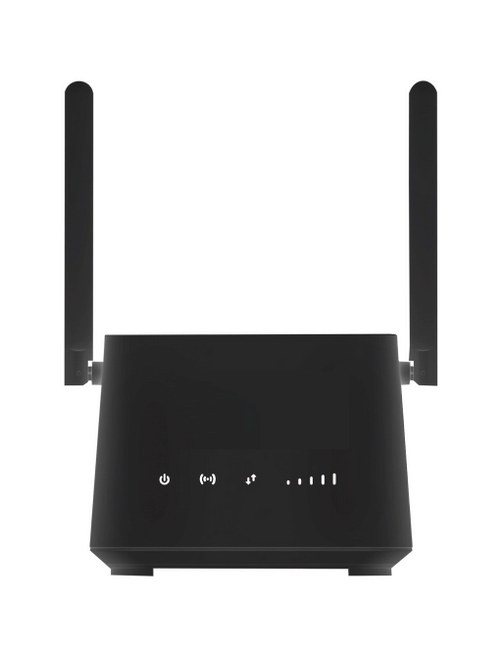
by Stayconnect Websites | May 19, 2025 | Uncategorized
We use wireless internet every day. It lets our phones, laptops, and other things connect to the internet without messy wire connections. Here at Stay Connect, we want to make understanding wireless internet super easy. Let’s talk about how you can get internet access without the wires.
Understanding Your Wireless Home Internet Options
When it comes to getting wireless home internet, you have several choices, each with its own way of bringing the internet to your doorstep. Knowing these options can help you decide which one best fits your needs, location, and budget.
Diving Deeper into Cable Internet
Many homes get their internet through the same cable television lines they use for TV. This type of broadband connection uses coaxial wires to transmit data at relatively high speeds. Often, the ISP provides a modem that connects to these cable lines, and then you can connect your own wireless router to create your wifi network at home.
Exploring the Possibilities of Fiber Internet
Fiber internet uses optical fiber cables to transmit data using light signals. This technology is capable of delivering incredibly fast speeds and low latency, making it ideal for activities that requires a lot of bandwidth, such as online gaming, video conferencing, and streaming in 4k resolution. Fiber plans often offer symmetrical upload and download speeds, which is a big plus for those who frequently upload large files. The availability of fiber internet is expanding, and it’s often considered one of the most reliable and fastest types of broadband available.
Considering Digital Subscriber Line (DSL)
Digital Subscriber Line (DSL) uses your current phone wires to deliver internet access. While the speeds might not be as fast as cable or fiber internet, it’s often a more widely available option, especially in areas where other broadband infrastructure isn’t as developed. The performance of DSL can depend on your distance from the telecom wifi company’s central office.
The Rise of Fixed Wireless Internet
As we touched on earlier, fixed wireless internet delivers broadband through radio waves from a nearby tower to an antenna at your home. This is becoming a popular option in rural and suburban areas where laying physical wires can be costly or difficult. Companies like Straight Talk Home and other fixed wireless internet providers are expanding their coverage, offering a viable alternative to traditional wired internet. The signal strength and potential speeds depend on factors like distance and any obstructions between your antenna and the tower.
Leveraging LTE Home Internet and Mobile Broadband
LTE home internet and other mobile broadband use the same cellular network infrastructure that powers your mobile phone. You typically use a mobile broadband modem or a wireless router that accepts a SIM card to connect to the internet. While convenient for portability and areas with limited wired internet options, data plans and speeds can vary. Keep an eye out for 5g mobile broadband, which promises even faster speeds. You might even find services that let you create your own portable wifi mobile hotspot.
Satellite Internet Access in Remote Locations
For those truly off the beaten path, satellite internet access remains an option. It involves transmitting and receiving data from satellites orbiting the Earth. While it can provide internet access in areas where no other broadband options exist, it often comes with higher latency and can be more susceptible to weather conditions.
Essential Equipment for Your Wireless Network
To get your wireless internet up and running, you’ll typically need a few key pieces of equipment:
Modem:
This connects your home network to the internet service provider’s network. The type of modem you need will depend on your internet connection type (e.g., cable modem, DSL modem, or an optical network terminal for fiber internet).
Wireless Router:
This device creates your local area network (LAN) and broadcasts the wifi signal that your devices connect to. Many modern internet router devices combine the functions of a router and a modem into one unit.
Ethernet Cables:
While we’re talking about wireless, Ethernet cables are still useful for directly connecting devices like desktop computers or gaming consoles to your router for a more stable and faster wired internet connection.
You might have the option to rent this equipment from your ISP or bring your own device (BYOD). If you choose to buy your own, make sure it’s compatible with your internet plan and consider features like speeds, coverage, and security.
Optimizing Your Wireless Internet Experience
Once you have your wireless network set up, there are a few things you can do to ensure a smooth and reliable experience:
Placement of Your Router:
Position your wireless router in a central, open location, away from walls, metal objects, and electronic devices that can interfere with the signal.
Password Security:
Set a strong and unique password for your wifi network to avoid unauthorized internet access.
Regular Updates:
Keep your router’s firmware updated. Manufacturers release updates to enhance performance and safety.
Network Congestion:
If you have multiple devices connected to your wireless network, it can affect speeds. Consider prioritizing bandwidth for devices that need it most.
Consider a Wi-Fi Repeater:
If you have a large home or areas with weak wifi signal, a repeater wifi or mesh wifi system can help extend your wireless network coverage.
Stay Connected: Your Local Wireless Internet Partner
At Stay Connect, we’re proud to serve communities like Tyler, Longview, Kilgore, Lindale, Jacksonville, Bullard, Whitehouse, Athens, Mineola, Henderson, and Gladewater with reliable wireless internet solutions. We understand that finding the right home internet plan is important, and our team is dedicated to providing excellent customer service and support. We aim to offer transparent pricing and flexible options to meet your requirements. You can easily check availability of our internet plans in your zip code through our website or by giving us a call. We believe in keeping things simple and straightforward, without complicated contracts or hidden fees.
Frequently Asked Questions
Will weather affect my wireless internet?
While Wi-Fi within your home is generally not affected by weather, some types of wireless internet, like fixed wireless and especially satellite internet access, can experience temporary disruptions during severe weather conditions.
What is internet latency?
Latency is the delay in data transfer. Lower latency is essential for real-time applications like online gaming and video calls. Fiber internet offers the lowest latency.
Can I use my cellphone as a wireless internet hotspot?
Yes. Most smartphones have a built-in feature allowing you to create a wifi mobile hotspot, sharing your cellular network data with other devices like your laptop or tablet. Remember that this uses your mobile broadband data allowance.
Do I need a separate modem and router?
Not always. Many ISPs provide a combined modem and wireless router unit. However, for more control and potentially better performance, some users prefer to use separate devices.
In Conclusion: Staying Connected in a Wireless World
Wireless internet has shifted the way we connect and access information. From the fast wifi in our homes to the mobile broadband in our pockets, it’s an integral part of modern life. At Stay Connect, we’re here to provide you with reliable wireless home internet options and support, ensuring you have a seamless online experience. We’re committed to serving our customers with internet plans that fit their needs.
Ready to get connected or upgrade your current wireless service? Visit our website today to check availability and explore our home internet plans. Our friendly team is also available to answer any inqueries you may have. Choose Stay Connect for a reliable and hassle-free wireless internet experience right here in your neighborhood!