
Where Is the Best Place for Your Router for Faster Internet?
In today’s interconnected world, a fast and reliable internet connection is no longer a luxury—it’s a necessity. Whether you’re streaming 4K video, participating in a crucial video conference, or battling it out in an online game, a strong and consistent Wi-Fi signal is essential. At Stay Connect, we know that even the best internet service can feel slow if your home network isn’t optimized. You see, the placement of your router is one of the most critical, yet often overlooked, factors that directly impact your signal reach and overall performance. A simple move can make a world of difference, improving latency, boosting throughput, and ensuring you get the most out of your connection. This guide will walk you through the key principles of router placement to help you achieve faster internet and a seamless online experience.
The Impact of Router Placement on Internet Speed
Placing your router in a central, elevated spot often fixes slow zones: moving from a corner basement to a first-floor hallway can boost usable throughput by 30–50% upstairs. Solid barriers matter—two interior walls typically cut wireless throughput significantly, while concrete or metal can completely wipe out most of the signal. Positioning also affects latency and packet loss, so minor adjustments or angling antennas toward main living areas can deliver noticeably faster internet for streaming and gaming.
How Distance Affects Signal Strength
Signal drops with distance and frequency: 5 GHz offers higher throughput but a reliable range of about 30–50 feet (9–15 m) indoors, while 2.4 GHz can reach 100–150 feet (30–45 m) with lower top speeds. Throughput can halve with each few obstacles—two walls may reduce speed by 30–50%. You can map changes by running an internet speed test in different rooms, then place devices or extenders where speeds stay within 20% of your router’s peak.
Interference: The Silent Speed Thief
Other electronics and neighboring networks can steal bandwidth: microwaves, Bluetooth speakers, cordless phones and baby monitors all operate near 2.4 GHz, causing retries and latency spikes that lower throughput. Overlapping Wi‑Fi channels from nearby apartments create contention; choosing less crowded bands and enabling 5 GHz for bandwidth‑hungry devices often yields faster internet in busy environments.
Mitigate interference by switching to a non-overlapping channel, such as 1, 6, or 11, using the 20/40/80 MHz channel widths wisely, and enabling beamforming or band steering if your router supports these features. Place the router away from kitchens, metal cabinets, and large aquariums; elevate it and orient antennas toward device clusters. For stubborn dead zones, add a mesh node with wired Backhaul or a wired Ethernet run to preserve speed and reduce wireless congestion.
Ideal Locations for Your Router
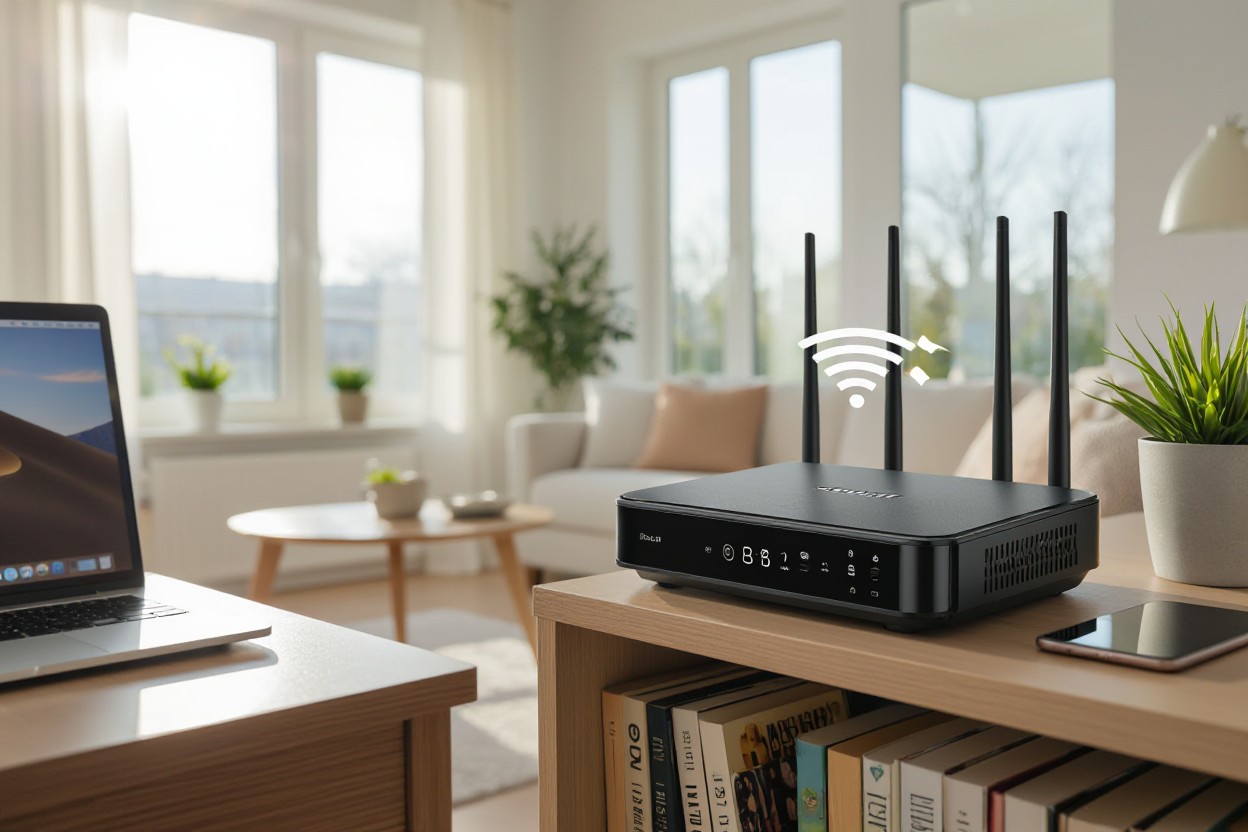
Place your router near the geometric center of your living area—not in closets or against exterior walls—to minimize the average distance to devices and reduce through-wall losses. Open placement on a shelf or table reduces reflections from furniture and metal appliances, helping deliver faster internet to multiple rooms for streaming, gaming, and video calls.
Central Positioning: Why It Matters
Centering your router lowers the maximum distance any device must reach, often improving signal strength by several dB; place it within 10–20 feet of main usage zones and away from concrete or brick barriers. You can pair central placement with a mesh node in long layouts, and an internet speed test after moving confirms real gains in real-world throughput and latency.
Elevation: The Benefits of Height
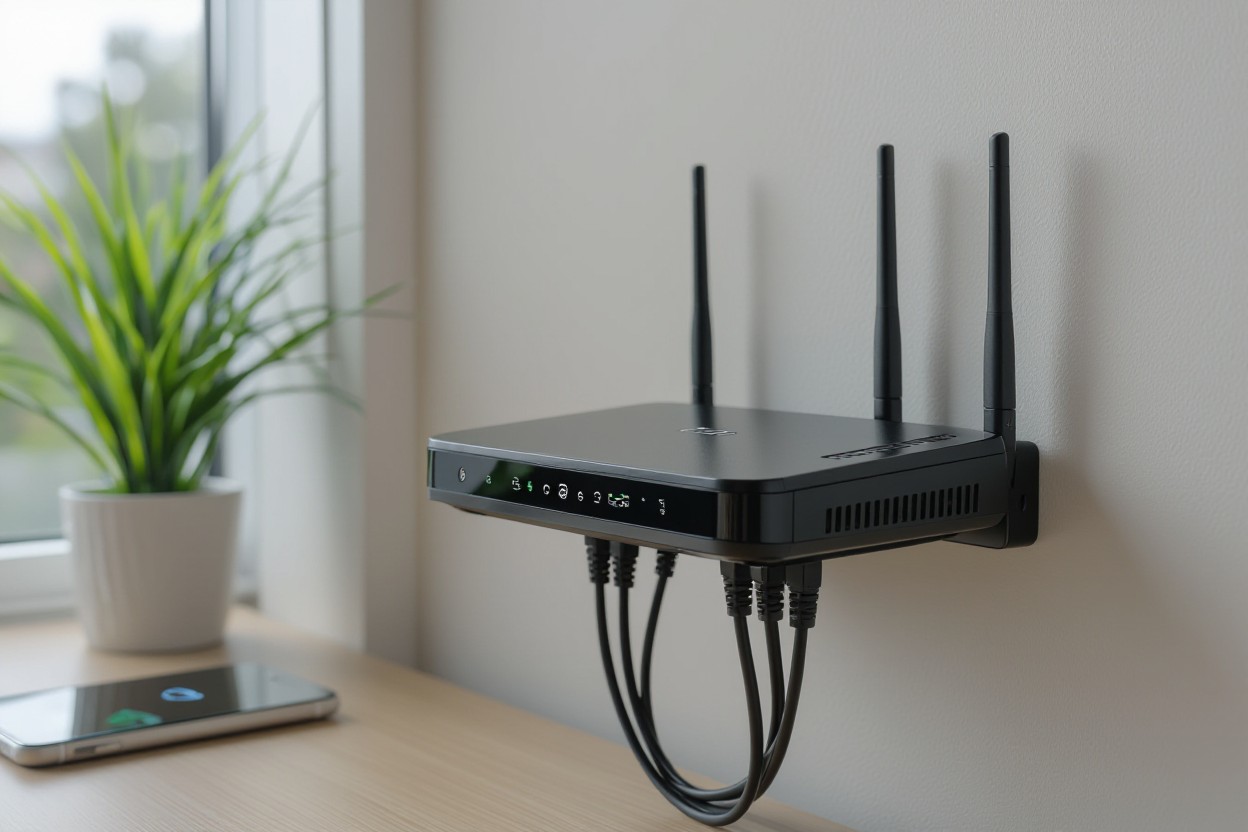
Mounting your router higher—on a shelf or wall bracket—improves line of sight and reduces floor-level obstructions, often boosting 5 GHz coverage by 10–30%. Point antennas vertically for even horizontal spread. Higher placement helps you reach upper rooms and reduces interference from large furniture, improving your chance of faster internet for devices across the home.
In multi-story homes, locate the router on the upper floor near the center to serve both levels; in single-level apartments, ceiling or high-wall mounts near living spaces work best. Keep a 1–2 meter clearance from mirrors, large metal objects, and water tanks that reflect signals. For mixed use, use 5 GHz for nearby high-bandwidth devices and 2.4 GHz to cover farther rooms, or add mesh satellites to eliminate persistent dead zones.
Environmental Considerations for Optimal Connectivity
Interference from household electronics, metal studs, and large water bodies can reduce throughput and latency, so it’s essential to scan rooms for sources such as microwave ovens, cordless phones, and fluorescent lights. Place the router away from dense wiring and reflective surfaces; heat and humidity also stress hardware and can lower sustained throughput. Minor tweaks here can yield noticeably faster internet without buying new gear.
Walls and Obstacles: The Signal Blockers
Dense materials—such as concrete, brick, and metal—absorb and reflect radio waves. Heavy concrete walls often reduce signal by 10–20 dB, while metal studs or foil-backed insulation create deep nulls. You’ll get better range on 2.4 GHz indoors, while 5 GHz offers higher throughput but roughly half the wall penetration. Fish tanks, mirrors, and refrigerators act like mini barriers, so avoid placing the router behind or beside them to preserve faster internet performance.
Room Layout: Designing for Signal Flow
Centering the router in an open area, approximately 1.5–2 meters high, reduces obstructions and ensures even coverage; corners and low cabinets trap RF signals and create dead zones. Position antennas vertically for horizontal device coverage, and add a mesh node every 10–15 meters in large homes or where walls block sightlines. These placement moves often translate into a measurable boost in faster internet for multiple devices.
For denser layouts, run wired Backhaul between the primary router and satellite nodes to avoid halving wireless throughput. Place nodes near stairwells or open hallways to exploit vertical signal paths. Angle directional antennas toward high-use rooms, keep units off the floor, and test changes with one internet speed test after each adjustment to confirm real-world gains.
Advanced Strategies for Enhancing Router Efficiency
Apply targeted tweaks—keep firmware updated, enable QoS to prioritize video and gaming, disable legacy 802.11b modes, and utilize beamforming to focus the signal where devices are located. Move bandwidth-hungry gadgets to 5 GHz or 6 GHz for a 2–3× throughput boost at close range. Set wired Backhaul for nodes and separate SSIDs for IoT. After each change, benchmark performance to confirm measurable improvements in faster internet.
- Keep firmware and drivers current; enable security patches.
- Use QoS to prioritize conferencing and streaming traffic.
- Deploy wired backhaul for mesh or multiple APs.
- Enable MU‑MIMO and beamforming for dense device loads.
- Choose non-overlapping 2.4 GHz channels (1,6,11) and wider 5 GHz channels.
- Limit guest and IoT bandwidth with VLANs or separate SSIDs.
Quick Strategy Breakdown
| Strategy | Why it helps / How to implement |
|---|---|
| Wired Backhaul | Removes wireless hop penalties; connect APs with Ethernet for full throughput. |
| QoS Rules | Prioritizes latency-sensitive apps (VoIP, gaming); set by device or application. |
| Band Steering | Automatically moves capable devices to 5/6 GHz for higher throughput. |
| Channel Width Management | Use 20/40 MHz on 2.4 GHz, 80–160 MHz on 5/6 GHz where interference is low. |
Utilizing Multiple Access Points
Install additional APs or mesh nodes with wired Ethernet backhaul to eliminate coverage gaps and reduce client contention. For homes over ~1,500 ft² or multi-story layouts, aim for one AP per floor or spacing of about 30–50 feet in dense areas; office deployments need closer spacing. Configure the same SSID with band steering so devices roam smoothly, then run an internet speed test once to confirm the faster internet speed.
Adjusting Frequency Bands for Performance
Shift heavy-use devices to 5 GHz or 6 GHz to lower latency and increase peak throughput. 5 GHz supports wider channels (20–160 MHz), and 6 GHz (Wi-Fi 6E) adds clean spectrum for compatible clients. Keep low-bandwidth sensors on 2.4 GHz and use channels 1, 6, 11 to avoid overlap; these adjustments often yield noticeably faster internet for streaming and gaming.
Balance channel width against interference: use 20 MHz on 2.4 GHz to reduce collisions, 40–80 MHz on 5 GHz for most homes, and reserve 160 MHz for single-room, high-demand setups, as it halves the available non-overlapping channels. Watch for DFS channels on 5 GHz that can provide extra spectrum but may trigger temporary channel moves due to radar detection. Test after changes and monitor device compatibility—many older devices won’t support 160 MHz or 6 GHz, so staged rollouts work best.
Common Misconceptions About Router Placement
The Myth of the Corner Position
Placing your router in a corner often reduces coverage rather than improving it; walls, furniture, and reinforced concrete can cut signal strength by 3–10 dB each, and push the 5 GHz signal down to -80 dBm, where streaming stalls. A central, elevated spot allows signals to radiate evenly, so 2.4 GHz reaches distant rooms while 5 GHz serves nearby devices. For faster internet, prioritize line-of-sight and open space over hiding the router behind a shelf.
Wireless Extenders: Help or Hindrance?
Range extenders can patch dead zones but commonly halve bandwidth on the repeated band because a single-radio repeater must receive and resend packets, turning a 200 Mbps link into roughly 100 Mbps for clients behind it. You may also be forced to jump SSIDs and see higher latency. Run an internet speed test after adding an extender; if results fall, consider mesh or wired access points to regain consistent, faster internet.
Place an extender about halfway to the dead zone where it still reads -60 to -67 dBm from your router; any weaker and the extender repeats a poor signal. Choose dual-band units that dedicate one band to Backhaul, or use Ethernet/powerline backhaul to preserve throughput — wired links can sustain gigabit plans. For homes over ~2,500 sq ft or with numerous brick walls, a mesh Wi-Fi system provides smoother coverage and supports faster internet throughout the entire house.
Wrapping Things Up
Optimizing your home network for faster internet is a journey of small, strategic steps. The single most impactful change you can make is to rethink your router’s placement. Put it high and central, away from thick walls and electronics, to give your signal the best possible path. For a large home, consider a mesh system or wired Backhaul to eliminate dead zones and ensure seamless connectivity. At Stay Connect, we provide not just a connection, but a comprehensive solution designed to keep you online without interruption. Our advanced Fixed Wireless Internet and fiber-based services are built for reliability, and by combining them with smart placement, you can unlock their full potential. Run a final internet speed test after making these changes to see the gains for yourself—small moves can lead to a noticeably faster and more stable experience, a core promise of the Stay Connect experience.
FAQ
Q: Where is the best place in my home to put the router?
A: Put the router in a central, open spot near the main area where you use devices. Place it high on a shelf or wall, not inside a cabinet or on the floor. Keep it away from thick walls, large metal objects, mirrors, and appliances such as microwaves or cordless phones that can cause interference. A central location provides more even coverage, helping to deliver better Wi-Fi throughout the rooms.
Q: Should I put the router near windows or near the modem?
A: Keep the router close to the modem so cables stay short, but move the pair toward the center of the home if possible. Avoid placing the router right next to windows; the signal can leak outside and lose strength indoors. If your modem is in a corner, use a short Ethernet cable to place the router in a better spot. Select a location that strikes a balance between proximity to the modem and the devices you use most frequently.
Q: Is wired or wireless better for faster internet, and how can I check?
A: Wired Ethernet gives the most stable and highest real-world speeds for gaming, streaming, and work. Use a CAT5e or CAT6 cable for full gigabit performance. If running cables is hard, consider powerline adapters or a mesh system with wired Backhaul. To see actual performance, run an internet speed test from both a wired device and a Wi-Fi device to compare the results.
Q: Do router settings and interference affect speed?
A: Yes. Update router firmware, pick the less crowded channel (use 2.4 GHz for range, 5 GHz for higher local speed), enable QoS to prioritize video or calls, and set strong security (WPA2/WPA3). Place the router away from other wireless devices and Bluetooth gadgets to reduce interference. Proper settings and less interference help you get faster internet and more reliable connections.
Q: Should I upgrade my router or add extenders or mesh to get better coverage?
A: If your router is old, upgrading to a modern model (Wi‑Fi 5, Wi‑Fi 6, or Wi‑Fi 6E) can improve range and support more devices. For large or multi-floor homes, a mesh Wi-Fi system provides a consistent signal by using multiple access points. Extenders can help, but may halve wireless bandwidth on the extended link. Consider dual-band or tri-band gear and wired Backhaul for higher speeds and less congestion to achieve faster internet across the house.
Is your current internet setup not delivering the speed and reliability you need, no matter where you place your router? It might be time to upgrade your service. At Stay Connect, we specialize in providing cutting-edge internet solutions designed for peak performance. Whether you’re in the city or a rural area, our Fixed Wireless Internet and fiber-based solutions are engineered to bypass common signal issues and deliver a robust connection directly to your home or business.
Contact us today or visit our website to discover our range of solutions and find a plan that’s right for you. With Stay Connect, you can finally get the faster internet you deserve.
How Does Hassle-Free Internet Boost Your Productivity?
Stay Connected: Your Guide to Understanding Wireless Internet