
by Stayconnect Websites | Dec 30, 2025 | Internet & Wi-Fi

Setting up wireless internet at home may sound hard, but it is easier than most people think. With the right steps and a little guidance, you can enjoy fast and reliable internet access in your home or office. At Stay Connect, we help people get connected using trusted 4G and 5G wireless solutions, so they can work, stream, and stay online without stress.
If you are asking, how do I set up wireless internet?, this guide walks you through everything you need to know, from basic equipment to connecting your devices and improving your Wi-Fi signal.
What Is Wireless Internet and How It Works
Wireless internet lets you access the internet without plugging every device into a cable. A wireless router sends a Wi-Fi signal that devices can use to connect to your home network.
Here is how it works:
- Your internet service provider sends internet access to your home
- A modem brings that internet connection inside
- A wireless router shares it as a Wi-Fi network
- Your phone, laptop, or other wireless device connects using a Wi-Fi password
Once set up, the network allows you to connect multiple devices to the internet simultaneously.
What You Need to Set Up Wireless Internet at Home
Before setting up your home Wi-Fi network, make sure you have these basic items ready:
- An active internet connection from an internet provider
- A modem (or modem with an Ethernet cable)
- A wireless router
- An Ethernet cable
- A web browser-equipped laptop or smartphone
Some homes use fiber internet or an optical network, while others rely on 4G or 5G wireless internet. The setup process is similar, but the modem type may vary.
Step-by-Step Guide to Set Up a Home Wi-Fi Network
Step 1: Connect the Modem
Connect the modem to your internet source first. This could be a phone jack, fiber line, or wireless gateway. Once powered on, connect the modem to the router using an Ethernet cable. Plug the cable into the port on the router marked WAN or Internet.
This step helps connect the modem to the router so the network and the internet can work together.
Step 2: Power On and Position Your Router
Turn on the wireless router and place it in a central location. A router in a central location helps broadcast the Wi-Fi signal evenly and improves signal throughout your home.
Don’t place it near metal objects or thick walls. Proper router use and placement can make a big difference in internet speed and wireless signal strength.
Step 3: Access Router Settings Using a Web Browser
On your laptop or mobile device, open a web browser. Enter the default IP address found on the router label. You will then be sent to the router settings page.
To log in, enter your username and default password. This information is also listed on the router.
Step 4: Create a Unique Network Name and Password
Now it is time to set up your Wi-Fi network details:
- Change the default network name to a unique network name
- Create a strong Wi-Fi password
- Save your changes
This step helps protect your network security and keeps others from using your home internet without permission.
Step 5: Connect Your Devices to the Internet
Go to Wi-Fi settings on your phone, laptop, or tablet. Find your new network name, select it, and enter the password.
Once connected, your devices can use the internet wirelessly within your home network.
How to Set Up Wireless Internet Without a Cable Line
Many people now use wireless internet without a cable or phone jack. With 4G and 5G home internet, you can get internet access using a wireless gateway instead of a traditional modem.
This option works well for:
- Home offices
- Rural areas
- Temporary homes
- Businesses that need a fast setup
These networks vary by location, but they offer high-speed internet with easy setup.
Tips to Improve Your Wi-Fi Signal at Home
To get the best Wi-Fi connection, follow these tips:
- Use a router that supports Wi-Fi 6 for better performance
- Keep your router firmware updated
- Position your router in an open space
- Create a guest network for visitors
- Limit interference from nearby devices
A strong Wi-Fi signal helps devices connect faster and stay connected longer.
Setting Up Wireless Internet for Windows 11 Devices
If you are using Windows 11, connecting is simple:
- Click Network Settings
- Select wi-fi
- Choose your network name
- Enter the password
- Start using Wi-Fi
Once connected, your device stays linked unless the network password changes.
Why 4G and 5G Wireless Internet Is a Smart Choice
Wireless internet using 4G and 5G networks offers flexibility and speed. It is ideal for homes that want internet without long installation times.
Benefits include:
- Fast setup
- Reliable internet speed
- Easy to move or relocate
- Works well for home or office use
This type of network at home supports streaming, video calls, and daily work needs.
Common Wireless Internet Setup Mistakes to Avoid
Avoid these common issues during Wi-Fi setup:
- Leaving the default network name
- Using a weak password
- Placing the router in a corner
- Skipping router updates
Taking time to set things up correctly ensures better network security and performance.
FAQs About Setting Up Wireless Internet
What do I need to set up wireless internet in my home?
You need an internet connection, a modem or wireless gateway, a wireless router, and a device to access router settings.
How do you connect to a wireless internet?
Select the Wi-Fi network on your device, enter the Wi-Fi password, and connect.
How to activate wireless Wi-Fi?
Once the router is powered on and connected to the modem, Wi-Fi is active after setting up the router settings.
Can I set up Wi-Fi without a modem?
Yes, with 4G or 5G wireless internet, you can use a wireless gateway instead of a traditional modem.
How long does it take to set up a home Wi-Fi network?
Most setups take 15 to 30 minutes if all equipment is ready.
Final Thoughts on Wireless Internet Setup
Knowing how do I set up wireless internet helps you take control of your home network. With the right steps, you can create a secure and reliable Wi-Fi connection that supports all your devices.
At Stay Connect, we help homes and businesses get connected using modern wireless internet solutions designed for speed, ease, and reliability.
Ready to upgrade your home internet or set up wireless internet the right way? Stay Connect offers trusted 4G and 5G wireless solutions, home internet options, and business connectivity services. We proudly serve multiple service areas and help customers get fast, dependable internet without hassle.
Call (888) 997-6877 today or contact us to explore our internet products and solutions and book your appointment now.
Also Read:
What Are 7 Ways Wireless Internet Connection Saves Money?
Can Routers Affect Internet Speed? (The Complete Guide for Faster, Stronger Home Wi-Fi)
Where Is the Best Place for Your Router for Faster Internet?
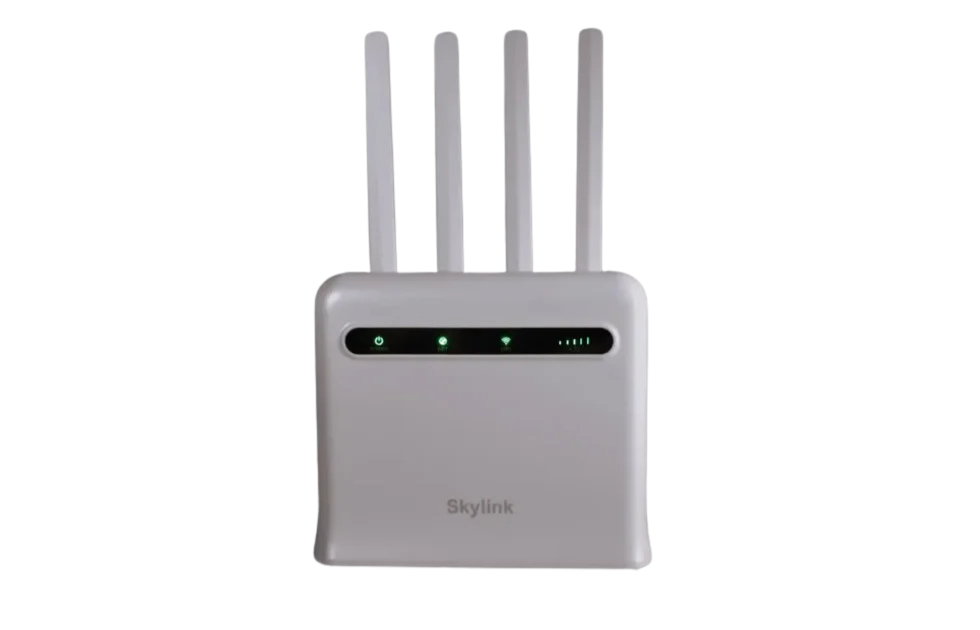
by Stayconnect Websites | Dec 26, 2025 | Internet & Wi-Fi
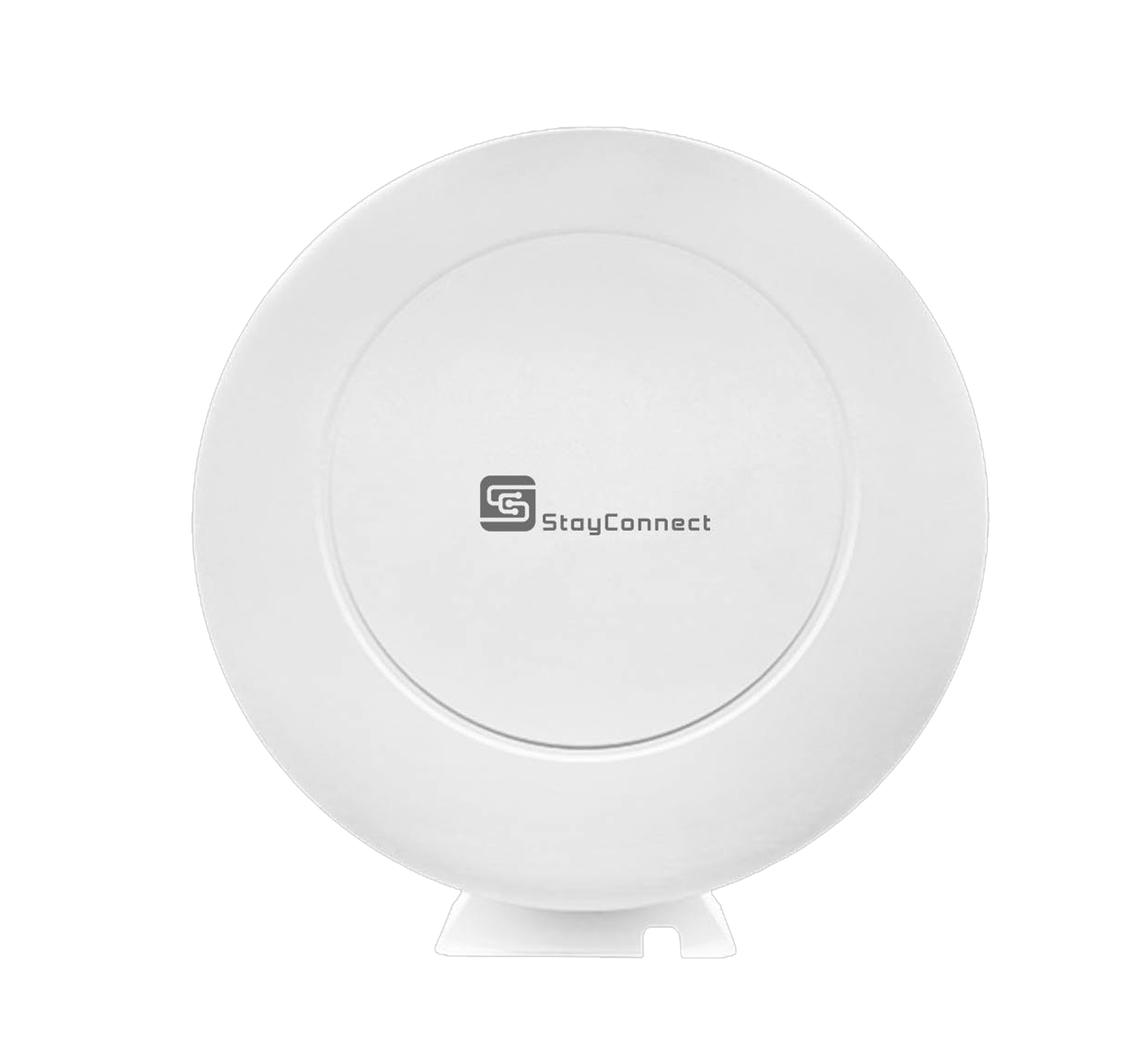
If you ever wonder, ‘Do I need a router if I have WiFi?’ you are not alone. Many homeowners and business owners ask this when setting up their home internet or wireless network for the first time. Stay Connect knows good internet matters. We help people understand their internet gear and choose the right products so they get strong, fast, and reliable internet in every room.
We will explain what a router and modem do, how WiFi works, and whether you really need a router even when you already have WiFi. You will learn the differences between these devices, how they enhance your internet connection, and why Stay Connect offers great options for improving your home network.
What are WiFi, Router, and Modem?
What Is WiFi?
WiFi is a wireless connection that lets your devices communicate with each other and the internet without wires. Your phone, laptop, smart TVs, and tablets use a WiFi signal to connect to your home internet.
What Is a Router?
A router is a device that:
- Takes the internet from your modem
- Creates a WiFi network in your home
- Allows many devices to connect to the internet at the same time
- Gives your home network a local area network (LAN) so devices can talk to each other
Without a router, only a single device can connect to your internet via a wired connection. A router lets many devices connect wirelessly or with an Ethernet cable.
What Is a Modem?
A modem is a device that connects your home to the internet service provider (ISP). It brings the internet to your house. Most ISPs give you a modem that plugs into the wall. The modem then sends the internet to a router.
Modem vs Router: What’s the Difference?
- Modem: connects your home to the internet
- Router: shares the internet with your devices (WiFi or wired)
A modem cannot give WiFi on its own, and a router can’t connect directly to the ISP without a modem. You need both to have a complete wireless internet setup in most cases.
Do I Need a Router If I Have WiFi?
Short answer: Yes, you still need a router even if you have WiFi.
Why?
- WiFi by itself is just a wireless signal your devices use to connect
- That signal must come from a router or a device acting like a router
- The router receives the internet from the modem and broadcasts WiFi
- Without a router, just one device can connect with a wired connection, and you will not have true WiFi
So if someone has told you you have “WiFi,” they usually mean you have a modem-router combo from your ISP or a separate wifi router in your home.
What Happens Without a Router?
If you try to use WiFi without a router:
- You might not get any WiFi signal at all
- Only one device could connect with an Ethernet cable
- Your devices would not be able to talk to each other on a home network
- You could lose access to the internet on phones, tablets, smart TVs, and laptops
For most homes and businesses, a router and modem setup is the best way to get strong, fast internet for all your tech.
Modem and Router Setups You Might See
There are a few different options for your internet equipment:
1. Separate Modem and a Router
You have two devices:
- A modem connected to your ISP
- A router connected to the modem
This is the most common setup for strong WiFi and fast internet speeds. You can choose your own router and upgrade when you need to.
2. Modem and Router Combo
Some ISPs give you a cable modem router combo. This single device:
- Connects to your ISP
- Creates WiFi
- Lets many devices connect
This is simpler but not always the best for big homes or very fast internet speeds.
3. Advanced Router (No Separate Modem)
There are some devices that use cellular or wireless internet without a separate modem. These work like both a modem and a router in one, but they are uncommon in most home internet plans.
Why a Router Matters for Your WiFi
Here is what a router gives you:
- Broadcasts WiFi to every room
- Lets many devices use the internet at the same time
- Provides fast wireless speeds for streaming, video calls, and gaming
- Helps manage internet traffic so nothing slows down
- Works with wired connections via Ethernet ports
Without a router, you often have weak or no WiFi in parts of your home or office.
Common Questions About the Router and WiFi
Can I use Wi-Fi without a router?
No. WiFi must come from a router or modem-router combo. Without a router, you will not have a wireless network for phones, laptops, or smart TVs.
Do I need a router if I have a smart TV?
Yes. To access the internet, a smart TV must be connected to a router by Wi-Fi or Ethernet. The router lets your TV stream shows and connect to apps without wires.
Do I need a modem if I have Wi-Fi?
Yes. A modem connects your home to your ISP and brings the internet to your router. Then the router shares the internet connection via Wi-Fi and wired connections.
What is the difference between a router and a modem?
A modem links your home to the internet. A router shares the internet with all your devices and gives you a home WiFi network.
Can multiple devices connect at once without a router?
Not really. You need a router to connect many devices at the same time, wirelessly or with a LAN Ethernet connector.
Do I need both a modem and a router for internet access?
In most homes, yes. You need both a modem and a wireless router. The internet modem delivers internet from your internet provider, and the router connects your home network so devices can use the internet wirelessly or through wired internet.
How does a router work with my home internet connection?
A router takes signals from your internet service and shares them with your devices. It assigns an IP address, the router creates a local area network, and lets multiple devices to connect at the same time.
Can I connect devices to the internet without a router?
A single device can connect to a wired internet, but a router is needed to share a single internet connection. Routers allow many devices to connect and send data across the network to the internet.
Does a fiber optic or DOCSIS 3.1 cable modem change what I need?
No. Whether you use a fiber optic or a DOCSIS 3.1 cable modem, you still need a router. The modem delivers internet, and the router provides internet access to devices in your home.
What should I look for when buying a router?
When buying a router, look for one that supports fast speeds, strong WiFi coverage, and many devices. Good routers broadcast stable signals, support the fastest wireless speeds, and help you find the right internet options for your home or office.
Final Thoughts
If you want fast wireless internet, smooth streaming, and strong WiFi for all your phones, tablets, laptops, and smart TVs, you do need a router if you have WiFi. A good router creates a wifi network that lets every device in your home access the internet without lag or trouble. Pairing it with the right modem from your internet service provider makes your whole network faster and more stable.
Stay Connect has quality routers and solutions to help you stay connected at home or work. Our products work with many ISPs and help you get the most out of your internet plan.
Ready to power up your home internet and connect every device with fast wireless speeds? Visit Stay Connect to find the perfect routers and modems for your home network and business needs. Our team can help you choose the right router, modem and router setup, or wireless solution for Dallas, Texas, and surrounding areas. Call us at (888) 997-6877 to book your tech support or visit our products page today.
Also Read:
Will a Better Router Improve WiFi Strength? (How Upgrading Your WiFi Router Can Boost Your Internet Speed)
What Are 7 Ways Wireless Internet Connection Saves Money?
How Do 5 Fixes Improve Your Reliable Internet Connection?
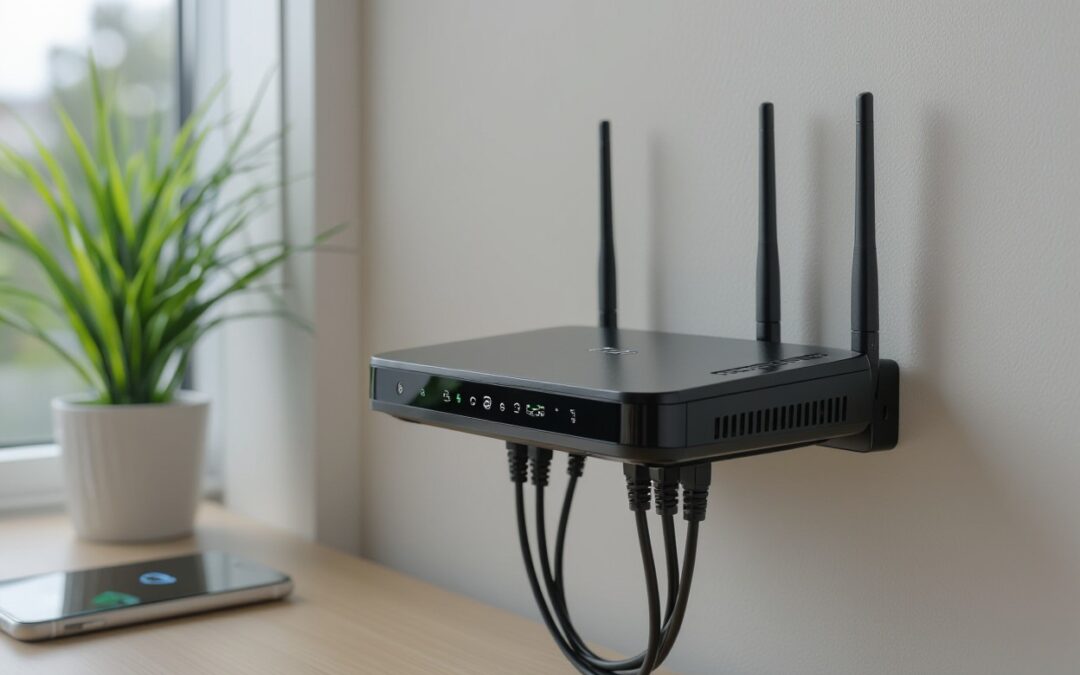
by Stayconnect Websites | Dec 12, 2025 | Internet & Wi-Fi
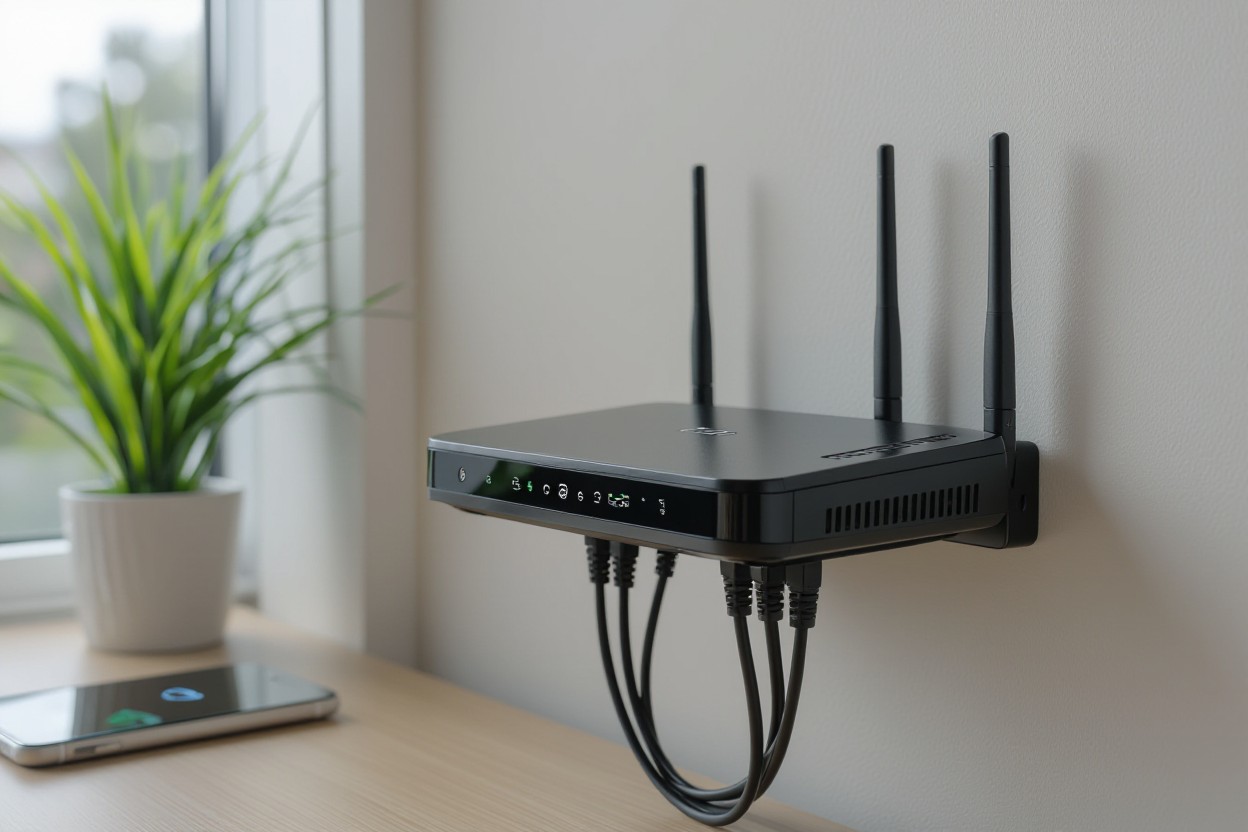
If your WiFi feels slow, shaky, or drops when several devices are connected, a new router might help. At Stay Connect, we know how much better things can get when you use a strong, modern wireless router. A better router can improve WiFi strength, give faster speeds, and make your internet more stable, whether you stream, work from home, game, or run smart home devices.
Let’s look at how a new router can improve performance and when it’s worth the upgrade.
Why Your Present Router Might Be Holding You Back
- Older routers lack the latest wireless tech. Older routers may only support basic WiFi standards. Newer routers, especially WiFi 6 routers, use updated protocols. This means faster internet speed, better handling of many devices, and stronger WiFi signals.
- Limited bandwidth slows down the connection when many devices are connected. If you have several smartphones, smart home devices, laptops, or gaming consoles, the old router can become a bottleneck. You might see slowdowns, buffering, or dropped connections.
- Weak antenna or poor placement reduces WiFi range. If your router has weak antennas or is tucked away in a corner, your WiFi signal might not reach every part of your home or office. This creates dead zones.
- Firmware is outdated or missing features like beamforming or better encryption (like WPA3). Without up-to-date firmware, the router may not manage wireless connections well or secure them properly.
- Old hardware struggles with modern internet plans. If you recently upgraded your internet plan or moved to a faster connection, your older router might not let you enjoy the full speed.
What a Better Router Actually Does
Upgrading to a good wireless router brings several real improvements for your home network:
Faster, More Stable Internet
Modern routers support higher data rates. With a WiFi 6 router or other latest-generation wireless models, you get faster speeds and better performance. That helps with streaming 4K video, video calls, online gaming, and heavy workloads.
Stronger WiFi Signal and Wider Coverage
A newer router often includes better antennas and improved signal management. It can push WiFi signals farther, reduce dead zones, and keep connections stable even when devices are far from the router.
Better Handling of Multiple Devices
If many devices are connected, laptops, phones, smart home gadgets, a newer router manages bandwidth more efficiently. That means less slowdown, less buffering, and fewer dropped connections.
Improved Reliability and Security
Better routers usually support newer encryption standards, like WPA3, and more features. That helps protect your network from hackers and ensures a stable wireless connection.
More Flexibility (mesh WiFi, extender support, Ethernet ports)
Modern routers often support mesh WiFi systems, range extenders, or use Ethernet ports for wired connections. You can extend your WiFi range, connect devices with cables for the fastest speeds, or use a hybrid wired-and-wireless connection.
When Upgrading Makes the Most Sense
You may want to upgrade your WiFi router when:
- Your current WiFi router is several years old and does not support WiFi 5 or WiFi 6.
- Many devices are connected (smartphones, laptops, gaming consoles, smart home devices).
- You experience frequent dead zones or weak signals in parts of your home or office.
- You upgraded your internet plan, but are not achieving the promised speeds due to your router’s limitations.
- You need a more stable internet for work from home, video conferencing, or online gaming.
- You want better security and network protection with modern encryption and firmware updates.
If any of these apply, a newer wireless router may significantly improve your internet connection.
Can a Better Router Increase WiFi Range?
Yes, a better wireless router often improves WiFi range. With stronger antennas, improved signal strength, and features like beamforming, a modern router can deliver WiFi across a larger area. This helps you connect reliably in different rooms, or even upstairs or downstairs.
For larger spaces or multi-floor homes, this improved range often makes a noticeable difference compared to older routing gear.
Is It Worth Upgrading Your WiFi Router?
In many cases, yes, upgrading can be well worth it. If you:
- Use many devices,
- Have slow or unreliable WiFi,
- See speed limits even when your internet plan is fast,
- Experience dropped connections or buffering,
then a new router can significantly improve your experience.
But if your needs are basic (light browsing, email on one or two devices), and you live in a small apartment, the improvement may be less dramatic.
How to Improve WiFi Strength: More Than Just a New Router
Upgrading the router helps, but here are extra steps to get the best signal and speed:
- Place your router in a central location. Keep it away from walls or metal objects, and avoid putting it in a cabinet. This helps WiFi signals spread evenly through your home or office.
- Use a wired connection (Ethernet) when possible. Devices connected via cable often get the fastest, most stable speeds.
- Update router firmware regularly. This can improve performance and security.
- Consider a mesh WiFi system or a WiFi extender if you have dead zones. A mesh system or range extender helps spread coverage across larger spaces.
- Use a WiFi 6 router or newer when possible. New wireless standards deliver better performance and work well with many devices.
- Use band steering or dual-band routers (2.4 GHz + 5 GHz). This lets devices pick the best band for stability vs speed.
- Secure your network with strong encryption (WPA3). This helps protect your home network from unauthorized access and keeps connections stable.
Why Stay Connect Is the Right Partner for You
At Stay Connect, we provide advanced wireless routers, including 4G and 5G models, to deliver a strong WiFi signal, faster speeds, and stable connectivity. Whether you are in a small home, a large house, or a rural area where regular broadband is weak or unavailable, our routers work well. Our team in Allen, Texas will help you find the right solution for your home or office needs, and make setup easy and stress-free.
Frequently Asked Questions (FAQs)
Can a better router increase WiFi range?
Yes. A newer router with stronger antennas, modern wireless standards, and better signal management can push WiFi further and reduce dead zones.
Is it worth upgrading your WiFi router?
If your internet feels slow, you have many connected devices, or you upgraded your internet plan, but your speed didn’t improve, upgrading can be worth it. For basic use in a small space, the gains may be less.
Does a router affect WiFi strength?
Yes. A router’s age, antenna, WiFi standard (e.g. WiFi 6 vs older), and position all affect how strong and stable your signal is.
How to make your WiFi router signal stronger?
You can place the router in a central, open spot, update the firmware, use a new router or a WiFi 6 model, add a mesh system or an extender, or use Ethernet for key devices.
Will a better router improve WiFi strength for gaming and multiple devices?
Yes. A modern router, with dual-band or WiFi 6, good antennas, and bandwidth handling, can support gaming, streaming, smart home devices, and many other connected devices simultaneously, delivering a stable, fast internet connection.
What else besides a router can improve my home network?
Using a mesh WiFi system, WiFi range extender, wired connections for stationary devices, and placing the router properly can all help. Also, secure your network with updated encryption and firmware.
Can a router help extend the range of wireless signals?
Yes, a newer router can help extend the range by boosting WiFi signals and improving coverage. You can also add an access point or a WiFi booster to reach more areas of your home.
How do I know if my connection speed is slow because of the router?
Run a speed test directly through your modem, then compare it with the speed on your WiFi connection. If the numbers drop a lot, the router may be limiting WiFi bandwidth.
What is the best way to troubleshoot weak WiFi signals?
Try moving your WiFi to a central spot, changing the channel, and checking for obstructions around the router. Updating to the latest wireless standards or using mesh WiFi often gives reliable, stable performance.
Final Thoughts
If you want a stronger WiFi signal, faster internet speed, wider coverage, and stable connections for all your devices, a new wireless router can make a big difference. At Stay Connect, we build and offer top-tier 4G/5G and WiFi 6 routers for homes and businesses in Allen, Texas, and beyond.
Reach out to us at (888) 997-6877 or visit our site to explore our router lineup and find the best solution for your home or office. Upgrade your home network today, and enjoy reliable, fast internet for streaming, gaming, working, or smart home devices.
Also Read:
Can Routers Affect Internet Speed? (The Complete Guide for Faster, Stronger Home Wi-Fi)
Where Is the Best Place for Your Router for Faster Internet?
How Do 5 Fixes Improve Your Reliable Internet Connection?