by content@click4corp.com | Jan 13, 2026 | Internet & Wi-Fi

If your internet feels slow, unstable, or unreliable, your router may be the real problem. Many people ask, How do I know if my router needs replacing? The truth is, your internet connection can only be as good as the router running your home network.
At Stay Connect, we help homes and businesses stay connected with reliable router technology designed for modern needs. Whether you are working from home, streaming, gaming, or using smart home devices, your router plays a huge role in your daily life. Knowing when to replace your router can save you time, stress, and money.
This guide breaks down the telltale signs, explains what to look for, and helps you decide when it may be time for an upgrade.
Why Your Router Matters More Than You Think
Think of your router as the traffic controller for your entire home network. It takes the internet connection from your modem and sends it to every device in your home. If the router is outdated, aging, or struggling, everything connected to the internet will feel slow.
An older router may not deliver the internet speeds you are paying for, even if your internet service provider is doing their job. New devices, smart home systems, and newer Wi-Fi standards demand more from your router than ever before.
7 Signs Your Router Needs Replacing
1. Your Internet Is Slow No Matter What You Do
Slow internet speeds are one of the most common signs you need a new router. If you upgraded your internet plan but didn’t see improved performance, your router could be the bottleneck.
A router that does not support the latest Wi-Fi standards may struggle to keep up. This is especially true if multiple home devices are online simultaneously.
Sign to look for
- Slow downloads
- Lag during video calls
- Buffering while streaming
If your router cannot deliver the internet speeds you are paying for, it may be time to upgrade.
2. Your Router Keeps Rebooting or Dropping the Signal
If your router reboots on its own, disconnects often, or stops working until you unplug it, that is a major warning sign.
An aging router may overheat, lose stability, or fail under daily use. Frequent router troubleshooting with no lasting fix usually means it is time to replace your router.
3. WiFi Coverage Is Weak Around Your Home
Does your Wi-Fi work fine near the router but fail as you move farther away? Distance from the router should not cause dead zones in an average-sized home.
An outdated router may not deliver a strong signal throughout your home. Newer wireless router models are designed to give better coverage and more stable performance.
If moving your router does not help, the router itself may be the problem.
4. Your Router Is Old and Outdated
Router technology changes fast. If you are using an older router that is 5 years or older, it may not support new Wi-Fi standards.
Most experts recommend replacing a router every 2 to 3 years for peak performance, or at least every 5 years. If your router does not support WiFi 6, WiFi 6E, or WiFi 7, it may already be behind.
An outdated router can slow down your entire home network.
5. New Devices Struggle to Connect
New phones, laptops, TVs, and smart home devices expect modern router technology. If your router does not support the latest Wi-Fi standards, new devices may disconnect, lag, or fail to connect at all.
This is a clear sign that your router does not meet your home’s needs today.
6. You Are Working From Home and Need Reliability
Working from home puts more pressure on your internet connection. Video meetings, cloud apps, and file uploads require a reliable router.
If your router struggles during work hours, drops calls, or slows down when others are online, it is time to replace it with a reliable router that can handle daily demand.
7. Your Router Is No Longer Supported or Secure
Router security matters more than ever. An unsupported router may stop receiving updates, which puts your home network at risk.
If your router model no longer gets firmware updates, it becomes an easy target for security threats. A new router helps protect your data and ensures safer internet use for every device in your home.
Router vs Modem: Know the Difference
Many people confuse a modem and a router. The modem connects directly to your internet service provider. The router takes that connection and shares it with your home.
Even if your modem works fine, your router may be causing slow speeds or dropped connections. Replacing the router alone can make a big difference.
Should You Repair or Replace Your Router?
Before you replace your router, you can try basic router troubleshooting:
- Restart the router
- Update firmware
- Use an Ethernet cable to test direct speeds
- Move the router to a central location
If these steps do not help, your router is likely the issue. When problems keep coming back, it is time to upgrade your router rather than waste time fixing an old one.
Renting a Router vs Buying Your Own
A router is frequently rented from the ISP (Internet Service Provider). These routers often lack advanced features and may not be the best option for your needs.
Buying a new router gives you:
- Better performance
- More control
- Support for new Wi-Fi standards
- Long-term savings
A router or mesh system designed for your home will consistently outperform basic rental equipment.
How to Choose the Right Router
When it is time to replace your router, look for:
- Support for the latest Wi-Fi standards
- Strong coverage for your entire home
- Ability to handle many devices at once
- Advanced security features
- Reliable performance for work and streaming
Stay Connect offers modern router solutions designed to support today’s connected homes and businesses.
Summary: Know When It’s Time
Knowing when it is time to replace your router helps you avoid frustration and slow internet. If your current router struggles, drops connections, or cannot support new devices, it is time for an upgrade.
At Stay Connect, we believe a strong home network starts with the right router. A modern router means faster speeds, better coverage, and a smoother online experience.
Frequently Asked Questions
How often should routers be replaced?
Most routers should be replaced every two to three years for best performance, or at least every five years.
What is the lifespan of a WiFi router?
The average Wi-Fi router lasts about three to five years before performance drops.
How can you tell when your router is going bad?
Frequent disconnects, slow speeds, and weak coverage are common signs that indicate you need a new router.
Does unplugging a router reset it?
Unplugging restarts the router, but it does not fix deeper hardware or technology limits.
Can an old router slow down my internet?
Yes, an old router can limit internet speeds even if your internet plan is fast.
We Can Help
If you are experiencing slow internet, weak Wi-Fi, or frequent router issues, it may be time to upgrade. Stay Connect provides reliable router solutions and connectivity products designed for homes and businesses.
Visit our shop or contact us today to get expert help choosing the right router for your needs. Call us at (888) 997-6877 and take the first step toward a faster, more reliable internet connection.
Also Read:
How Do I Set Up Wireless Internet? (Easy Home Wi-Fi Network Set Up)
Can Routers Affect Internet Speed? (The Complete Guide for Faster, Stronger Home Wi-Fi)
Where Is the Best Place for Your Router for Faster Internet?
Do I Need Router If I Have WiFi? (A Simple Guide for Your Home Internet)
Will a Better Router Improve WiFi Strength? (How Upgrading Your WiFi Router Can Boost Your Internet Speed)

by content@click4corp.com | Dec 30, 2025 | Internet & Wi-Fi

Setting up wireless internet at home may sound hard, but it is easier than most people think. With the right steps and a little guidance, you can enjoy fast and reliable internet access in your home or office. At Stay Connect, we help people get connected using trusted 4G and 5G wireless solutions, so they can work, stream, and stay online without stress.
If you are asking, how do I set up wireless internet?, this guide walks you through everything you need to know, from basic equipment to connecting your devices and improving your Wi-Fi signal.
What Is Wireless Internet and How It Works
Wireless internet lets you access the internet without plugging every device into a cable. A wireless router sends a Wi-Fi signal that devices can use to connect to your home network.
Here is how it works:
- Your internet service provider sends internet access to your home
- A modem brings that internet connection inside
- A wireless router shares it as a Wi-Fi network
- Your phone, laptop, or other wireless device connects using a Wi-Fi password
Once set up, the network allows you to connect multiple devices to the internet simultaneously.
What You Need to Set Up Wireless Internet at Home
Before setting up your home Wi-Fi network, make sure you have these basic items ready:
- An active internet connection from an internet provider
- A modem (or modem with an Ethernet cable)
- A wireless router
- An Ethernet cable
- A web browser-equipped laptop or smartphone
Some homes use fiber internet or an optical network, while others rely on 4G or 5G wireless internet. The setup process is similar, but the modem type may vary.
Step-by-Step Guide to Set Up a Home Wi-Fi Network
Step 1: Connect the Modem
Connect the modem to your internet source first. This could be a phone jack, fiber line, or wireless gateway. Once powered on, connect the modem to the router using an Ethernet cable. Plug the cable into the port on the router marked WAN or Internet.
This step helps connect the modem to the router so the network and the internet can work together.
Step 2: Power On and Position Your Router
Turn on the wireless router and place it in a central location. A router in a central location helps broadcast the Wi-Fi signal evenly and improves signal throughout your home.
Don’t place it near metal objects or thick walls. Proper router use and placement can make a big difference in internet speed and wireless signal strength.
Step 3: Access Router Settings Using a Web Browser
On your laptop or mobile device, open a web browser. Enter the default IP address found on the router label. You will then be sent to the router settings page.
To log in, enter your username and default password. This information is also listed on the router.
Step 4: Create a Unique Network Name and Password
Now it is time to set up your Wi-Fi network details:
- Change the default network name to a unique network name
- Create a strong Wi-Fi password
- Save your changes
This step helps protect your network security and keeps others from using your home internet without permission.
Step 5: Connect Your Devices to the Internet
Go to Wi-Fi settings on your phone, laptop, or tablet. Find your new network name, select it, and enter the password.
Once connected, your devices can use the internet wirelessly within your home network.
How to Set Up Wireless Internet Without a Cable Line
Many people now use wireless internet without a cable or phone jack. With 4G and 5G home internet, you can get internet access using a wireless gateway instead of a traditional modem.
This option works well for:
- Home offices
- Rural areas
- Temporary homes
- Businesses that need a fast setup
These networks vary by location, but they offer high-speed internet with easy setup.
Tips to Improve Your Wi-Fi Signal at Home
To get the best Wi-Fi connection, follow these tips:
- Use a router that supports Wi-Fi 6 for better performance
- Keep your router firmware updated
- Position your router in an open space
- Create a guest network for visitors
- Limit interference from nearby devices
A strong Wi-Fi signal helps devices connect faster and stay connected longer.
Setting Up Wireless Internet for Windows 11 Devices
If you are using Windows 11, connecting is simple:
- Click Network Settings
- Select wi-fi
- Choose your network name
- Enter the password
- Start using Wi-Fi
Once connected, your device stays linked unless the network password changes.
Why 4G and 5G Wireless Internet Is a Smart Choice
Wireless internet using 4G and 5G networks offers flexibility and speed. It is ideal for homes that want internet without long installation times.
Benefits include:
- Fast setup
- Reliable internet speed
- Easy to move or relocate
- Works well for home or office use
This type of network at home supports streaming, video calls, and daily work needs.
Common Wireless Internet Setup Mistakes to Avoid
Avoid these common issues during Wi-Fi setup:
- Leaving the default network name
- Using a weak password
- Placing the router in a corner
- Skipping router updates
Taking time to set things up correctly ensures better network security and performance.
FAQs About Setting Up Wireless Internet
What do I need to set up wireless internet in my home?
You need an internet connection, a modem or wireless gateway, a wireless router, and a device to access router settings.
How do you connect to a wireless internet?
Select the Wi-Fi network on your device, enter the Wi-Fi password, and connect.
How to activate wireless Wi-Fi?
Once the router is powered on and connected to the modem, Wi-Fi is active after setting up the router settings.
Can I set up Wi-Fi without a modem?
Yes, with 4G or 5G wireless internet, you can use a wireless gateway instead of a traditional modem.
How long does it take to set up a home Wi-Fi network?
Most setups take 15 to 30 minutes if all equipment is ready.
Final Thoughts on Wireless Internet Setup
Knowing how do I set up wireless internet helps you take control of your home network. With the right steps, you can create a secure and reliable Wi-Fi connection that supports all your devices.
At Stay Connect, we help homes and businesses get connected using modern wireless internet solutions designed for speed, ease, and reliability.
Ready to upgrade your home internet or set up wireless internet the right way? Stay Connect offers trusted 4G and 5G wireless solutions, home internet options, and business connectivity services. We proudly serve multiple service areas and help customers get fast, dependable internet without hassle.
Call (888) 997-6877 today or contact us to explore our internet products and solutions and book your appointment now.
Also Read:
What Are 7 Ways Wireless Internet Connection Saves Money?
Can Routers Affect Internet Speed? (The Complete Guide for Faster, Stronger Home Wi-Fi)
Where Is the Best Place for Your Router for Faster Internet?
by content@click4corp.com | Dec 26, 2025 | Internet & Wi-Fi
I
If you ever wonder, ‘Do I need a router if I have WiFi?’ you are not alone. Many homeowners and business owners ask this when setting up their home internet or wireless network for the first time. Stay Connect knows good internet matters. We help people understand their internet gear and choose the right products so they get strong, fast, and reliable internet in every room.
We will explain what a router and modem do, how WiFi works, and whether you really need a router even when you already have WiFi. You will learn the differences between these devices, how they enhance your internet connection, and why Stay Connect offers great options for improving your home network.
What are WiFi, Router, and Modem?
What Is WiFi?
WiFi is a wireless connection that lets your devices communicate with each other and the internet without wires. Your phone, laptop, smart TVs, and tablets use a WiFi signal to connect to your home internet.
What Is a Router?
A router is a device that:
- Takes the internet from your modem
- Creates a WiFi network in your home
- Allows many devices to connect to the internet at the same time
- Gives your home network a local area network (LAN) so devices can talk to each other
Without a router, only a single device can connect to your internet via a wired connection. A router lets many devices connect wirelessly or with an Ethernet cable.
What Is a Modem?
A modem is a device that connects your home to the internet service provider (ISP). It brings the internet to your house. Most ISPs give you a modem that plugs into the wall. The modem then sends the internet to a router.
Modem vs Router: What’s the Difference?
- Modem: connects your home to the internet
- Router: shares the internet with your devices (WiFi or wired)
A modem cannot give WiFi on its own, and a router can’t connect directly to the ISP without a modem. You need both to have a complete wireless internet setup in most cases.
Do I Need a Router If I Have WiFi?
Short answer: Yes, you still need a router even if you have WiFi.
Why?
- WiFi by itself is just a wireless signal your devices use to connect
- That signal must come from a router or a device acting like a router
- The router receives the internet from the modem and broadcasts WiFi
- Without a router, just one device can connect with a wired connection, and you will not have true WiFi
So if someone has told you you have “WiFi,” they usually mean you have a modem-router combo from your ISP or a separate wifi router in your home.
What Happens Without a Router?
If you try to use WiFi without a router:
- You might not get any WiFi signal at all
- Only one device could connect with an Ethernet cable
- Your devices would not be able to talk to each other on a home network
- You could lose access to the internet on phones, tablets, smart TVs, and laptops
For most homes and businesses, a router and modem setup is the best way to get strong, fast internet for all your tech.
Modem and Router Setups You Might See
There are a few different options for your internet equipment:
1. Separate Modem and a Router
You have two devices:
- A modem connected to your ISP
- A router connected to the modem
This is the most common setup for strong WiFi and fast internet speeds. You can choose your own router and upgrade when you need to.
2. Modem and Router Combo
Some ISPs give you a cable modem router combo. This single device:
- Connects to your ISP
- Creates WiFi
- Lets many devices connect
This is simpler but not always the best for big homes or very fast internet speeds.
3. Advanced Router (No Separate Modem)
There are some devices that use cellular or wireless internet without a separate modem. These work like both a modem and a router in one, but they are uncommon in most home internet plans.
Why a Router Matters for Your WiFi
Here is what a router gives you:
- Broadcasts WiFi to every room
- Lets many devices use the internet at the same time
- Provides fast wireless speeds for streaming, video calls, and gaming
- Helps manage internet traffic so nothing slows down
- Works with wired connections via Ethernet ports
Without a router, you often have weak or no WiFi in parts of your home or office.
Common Questions About the Router and WiFi
Can I use Wi-Fi without a router?
No. WiFi must come from a router or modem-router combo. Without a router, you will not have a wireless network for phones, laptops, or smart TVs.
Do I need a router if I have a smart TV?
Yes. To access the internet, a smart TV must be connected to a router by Wi-Fi or Ethernet. The router lets your TV stream shows and connect to apps without wires.
Do I need a modem if I have Wi-Fi?
Yes. A modem connects your home to your ISP and brings the internet to your router. Then the router shares the internet connection via Wi-Fi and wired connections.
What is the difference between a router and a modem?
A modem links your home to the internet. A router shares the internet with all your devices and gives you a home WiFi network.
Can multiple devices connect at once without a router?
Not really. You need a router to connect many devices at the same time, wirelessly or with a LAN Ethernet connector.
Do I need both a modem and a router for internet access?
In most homes, yes. You need both a modem and a wireless router. The internet modem delivers internet from your internet provider, and the router connects your home network so devices can use the internet wirelessly or through wired internet.
How does a router work with my home internet connection?
A router takes signals from your internet service and shares them with your devices. It assigns an IP address, the router creates a local area network, and lets multiple devices to connect at the same time.
Can I connect devices to the internet without a router?
A single device can connect to a wired internet, but a router is needed to share a single internet connection. Routers allow many devices to connect and send data across the network to the internet.
Does a fiber optic or DOCSIS 3.1 cable modem change what I need?
No. Whether you use a fiber optic or a DOCSIS 3.1 cable modem, you still need a router. The modem delivers internet, and the router provides internet access to devices in your home.
What should I look for when buying a router?
When buying a router, look for one that supports fast speeds, strong WiFi coverage, and many devices. Good routers broadcast stable signals, support the fastest wireless speeds, and help you find the right internet options for your home or office.
Final Thoughts
If you want fast wireless internet, smooth streaming, and strong WiFi for all your phones, tablets, laptops, and smart TVs, you do need a router if you have WiFi. A good router creates a wifi network that lets every device in your home access the internet without lag or trouble. Pairing it with the right modem from your internet service provider makes your whole network faster and more stable.
Stay Connect has quality routers and solutions to help you stay connected at home or work. Our products work with many ISPs and help you get the most out of your internet plan.
Ready to power up your home internet and connect every device with fast wireless speeds? Visit Stay Connect to find the perfect routers and modems for your home network and business needs. Our team can help you choose the right router, modem and router setup, or wireless solution for Dallas, Texas, and surrounding areas. Call us at (888) 997-6877 to book your tech support or visit our products page today.
Also Read:
Will a Better Router Improve WiFi Strength? (How Upgrading Your WiFi Router Can Boost Your Internet Speed)
What Are 7 Ways Wireless Internet Connection Saves Money?
How Do 5 Fixes Improve Your Reliable Internet Connection?
by content@click4corp.com | Dec 12, 2025 | Internet & Wi-Fi
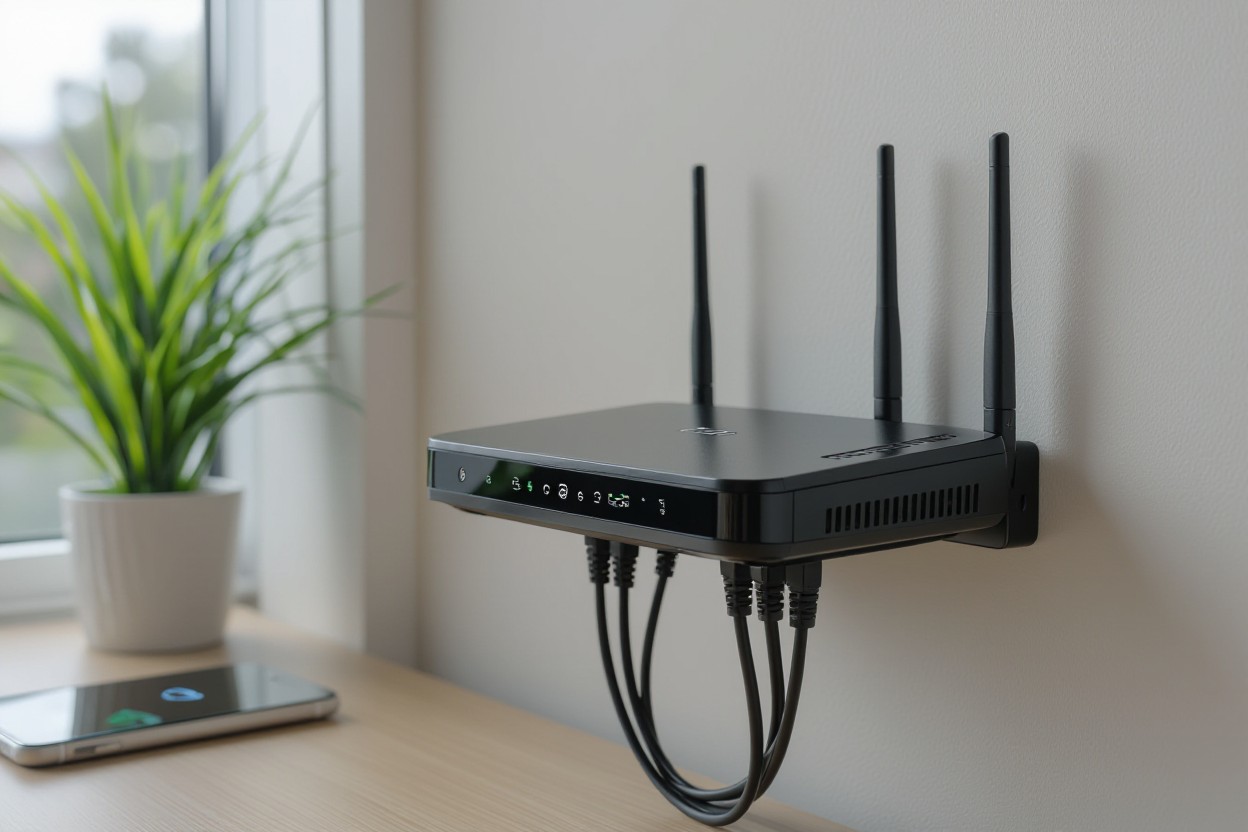
If your WiFi feels slow, shaky, or drops when several devices are connected, a new router might help. At Stay Connect, we know how much better things can get when you use a strong, modern wireless router. A better router can improve WiFi strength, give faster speeds, and make your internet more stable, whether you stream, work from home, game, or run smart home devices.
Let’s look at how a new router can improve performance and when it’s worth the upgrade.
Why Your Present Router Might Be Holding You Back
- Older routers lack the latest wireless tech. Older routers may only support basic WiFi standards. Newer routers, especially WiFi 6 routers, use updated protocols. This means faster internet speed, better handling of many devices, and stronger WiFi signals.
- Limited bandwidth slows down the connection when many devices are connected. If you have several smartphones, smart home devices, laptops, or gaming consoles, the old router can become a bottleneck. You might see slowdowns, buffering, or dropped connections.
- Weak antenna or poor placement reduces WiFi range. If your router has weak antennas or is tucked away in a corner, your WiFi signal might not reach every part of your home or office. This creates dead zones.
- Firmware is outdated or missing features like beamforming or better encryption (like WPA3). Without up-to-date firmware, the router may not manage wireless connections well or secure them properly.
- Old hardware struggles with modern internet plans. If you recently upgraded your internet plan or moved to a faster connection, your older router might not let you enjoy the full speed.
What a Better Router Actually Does
Upgrading to a good wireless router brings several real improvements for your home network:
Faster, More Stable Internet
Modern routers support higher data rates. With a WiFi 6 router or other latest-generation wireless models, you get faster speeds and better performance. That helps with streaming 4K video, video calls, online gaming, and heavy workloads.
Stronger WiFi Signal and Wider Coverage
A newer router often includes better antennas and improved signal management. It can push WiFi signals farther, reduce dead zones, and keep connections stable even when devices are far from the router.
Better Handling of Multiple Devices
If many devices are connected, laptops, phones, smart home gadgets, a newer router manages bandwidth more efficiently. That means less slowdown, less buffering, and fewer dropped connections.
Improved Reliability and Security
Better routers usually support newer encryption standards, like WPA3, and more features. That helps protect your network from hackers and ensures a stable wireless connection.
More Flexibility (mesh WiFi, extender support, Ethernet ports)
Modern routers often support mesh WiFi systems, range extenders, or use Ethernet ports for wired connections. You can extend your WiFi range, connect devices with cables for the fastest speeds, or use a hybrid wired-and-wireless connection.
When Upgrading Makes the Most Sense
You may want to upgrade your WiFi router when:
- Your current WiFi router is several years old and does not support WiFi 5 or WiFi 6.
- Many devices are connected (smartphones, laptops, gaming consoles, smart home devices).
- You experience frequent dead zones or weak signals in parts of your home or office.
- You upgraded your internet plan, but are not achieving the promised speeds due to your router’s limitations.
- You need a more stable internet for work from home, video conferencing, or online gaming.
- You want better security and network protection with modern encryption and firmware updates.
If any of these apply, a newer wireless router may significantly improve your internet connection.
Can a Better Router Increase WiFi Range?
Yes, a better wireless router often improves WiFi range. With stronger antennas, improved signal strength, and features like beamforming, a modern router can deliver WiFi across a larger area. This helps you connect reliably in different rooms, or even upstairs or downstairs.
For larger spaces or multi-floor homes, this improved range often makes a noticeable difference compared to older routing gear.
Is It Worth Upgrading Your WiFi Router?
In many cases, yes, upgrading can be well worth it. If you:
- Use many devices,
- Have slow or unreliable WiFi,
- See speed limits even when your internet plan is fast,
- Experience dropped connections or buffering,
then a new router can significantly improve your experience.
But if your needs are basic (light browsing, email on one or two devices), and you live in a small apartment, the improvement may be less dramatic.
How to Improve WiFi Strength: More Than Just a New Router
Upgrading the router helps, but here are extra steps to get the best signal and speed:
- Place your router in a central location. Keep it away from walls or metal objects, and avoid putting it in a cabinet. This helps WiFi signals spread evenly through your home or office.
- Use a wired connection (Ethernet) when possible. Devices connected via cable often get the fastest, most stable speeds.
- Update router firmware regularly. This can improve performance and security.
- Consider a mesh WiFi system or a WiFi extender if you have dead zones. A mesh system or range extender helps spread coverage across larger spaces.
- Use a WiFi 6 router or newer when possible. New wireless standards deliver better performance and work well with many devices.
- Use band steering or dual-band routers (2.4 GHz + 5 GHz). This lets devices pick the best band for stability vs speed.
- Secure your network with strong encryption (WPA3). This helps protect your home network from unauthorized access and keeps connections stable.
Why Stay Connect Is the Right Partner for You
At Stay Connect, we provide advanced wireless routers, including 4G and 5G models, to deliver a strong WiFi signal, faster speeds, and stable connectivity. Whether you are in a small home, a large house, or a rural area where regular broadband is weak or unavailable, our routers work well. Our team in Allen, Texas will help you find the right solution for your home or office needs, and make setup easy and stress-free.
Frequently Asked Questions (FAQs)
Can a better router increase WiFi range?
Yes. A newer router with stronger antennas, modern wireless standards, and better signal management can push WiFi further and reduce dead zones.
Is it worth upgrading your WiFi router?
If your internet feels slow, you have many connected devices, or you upgraded your internet plan, but your speed didn’t improve, upgrading can be worth it. For basic use in a small space, the gains may be less.
Does a router affect WiFi strength?
Yes. A router’s age, antenna, WiFi standard (e.g. WiFi 6 vs older), and position all affect how strong and stable your signal is.
How to make your WiFi router signal stronger?
You can place the router in a central, open spot, update the firmware, use a new router or a WiFi 6 model, add a mesh system or an extender, or use Ethernet for key devices.
Will a better router improve WiFi strength for gaming and multiple devices?
Yes. A modern router, with dual-band or WiFi 6, good antennas, and bandwidth handling, can support gaming, streaming, smart home devices, and many other connected devices simultaneously, delivering a stable, fast internet connection.
What else besides a router can improve my home network?
Using a mesh WiFi system, WiFi range extender, wired connections for stationary devices, and placing the router properly can all help. Also, secure your network with updated encryption and firmware.
Can a router help extend the range of wireless signals?
Yes, a newer router can help extend the range by boosting WiFi signals and improving coverage. You can also add an access point or a WiFi booster to reach more areas of your home.
How do I know if my connection speed is slow because of the router?
Run a speed test directly through your modem, then compare it with the speed on your WiFi connection. If the numbers drop a lot, the router may be limiting WiFi bandwidth.
What is the best way to troubleshoot weak WiFi signals?
Try moving your WiFi to a central spot, changing the channel, and checking for obstructions around the router. Updating to the latest wireless standards or using mesh WiFi often gives reliable, stable performance.
Final Thoughts
If you want a stronger WiFi signal, faster internet speed, wider coverage, and stable connections for all your devices, a new wireless router can make a big difference. At Stay Connect, we build and offer top-tier 4G/5G and WiFi 6 routers for homes and businesses in Allen, Texas, and beyond.
Reach out to us at (888) 997-6877 or visit our site to explore our router lineup and find the best solution for your home or office. Upgrade your home network today, and enjoy reliable, fast internet for streaming, gaming, working, or smart home devices.
Also Read:
Can Routers Affect Internet Speed? (The Complete Guide for Faster, Stronger Home Wi-Fi)
Where Is the Best Place for Your Router for Faster Internet?
How Do 5 Fixes Improve Your Reliable Internet Connection?

by content@click4corp.com | Nov 25, 2025 | Internet & Wi-Fi
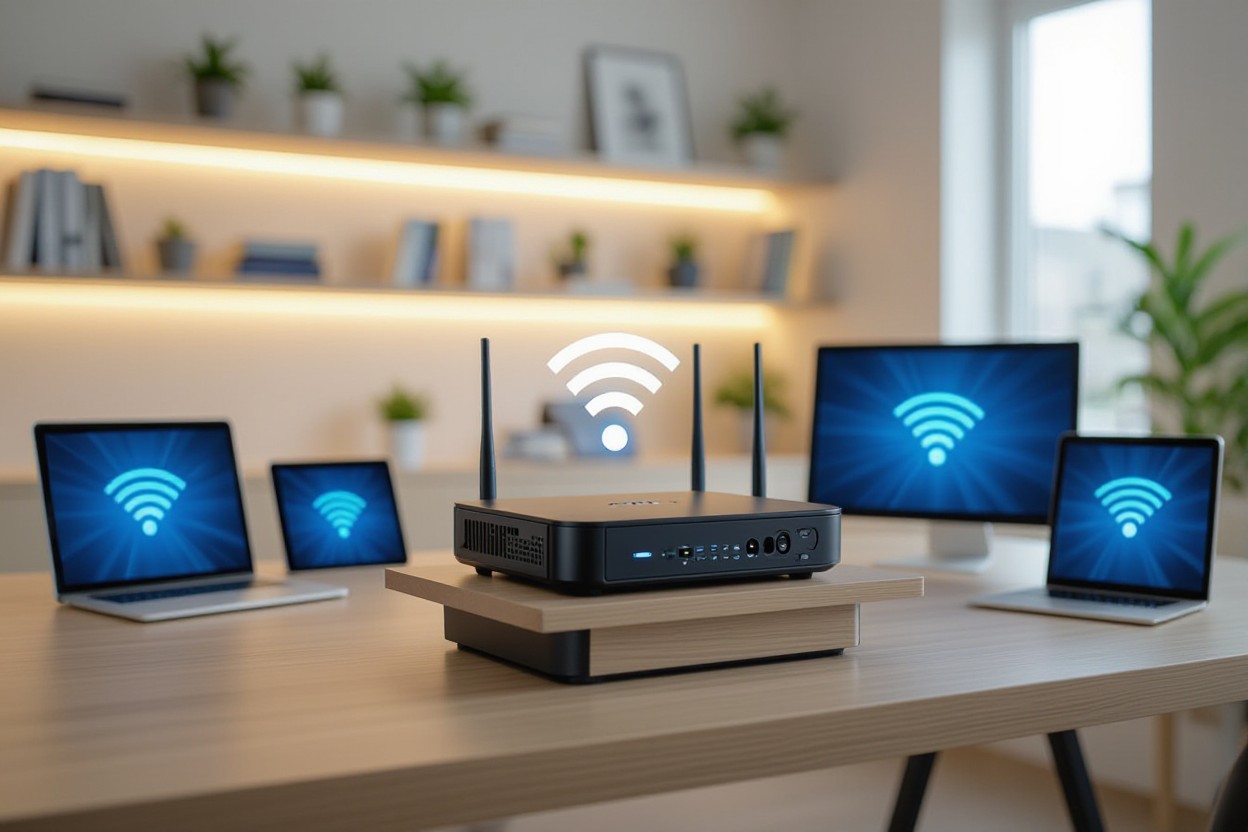
If you have ever wondered, “Can routers affect internet speed?”, the short answer is yes, they can, and often more than you think. At Stay Connect, we talk to many homeowners and small business owners who deal with slow internet, and most of the time, the router is a big part of the problem. Your router is responsible for connecting all your devices to the internet, so when it falls behind, your whole network slows down.
This guide breaks down how your router can affect your internet connection, the signs your router is slowing things down, and the simplest ways to get faster internet speeds at home.
How Your Router Affects the Speed of Your Internet Connection
Your router plays a big part in the speed of your internet because it handles all the internet traffic moving between your devices and your modem. Even if you have a high-speed internet plan, the wrong router may slow your internet speed without you noticing.
Here’s how it happens:
1. Older Routers Can’t Handle Modern Speeds
Many homes still use an older router that can’t support the maximum speed of today’s plans.
If you upgraded your internet plan but your router doesn’t support higher speeds, you’ll still get slower speeds.
2. Router Placement Can Affect Your Internet
Where you place your router plays a huge role in the speed and reliability of your Wi-Fi.
When your router is hidden behind furniture, in a corner, or inside a cabinet, your signal becomes weak.
For the best results:
- Keep the router in a central area
- Elevate the router
- Move away from the router if there’s heavy interference
- Keep your router in an open space
3. Outdated Technology Can Slow Down Your Internet
Modern routers offer better speed and performance thanks to new technology like:
- Dual-band or tri-band support
- MU-MIMO
- Beamforming
- Wi-Fi 6 routers
An outdated router might be slowing your internet because it can’t distribute the internet connection to many devices at once.
Router or Modem — Which One Affects Speed More?
Your router and modem work together, but they do different jobs.
- The modem links your home to your internet service provider.
- The router distributes that connection to your devices.
A bad modem can also affect internet speed, but in many homes, the router is causing slow internet more often. If your router is connected to your modem using an Ethernet cable, but the router is old or not working well, your speed can get stuck.
Can a Router Increase Internet Speed?
A router doesn’t increase the speed of your internet plan, but a new router or a better router can help you reach the speed of your internet plan more consistently.
If your plan offers fast internet but your router can’t handle it, upgrading to a new router can feel like an increase in speed because now you’re finally reaching what you’re paying for.
You may notice:
- Higher download speed
- Better speed and stability
- Faster internet across devices
- More consistent internet speeds
- Better results when you test your internet speed
Signs Your Router May Be Slowing Down Your Internet
Here are common clues:
- Speed test results aren’t close to your plan
- Wi-Fi becomes weaker in some rooms
- Your connection drops often
- You already upgraded your internet plan, but nothing has changed
- Devices connected to your router load slowly
- You only get fast internet when you use an Ethernet cable
If any of these happen, the router might be slowing your internet.
How to Check If Your Router Is Causing Slow Internet Speeds
1. Run the Speed Test
Use any trusted speed test tool and compare the results with your plan’s maximum speed.
2. Test With Ethernet
Connect your laptop to the modem through an Ethernet cable.
If the wired speed is fast, but the wireless speed is slow, the router is the issue.
3. Restart Your Router
Restarting your router can help it clear old data and restore faster performance.
4. Check If Your Router Is Old
If your router is more than 3–5 years old, it’s likely outdated.
5. Inspect Router Placement
Poor placement can significantly impact your internet.
Always place your router centrally and above the floor.
Tips to Improve Your Internet Speed With Better Router Setup
You do not always need a new router. Try these steps first:
- Keep the router in a central spot
- Make sure your router is elevated
- Keep your router away from thick walls
- Restart your router often
- Limit devices when streaming
- Use an Ethernet cable for gaming or heavy work
- Update your router firmware
- Consider using mesh systems for large homes
These steps can help optimize your internet and improve your internet speed at home.
Upgrading to a New Router: What You Should Look For
When choosing a router to increase the speed of your internet connection, look for:
- Wi-Fi 6 or newer
- Dual or tri-band
- Strong range
- High-speed capabilities
- Quality build
- Support for many devices
Stay Connect offers a range of modern routers designed to handle today’s high-speed internet. You can check out the full list of products on the website under the Products section.
FAQs About Routers and Internet Speed
1. Does upgrading your router improve your internet speed?
Yes, upgrading your router can help you reach your plan’s full speed, especially if your old router can’t handle faster internet speeds.
2. Can modems affect internet speed too?
Yes. If your modem is outdated, it can slow down your internet. But in many cases, the router has a greater impact on speed.
3. How do I know if my router is outdated?
If it is more than 3–5 years old, struggles with multiple devices, or frequently drops your connection, it may be outdated.
4. Why is my Wi-Fi slower than wired internet?
Wired connections use direct cables, while wireless connections lose speed due to distance, walls, and interference.
5. Where should I place my router for the best signal?
Place your router centrally, high up, and in an open area to get stronger coverage and better speeds.
6. Can too many devices connected to my router slow my internet?
Yes. When many devices share the same bandwidth, speeds slow down.
7. What router features help improve speed and performance?
Look for Wi-Fi 6, beamforming, multiple antennas, and multi-band support.
Final Thoughts: Can Routers Affect Internet Speed?
Yes , your router can significantly impact your internet, either by slowing things down or by helping you reach faster, more consistent internet speeds. A modern router can make a big difference in speed, stability, and day-to-day performance.
Stay Connect offers high-quality routers and networking tools that help homes and small businesses get the best experience possible. If you want fast internet without the usual problems, the right router setup is the first step.
Ready for faster, more stable internet? Visit Stay Connect today or call us at (888) 997-6877 to explore modern routers, mesh systems, and network solutions that can improve your internet speed. Our team proudly serves customers nationwide and offers products that help you enjoy better speed, stronger connections, and smoother online use.
Book an appointment or shop now at Stay Connect, your trusted provider for smart, reliable home internet solutions.
Also Read:
Why Is 5G Global Connectivity a Game-Changer Today?
What Is Airconnect and How Does It Work with AirPlay and Chromecast?
Where Is the Best Place for Your Router for Faster Internet?

by content@click4corp.com | Nov 24, 2025 | Internet & Wi-Fi
If you’ve ever wanted to use AirPlay to stream to your favorite Chromecast devices, you’ve probably heard about AirConnect. It’s a smart, lightweight bridge that connects your Apple devices with non-AirPlay speakers, like Sonos or Chromecast. At Stay Connect, we aim to help users around the world set up their routers and streaming devices so AirConnect works perfectly on any network.
In this AirConnect installation guide, we’ll walk you through setting it up, configuring it with your router or Synology NAS, and fixing common connection issues so you can enjoy seamless streaming across all your devices.
What Is AirConnect and Why You Should Use It
AirConnect is an open-source tool designed to bridge AirPlay and UPnP/DLNA devices. It basically lets you stream your iTunes, Apple Music, or other media apps to devices that generally don’t support AirPlay like your Chromecast players, Sonos systems, or even Bose SoundTouch speakers.
You can think of it as a translator that converts AirPlay signals into a format your non-Apple devices understand. Once installed, your speakers or streamers will appear as an AirPlay player on your network.
Benefits of Using AirConnect
- Stream from iOS or macOS easily without buying new speakers
- Connect multiple rooms or players for synchronized playback
- Reduce latency and buffering with proper router setup
- Works with FLAC, MP3, and other high-quality audio formats
- Compatible with Synology NAS, Docker, and various Linux systems
How to Prepare for AirConnect Installation
Before starting the installation, make sure you have:
- A stable router with UPnP enabled
- A local network where your devices can detect each other
- Access to your Synology NAS or Docker setup if you’re installing through DSM
- Basic knowledge of your device’s IP address and port configuration
- Audio devices (Sonos, Chromecast, Bose, etc.) connected to the same Wi-Fi
If your router’s firewall is too strict, you may need to open specific ports for AirConnect to work properly. Always make sure your firmware and router settings are up to date before you begin.
Step-by-Step AirConnect Installation Guide
Follow these simple steps to get AirConnect running smoothly.
Step 1: Download AirConnect
Visit the official GitHub repository for AirConnect. Download the right binary version based on your system architecture:
- x86, x86_64 for most PCs or NAS devices
- ARM/aarch64 for Raspberry Pi or similar systems
- PowerPC for older setups
Once downloaded, unzip the file to a directory or location that you can readily access.
Step 2: Configure the AirConnect Settings
AirConnect uses a simple configuration file (config.xml). You can open and edit it using a text editor. Adjust the following parameters:
- HTTP latency – helps reduce audio delay
- Buffer – controls stream smoothness
- Metadata – syncs song info with your player
- RTP/Port – make sure your port doesn’t conflict with other streaming apps
Save the changes and close the file.
Step 3: Start the Service
Run the AirConnect binary using the command line or terminal. Example:
./airupnp -z
You may also use the –noflush or –f parameter for advanced setup.
Once started, AirConnect will scan your local network for compatible devices. Your Sonos, Chromecast, or Bose systems should now appear as AirPlay players.
Step 4: Configure Router and Firewall Settings
If your stream is lagging or not appearing, check your router settings:
- Make sure UPnP is turned on
- Allow multicast traffic for device discovery
- Disable strict firewall blocks on AirConnect ports
- Set static IP addresses for stability
These small tweaks can dramatically improve synchronization and reduce latency when using AirPlay.
Step 5: Troubleshooting Common Issues
If something goes wrong, here’s what to check:
IssuePossible CauseQuick Fix
Devices not appearing Multicast disabled Enable UPnP on router
Stream lag or delay Buffer too small Increase buffer value in config file
Playback stops randomly Router firewall too strict Add AirConnect to firewall exception list
AirPlay player missing Wrong binary version Download the right version from GitHub
Sonos group not syncing Volume config issue Use the Sonos application to change individual volumes
If you’re using Synology DSM, restart the package through the Synology Package Center. For Docker, run docker restart airconnect to relaunch.
Advanced AirConnect Setup on Synology NAS
For Synology users, AirConnect can run as a Synology package or through Docker.
- Open Docker on DSM
- Pull the latest AirConnect image from the repository
- Map the correct ports and volume directories
- Configure startup commands in the container settings
This setup is more stable and ideal for 24/7 streaming across multiple devices. It also supports automatic startup when your NAS reboots.
Why Router Configuration Matters
Your router is the heart of your AirConnect network. A good router ensures:
- Fast device detection for Sonos and Chromecast
- Low latency for smoother AirPlay playback
- Reliable multicast performance for synchronisation
- Secure streaming through controlled ports
At Stay Connect, our routers are designed for seamless connectivity—perfect for both home and professional streaming setups.
FAQs About AirConnect Installation and Streaming
1. Can I use AirConnect with any Chromecast device?
Yes, as long as your Chromecast and Apple devices are on the same Wi-Fi network, AirConnect will let you stream easily.
2. What if my AirPlay stream has a delay or lag?
You can lower latency by adjusting the buffer and HTTP latency parameters in the configuration file.
3. How do I install AirConnect on Synology NAS?
Use Docker or the Synology package from the GitHub repository. It’s simple and stable for continuous streaming.
4. Why can’t I see my Sonos speaker on AirPlay?
Make sure you use the Sonos application to change individual volumes and reset all volumes if needed. Also, confirm that multicast is enabled on your router.
5. Do I need to open ports on my firewall?
Yes, AirConnect needs open RTP ports for audio streaming. Always check your router’s firewall rules to avoid blocked traffic.
6. What file formats can AirConnect play?
It supports MP3, FLAC, and many others. You can also configure playback quality in the settings.
7. How do I restart AirConnect if it crashes?
Simply restart it using the command line (./airupnp -z) or reboot your Docker container or Synology package.
8. Do I need to install AirConnect manually for new AirPlay devices?
In most cases, you don’t need to reinstall it. Once AirConnect is running, new AirPlay devices will automatically appear under your network’s default settings and group list.
Final Thoughts
Setting up AirConnect might sound complex, but with the right router and configuration, it’s easier than you think. Whether you’re using Chromecast devices, Sonos speakers, or a Synology NAS, this guide should help you stream flawlessly across all platforms.
At Stay Connect, we offer high-quality routers and reliable connectivity solutions designed for smooth streaming and network stability. If you’re ready to upgrade your home or office setup, our team can help configure your AirConnect system for optimal performance.
Your Next Step
Stay Connect proudly serves customers worldwide, offering advanced routers, streaming setup assistance, and network optimization services for homes and businesses. For a faster internet connection, avail our routers today!
Also Read:
What Are 7 Ways Wireless Internet Connection Saves Money?
What Is Airconnect and How Does It Work with AirPlay and Chromecast?
Where Is the Best Place for Your Router for Faster Internet?
by content@click4corp.com | Sep 16, 2025 | Uncategorized

When it comes to streaming audio from different platforms, Airconnect is a reliable solution that bridges the gap between devices that don’t normally talk to each other. It lets Chromecast devices, Sonos speakers, and UPnP clients appear as AirPlay receivers, making it simple to stream music from your iPhone, iPad, or other Apple devices. At Stay Connect, we believe setting up audio should be easy, whether you’re using it at home, at work, or on the go.
Understanding Airconnect: The Bridge for Seamless Streaming
At its heart, Airconnect delivers a way to enable smooth audio streaming across platforms. Think of it as a bridge—your Chromecast devices and Sonos speakers appear as AirPlay output devices, letting you start streaming instantly. This is especially helpful if you want to use AirPlay on platforms that don’t support it by default.
The app is lightweight, runs quietly in the background, and doesn’t require heavy maintenance. Once installed, your speakers or devices will appear as AirPlay audio receivers, and you can select them from your iPhone, iPad, or even a browser. Many users enjoy how flexible it is—you can stream to multiple speakers, adjust volume in real time, or fine-tune latency to avoid delays.
AirConnect Installation Guide: How to Get Started
If you’re ready to try it out, this AirConnect installation guide breaks things down step by step:
- Download the package – Head to GitHub, where developer philippe44 maintains the repository. Look under “release” to find the right binary for your platform (x86, arm64, aarch64, Raspberry Pi, Synology, or iOS).
- Unpack the container – Place the folders and files in a dedicated directory. This makes it easier to manage repository file navigation later.
- Config the setup – Create or edit a config file to set variables such as IP, output device, or volume. These adjustments help with HTTP latency, RTP, and custom configuration for real-time output.
- Install via Docker – Many users prefer a Docker container because it keeps the server always running. You’ll need to install Docker, run the startup script, and make sure the app restarts automatically.
- Verify the log – Once it’s up, check the log to ensure your devices have appeared as AirPlay receivers. This confirms that the server and client communication are working.
- Start streaming – Open your iPhone or iPad, select your Sonos or Chromecast devices that now appear as AirPlay, and start streaming audio in real time.
Pro tip: If you want smoother performance, keep your folders and files organized, restart occasionally, and check the latest commit on GitHub for updates.
Why Use Airconnect with AirPlay and Chromecast?
There are plenty of reasons people are switching to using Airconnect in their streaming setup:
- Cross-Platform Freedom – It enables Chromecast and UPnP clients to appear as AirPlay receivers, making it easy to stream across multiple devices.
- Custom Control – Adjust latency, manage volume, or configure output devices with variables in your config file. You can even change default settings to match your setup.
- Multiple Platforms – Works smoothly across iOS, Synology, Raspberry Pi, and Docker. Whether you use an iPhone, iPad, or server, it adapts easily.
- Always Running – A Docker container allows Airconnect to stay online without manual restarts. Perfect for users who want it running in the background at all times.
- Low Maintenance – With binary updates, realtime improvements, and ongoing maintenance, the project stays current without requiring constant input from you.
In short, Airconnect delivers a consistent way to start streaming from Apple devices to speakers that normally wouldn’t support AirPlay audio.
Advanced Features You’ll Appreciate
What makes this app even more interesting is its flexibility.
- Real-Time Adjustments: Fine-tune http latency, rtp transmission, or realtime output using simple commands like -z, -l, or -x.
- Docker Integration: By running in a Docker container, you can keep it always running, reduce downtime, and simplify maintenance.
- Custom Configuration: Modify your startup script, change output devices, or set directory paths for folders and files. Great for advanced users.
- Wide Device Support: From Sonos to Chromecast and UPnP clients, your devices appear as AirPlay without extra effort.
- Developer Support: With repository files navigation, ongoing updates, and the latest release from GitHub, it stays well-maintained.
Conclusion
At the end of the day, Airconnect is one of the easiest ways to link AirPlay audio with devices like Chromecast and UPnP speakers. It bridges the gap between Apple devices and other platforms, giving you flexibility, real-time streaming, and consistent performance. At Stay Connect, we’re here to help you set up, configure, and make the most of your devices, ensuring your audio streaming is as smooth as possible.
FAQs
1. What is AirConnect?
It’s a lightweight app that makes non-AirPlay devices, such as Chromecast or Sonos, appear as AirPlay receivers, allowing you to stream from Apple devices.
2. Is AirConnect free?
Yes, it’s open source and free to download from GitHub. You just need to install it on your platform.
3. Is AirConnect legit?
Yes, it’s a reliable project maintained by a trusted developer. Thousands of people use it worldwide.
4. Is AirConnect safe?
It’s safe to use when downloaded from the official GitHub repository. Avoid third-party sources.
5. How do I install AirConnect?
Follow the installation guide: download the package, unpack, config the files, and run it through Docker or directly on your server.
6. Can I run AirConnect on Raspberry Pi or Synology?
Yes, binaries exist for Raspberry Pi, Synology, and other platforms, making it very flexible.
7. Does AirConnect support multiple output devices?
Yes, you can stream to multiple speakers, manage latency, and control volume in real time.
8. How do I update AirConnect?
Check the latest commit and release on GitHub for updates. Replace the binary or update your Docker container for the latest version.
Get Smooth Streaming with StayConnect
If you’re ready to enjoy smooth audio streaming with AirConnect, you’ll get the best results when paired with a reliable router. At StayConnect, we design powerful 4G and 5G routers that keep you online no matter where you are—at home, in the office, or even in rural areas.
Our lineup includes:
- StayConnect™ BEC AirConnect® 8355P 5G CPE – A weatherproof, WiFi 6–equipped router built for both indoor and outdoor use with lightning-fast speeds.
- Skylink X1271 Velox Router – A portable solution perfect for remote work, gaming, and streaming in hard-to-reach areas.
- StayConnect™ MR X62 Router – A future-ready router with blazing 5G speeds, WiFi 6, and advanced features like mesh networking and VPN support.
Each router is designed for speed, stability, and simple setup—so you can focus on streaming, working, or relaxing without worrying about your connection.
Call us today at (888) 997-6877, visit us at 28 Prestige Cir, Ste 1120, Allen, TX 75002, or explore our products online at StayConnect. Let us help you find the perfect router to keep you connected anytime, anywhere.
Also Read:
Where Is the Best Place for Your Router for Faster Internet?
How Does Hassle-Free Internet Boost Your Productivity?
Why Is 5G Global Connectivity a Game-Changer Today?

by content@click4corp.com | Jun 2, 2025 | Uncategorized
Global connectivity is more than just a fancy phrase; it’s the heart of our world today. At Stay Connect, we understand that staying connected while traveling shouldn’t be difficult. Everyone deserves easy access to a reliable global connection, whether you’re working, traveling, or simply staying in touch with family.
Why Is Global Connectivity So Important?
Consider this: from video calls with family far away to crucial work meetings across different time zones, a strong connection is essential. It helps us talk, makes travel easier, and helps businesses grow. Without good global connectivity, these everyday things would be much more complicated, maybe even impossible.
No one wants to feel cut off when they’re away from home. A steady connection means you can share moments, get news, and feel close to the people you care about. It lets you send quick messages, share photos, and even have live video calls that feel like you’re in the same room. Imagine seeing your grandchild take their first steps or join a family gathering online, all thanks to seamless worldwide connectivity.
For companies, global connectivity opens up new markets to sell to and enables teams to work together efficiently from anywhere. It’s about breaking down walls so businesses can do bigger things. From remote workers requiring constant international network coverage to companies expanding into new countries, a robust global internet connection is the backbone of today’s business. This means faster decisions, better assistance for customers, and finding talented people anywhere in the Globe.
Imagine trying to find your way in a new city without maps or translation apps. A good connection makes travel simple, less stressful, and more enjoyable. From finding the best local restaurant to calling a ride, your phone becomes your must-have travel buddy, all thanks to excellent international mobile data. It also gives you peace of mind, knowing you can call for help or reach your travel insurance if needed.
What Makes a Good Global Connect?
When we talk about a good global connection, we mean several vital things that make your life simpler. It’s not just about having internet; it’s about having the right kind of internet.
Connection You Can Trust
Have you ever been on an important call, and it suddenly cut out? That isn’t very pleasant! A truly good connection is one you can rely on every single day. It means steady service with very few interruptions, no matter where you are. This strong reliability is key for everything from browsing the internet to serious work tasks. When you have reliable global internet access, you don’t have to worry about missing important emails or getting disconnected during a video call. It just works all the time.
Fast Speeds for Smooth Experiences
Slow internet is a pain. We’ve all been there, waiting for web pages to load or videos to start. With a fast global connectivity solution, you can browse, watch videos, and work without delays. This means you get more done and spend less time waiting. High-speed international data roaming allows you to send trip photos instantly, watch your favorite shows uninterrupted, and download crucial documents quickly. It makes everything you do online feel faster and more enjoyable.
Simple Ways to Stay Connected
Technology can sometimes feel tricky. But getting connected around the world shouldn’t be. We focus on making our solutions easy to use so you spend less time figuring things out and more time using your connection. Our goal is to give you global network solutions that are easy to set up and manage. No confusing guides or hidden fees, just a simple international connection.
Common Problems with Connecting Abroad
Even though having global connectivity is great, many people run into problems when trying to stay connected in other countries.
The High Cost of Roaming
One of the biggest concerns for travelers is the cost of traditional international roaming. Those phone bills can add up fast, turning a fun trip into a money problem. Many phone companies charge very high prices for using your home plan overseas, making simple browsing or video calls very expensive. This often makes people use their phones less, which can be frustrating when you want to share your trip or need to do some work.
The Search for Good Wi-Fi
Just relying on public Wi-Fi can be risky. While free Wi-Fi spots sound good, they often have downsides. Speeds can be painfully slow, especially when many users are accessing them simultaneously. Public Wi-Fi networks may not be secure, making your private information exposed to others. This makes it risky to check bank apps or handle essential work data. Finding consistent and safe wireless global connectivity when you’re out and about can be a real challenge.
The Trouble with Local SIM Cards
Buying a local SIM card in each new country is a good idea for accessing international networks. Still, it comes with its own set of concerns. You need to find a store, sometimes deal with different languages, sign up for the SIM (which may require a local ID), and then physically swap out your current card. This means you might lose your home SIM card, and it can take a lot of time, cutting into your valuable travel time.
People Also Ask About Global Connectivity
-
How can I stay connected when traveling internationally?
You have a few choices! You can use local SIM cards, international roaming from your current phone company, or special international data plans and eSIMs made for travelers. For ease and to save money, many people now choose eSIM global data solutions.
-
Is public Wi-Fi always good when I’m abroad?
While Wi-Fi is often available, how good and safe it is can change a lot. Public Wi-Fi networks may not always be secure, and speeds can fluctuate. Just relying on them for important global internet access isn’t always the best plan.
-
Are these global connection solutions safe?
Using a special international data plan or eSIM is generally safer than relying on unsecured public Wi-Fi for your internet connection abroad.
Wrapping Up: Your World, Connected
In a world that continues to move forward, staying connected is not just lovely—it’s a must. From sharing happy family times to finishing important work deals, truly reliable global connectivity makes all the difference. We know the problems of staying connected abroad, and that’s precisely why Stay Connect is here: to offer simple, reliable, and affordable network access.
Ready to experience truly reliable global connectivity? Check out our range of options, or look at our data plans. Visit our website to find your easy way to stay connected always.
Stay Connected: Your Guide to Understanding Wireless Internet
by content@click4corp.com | May 19, 2025 | Uncategorized
We use wireless internet every day. It lets our phones, laptops, and other things connect to the internet without messy wire connections. Here at Stay Connect, we want to make understanding wireless internet super easy. Let’s talk about how you can get internet access without the wires.
Understanding Your Wireless Home Internet Options
When it comes to getting wireless home internet, you have several choices, each with its own way of bringing the internet to your doorstep. Knowing these options can help you decide which one best fits your needs, location, and budget.
Diving Deeper into Cable Internet
Many homes get their internet through the same cable television lines they use for TV. This type of broadband connection uses coaxial wires to transmit data at relatively high speeds. Often, the ISP provides a modem that connects to these cable lines, and then you can connect your own wireless router to create your wifi network at home.
Exploring the Possibilities of Fiber Internet
Fiber internet uses optical fiber cables to transmit data using light signals. This technology is capable of delivering incredibly fast speeds and low latency, making it ideal for activities that requires a lot of bandwidth, such as online gaming, video conferencing, and streaming in 4k resolution. Fiber plans often offer symmetrical upload and download speeds, which is a big plus for those who frequently upload large files. The availability of fiber internet is expanding, and it’s often considered one of the most reliable and fastest types of broadband available.
Considering Digital Subscriber Line (DSL)
Digital Subscriber Line (DSL) uses your current phone wires to deliver internet access. While the speeds might not be as fast as cable or fiber internet, it’s often a more widely available option, especially in areas where other broadband infrastructure isn’t as developed. The performance of DSL can depend on your distance from the telecom wifi company’s central office.
The Rise of Fixed Wireless Internet
As we touched on earlier, fixed wireless internet delivers broadband through radio waves from a nearby tower to an antenna at your home. This is becoming a popular option in rural and suburban areas where laying physical wires can be costly or difficult. Companies like Straight Talk Home and other fixed wireless internet providers are expanding their coverage, offering a viable alternative to traditional wired internet. The signal strength and potential speeds depend on factors like distance and any obstructions between your antenna and the tower.
Leveraging LTE Home Internet and Mobile Broadband
LTE home internet and other mobile broadband use the same cellular network infrastructure that powers your mobile phone. You typically use a mobile broadband modem or a wireless router that accepts a SIM card to connect to the internet. While convenient for portability and areas with limited wired internet options, data plans and speeds can vary. Keep an eye out for 5g mobile broadband, which promises even faster speeds. You might even find services that let you create your own portable wifi mobile hotspot.
Satellite Internet Access in Remote Locations
For those truly off the beaten path, satellite internet access remains an option. It involves transmitting and receiving data from satellites orbiting the Earth. While it can provide internet access in areas where no other broadband options exist, it often comes with higher latency and can be more susceptible to weather conditions.
Essential Equipment for Your Wireless Network
To get your wireless internet up and running, you’ll typically need a few key pieces of equipment:
Modem:
This connects your home network to the internet service provider’s network. The type of modem you need will depend on your internet connection type (e.g., cable modem, DSL modem, or an optical network terminal for fiber internet).
Wireless Router:
This device creates your local area network (LAN) and broadcasts the wifi signal that your devices connect to. Many modern internet router devices combine the functions of a router and a modem into one unit.
Ethernet Cables:
While we’re talking about wireless, Ethernet cables are still useful for directly connecting devices like desktop computers or gaming consoles to your router for a more stable and faster wired internet connection.
You might have the option to rent this equipment from your ISP or bring your own device (BYOD). If you choose to buy your own, make sure it’s compatible with your internet plan and consider features like speeds, coverage, and security.
Optimizing Your Wireless Internet Experience
Once you have your wireless network set up, there are a few things you can do to ensure a smooth and reliable experience:
Placement of Your Router:
Position your wireless router in a central, open location, away from walls, metal objects, and electronic devices that can interfere with the signal.
Password Security:
Set a strong and unique password for your wifi network to avoid unauthorized internet access.
Regular Updates:
Keep your router’s firmware updated. Manufacturers release updates to enhance performance and safety.
Network Congestion:
If you have multiple devices connected to your wireless network, it can affect speeds. Consider prioritizing bandwidth for devices that need it most.
Consider a Wi-Fi Repeater:
If you have a large home or areas with weak wifi signal, a repeater wifi or mesh wifi system can help extend your wireless network coverage.
Stay Connected: Your Local Wireless Internet Partner
At Stay Connect, we’re proud to serve communities like Tyler, Longview, Kilgore, Lindale, Jacksonville, Bullard, Whitehouse, Athens, Mineola, Henderson, and Gladewater with reliable wireless internet solutions. We understand that finding the right home internet plan is important, and our team is dedicated to providing excellent customer service and support. We aim to offer transparent pricing and flexible options to meet your requirements. You can easily check availability of our internet plans in your zip code through our website or by giving us a call. We believe in keeping things simple and straightforward, without complicated contracts or hidden fees.
Frequently Asked Questions
Will weather affect my wireless internet?
While Wi-Fi within your home is generally not affected by weather, some types of wireless internet, like fixed wireless and especially satellite internet access, can experience temporary disruptions during severe weather conditions.
What is internet latency?
Latency is the delay in data transfer. Lower latency is essential for real-time applications like online gaming and video calls. Fiber internet offers the lowest latency.
Can I use my cellphone as a wireless internet hotspot?
Yes. Most smartphones have a built-in feature allowing you to create a wifi mobile hotspot, sharing your cellular network data with other devices like your laptop or tablet. Remember that this uses your mobile broadband data allowance.
Do I need a separate modem and router?
Not always. Many ISPs provide a combined modem and wireless router unit. However, for more control and potentially better performance, some users prefer to use separate devices.
In Conclusion: Staying Connected in a Wireless World
Wireless internet has shifted the way we connect and access information. From the fast wifi in our homes to the mobile broadband in our pockets, it’s an integral part of modern life. At Stay Connect, we’re here to provide you with reliable wireless home internet options and support, ensuring you have a seamless online experience. We’re committed to serving our customers with internet plans that fit their needs.
Ready to get connected or upgrade your current wireless service? Visit our website today to check availability and explore our home internet plans. Our friendly team is also available to answer any inqueries you may have. Choose Stay Connect for a reliable and hassle-free wireless internet experience right here in your neighborhood!